
Although Pinterest does not allow users to download images in bulk, you can batch download Pinterest images on Chrome, Edge and Firefox. Browser extensions let you download any number of images from Pinterest. Here are a few of the best extensions to download your favorite images from the official website.
Batch Download Pinterest Images on Chrome, Edge or Firefox
To batch download Pinterest images on Chrome, Edge and Firefox, use these extensions:
- Image Downloader for Chrome, Edge
- Image Downloader for Firefox
- PinDown
- Download all Images
- Download All Images
To learn more about these extensions, continue reading.
1] Image Downloader for Chrome, Edge
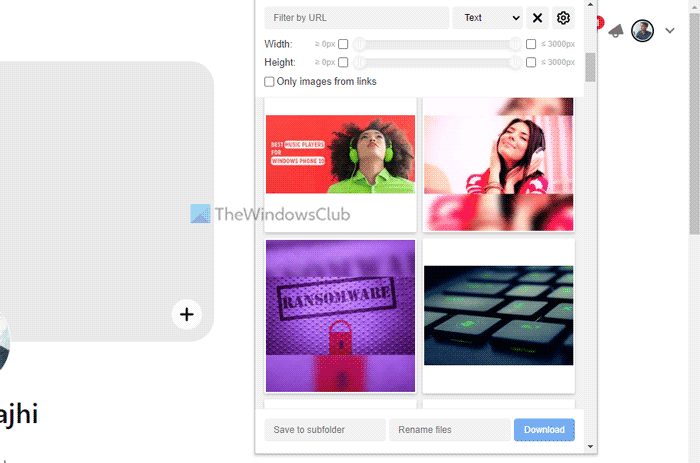
This extension helps you download all the images on the screen in one click. Whether you have five of fifty images on your monitor, you can download all of them at once. The best thing about this extension is that it filters images by height and width so that you can download only required images in bulk.
You can also save images to a specific folder instead of the Downloads folder. You can also choose specific pictures to download to your computer. Download Image Downloader from chrome.google.com.
2] Image Downloader for Firefox
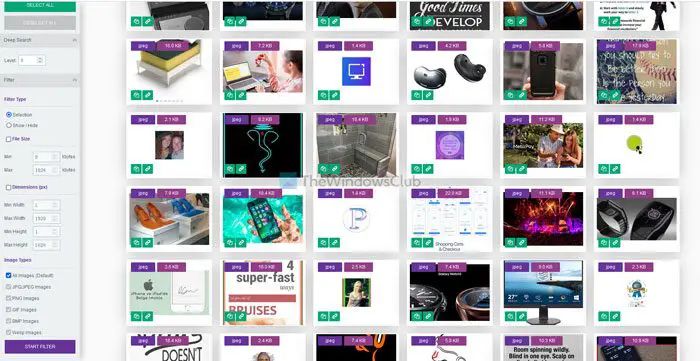
Like the first extension, this add-on is available for Mozilla Firefox. It does the same thing as the aforementioned extension. Whether you want to download fifty or one hundred images from one webpage, you can download them all within moments using this add-on.
It offers some filters as well. For example, you can set the image dimension, image format, etc. It is possible to download only JPEG, PNG, GIF, BMP, or Webp images. Download Image Downloader from addons.mozilla.org.
3] PinDown
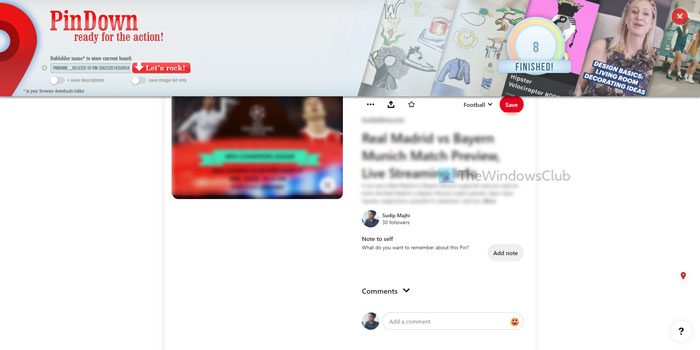
PinDown is another Google Chrome extension that allows users to download images from Pinterest in bulk. However, it works differently than the other two extensions. Instead of allowing you to download all the images from the Home Feed, you can download all from a particular board.
If the board has multiple images, you can download them all at once with this extension. Unfortunately, this extension is compatible only with Google Chrome. Download PinDown from chrome.google.com.
4] Download all Images
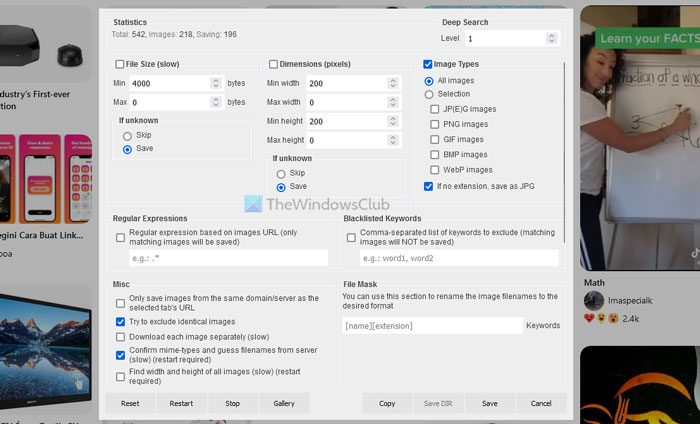
If you need an all-in-one solution, consider the Download All Images extension. It is compatible only with the Chrome & Edge browser. In terms of features and options, this extension includes plenty of tools. For example, you can choose image dimensions, file size, image format/extension, blacklist keywords and more.
The best thing is that you can download images in a specific format. For example, you can save them in JPEG, PNG, GIF, BMP, WebP, etc. Download Download all Images from addons.mozilla.org.
5] Download All Images
If you do not want to have many options and instead, want a one-click solution, you can opt for Download All Images extension. This extension is compatible with the Google Chrome browser only.
Talking about the features, it doesn’t offer any option like the others. Instead, open a board or page on Pinterest and click the extension. It downloads all available images in ZIP format. The disadvantage of having this extension is that you cannot choose the image dimensions before downloading. Download All Images from chrome.google.com.
Read: How to embed Pinterest Pins in OneNote or Word
How do I bulk download images from Pinterest?
As there is no in-built option available on the Pinterest website, you need to take the help of the browser extensions. This article mentions some of the best add-ons, and you can use them to download all images in bulk. You can download images by file size, dimensions, format and more.
How do I save multiple pins on Pinterest?
Currently, Pinterest doesn’t offer an option to save multiple pins. However, if you want to download multiple pictures from Pinterest, you can use the extensions mentioned above. PinDown, Download All Images, Image Downloader, etc., are some of the best extensions for this purpose.
Read: Pinterest Tips for Bloggers – Use Pinterest To Promote Your Blogs and Sites
