
Charts and Graphs are useful tools used for conveying information to clients. Complex numerical data are often presented graphically so they are easy to understand and remember. Graphical representations of data present information and its trends over time quickly.
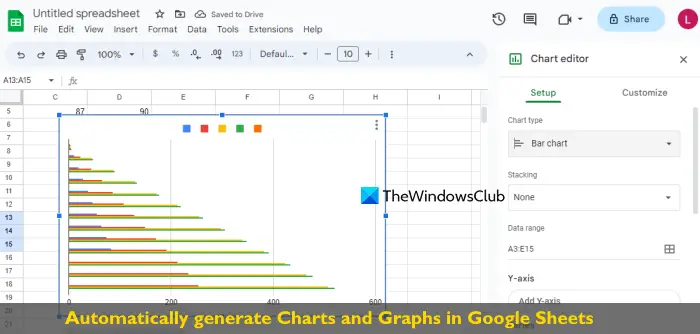
Visual images like charts and graphs also highlight important facts that are easy to remember and understand. Charts are most often used in business and for daily assignments, letting you see trends and comparisons easily in a visually appealing way. Whether you want to deliver a presentation or frame a report, charts play an important role in visualizing a complex data analysis for your audience.
Nowadays, Google Sheets is considered a viable alternative to Excel for its online accessibility from any device. Like Excel, Google Sheets includes various features to automate tasks and increase productivity. This web-based application lets you generate charts like any other spreadsheet to convey facts to the audience. It features a wide range of graphs and charts which you can choose for free to convey data in a visually appealing way.
In this article, we explain how to automatically generate charts in Google Sheets.
Can you make graphs from data in Google Sheets?
Yes, Google Sheets includes a native feature that automatically creates graphs from the data in a Google Sheets document. You need to select the graph or chart type (Line graph, Bar chart, etc.) in the Chart editor, set the data range and other options, and a graph is generated based on the selected data range and graph type. You can also change the chart type later.
Generate Charts in Google Sheets
Launch Google Sheets and create a new spreadsheet or open an existing sheet.
Fill the sheets with data into the cells and organize the numerical facts with a column header.
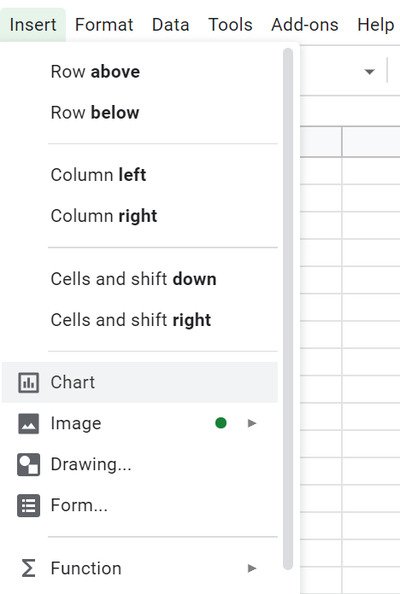
Navigate to Insert and select the option Chart from the drop-down menu. A chart editor window pops up.
Click the option Setup in the chart editor window.
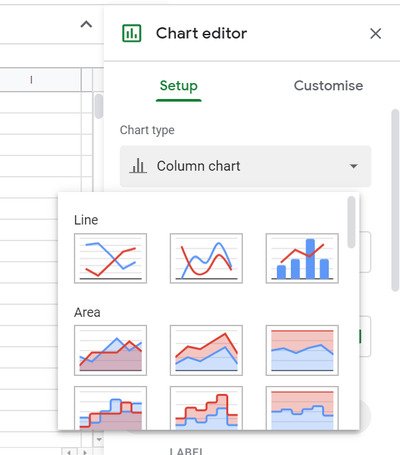
In the Chart type field, select the type of chart you want to create from the drop-down menu. Google Sheets provides 30 varieties of charts that you can choose to create for your data.
In the Data range field, select the range of cells that you want to be displayed on the table. You can either manually enter the range or use the pointer to select the data range.
Once the data range is entered, set X-axis or Y-axis based on the chart type. You can also use options like switch rows/columns, use a row as a header, etc. After that, click OK.
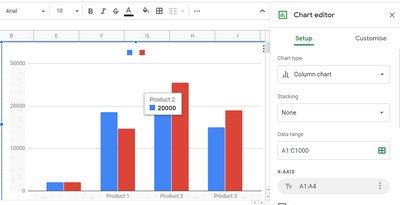
Google Sheets will now create and display a chart with all the data selected from the range of cells in the sheet.
Now, if you make any changes to the data in the sheet, the chart will be automatically updated with the new results without having to create a new chart for the updated value.
You can also change the type of chart for the same data easily in Google Sheets.
To change the chart type, double-click on the chart. This will open a Chart Editor menu.
Go to Setup and in the Chart type field select a new type from the drop-down menu.
Click OK, and the Google Sheet will transform the chart into a new chart style for your data.
You can also click on the three vertical dots menu available on the chart to use options such as download chart as SVG, PDF, PNG, copy chart, delete chart, etc.
Customize charts in Google Sheets
Additionally, Google Sheets allows you to fully customize your charts based on the data. The customization options let you configure the chart series, style, background color, axis labels, legend, and more.
To customize the chart, double-click on the chart and select the Customize tab in the chart editor window.
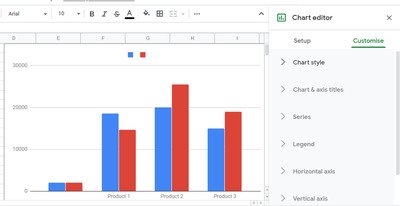
The window displays options like Chart style, axis titles, series, axis labels, gridlines, and many more which you can choose based on the type of chart you want to create.
Click any option you want to configure, then apply the changes.
All adjustments you make in the data and charts editor update automatically, so you don’t have to repeat the entire process. Changes are reflected without you even needing to refresh the page.
Hope this helps.
How do I make Google Sheets automatically update charts?
You don’t have to do anything to make Google Sheets automatically update charts. As soon as you edit the data in a Google Sheets document, the chart is updated accordingly. For example, if you remove data from cells that are part of the chart’s data range, the chart updates instantly.
