
While you have Show desktop transparent vertical bar at the right side end of the taskbar which also adds the functionality of Desktop Peek, it appears that there are some who miss the old Show desktop icon which appeared on the left side of the taskbar.
Show desktop icon in Windows 7
To get show desktop icon back in Windows 7, simply follow these steps in the order mentioned:
1. Copy-paste the following in a Notepad and save it as Show desktop.scf on your desktop.
[Shell]
Command=2
IconFile=explorer.exe,3
[Taskbar]
Command=ToggleDesktop
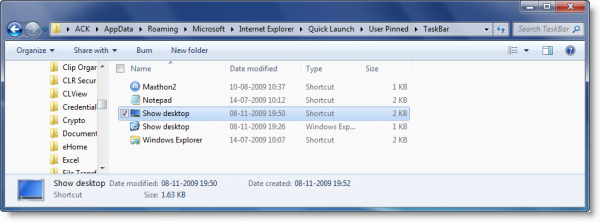
2. Assuming that your Windows 7 is installed on C Drive, cut-paste this Show desktop.scf file in folder:
C:\User\%Username%\AppData\Roaming\Microsoft\Internet Explorer\Quick Launch\User Pinned\Taskbar
To open this folder, simply copy paste this address in the explorer address bar and hit Enter. Here I am assuming that your Windows copy has been installed on the C Drive. You may also, if you wish, directly insert your own username in place of %Username%.
3. Now create any temporary shortcut of anyone of your other (.exe) applications on your desktop. Rename it to Show Desktop.
Next, right click on it and select Change icon.
Select the Show Desktop icon from the following folder :
C:\Windows\System32\imageres.dll
Click Apply > OK.
NOW right click and Pin to Taskbar.
4. Now again right click on this temporary desktop icon and select its Properties.
5. In the Shortcut tab, change its Target to:
C:\Users\%Username%\AppData\Roaming\Microsoft\Internet Explorer\Quick Launch\User Pinned\TaskBar\Show desktop.scf
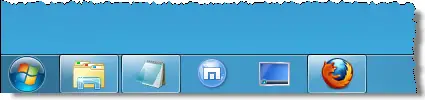
You will now get the Show desktop icon in the Windows 7 in the location it should be and it will look & behave the way it should look & behave! Drag and drop it to the desired position.
Alternatively, you may also want to check out these freeware:
-
Show Desktop Button App for Windows 7 that will enable the same feature in Windows 7 and allows you to pin it to the taskbar.
-
Show desktop software will minimize all open windows to display the desktop.

