
Well, the first question that comes to your mind when you read the title of this post is “Why do I need a textured slide background?”. Well, the reason is simple. When you are giving a presentation to a larger audience, you would like to have a presentation background that is visible to all. Moreover, it also lends a professional look to your presentation.

Create a textured slide background in PowerPoint
Another question you might ask is “Is White background not good enough to lend a professional look?”. Again the simplest answer is that, yes, any single color will work but they might look like a spotlight to the audience who are sitting at the back. Moreover, having a textured background fills your presentations with some color which keeps the audience hooked to your presentation.
So let’s learn how to create a textured slide background in Microsoft PowerPoint:
Start Microsoft PowerPoint
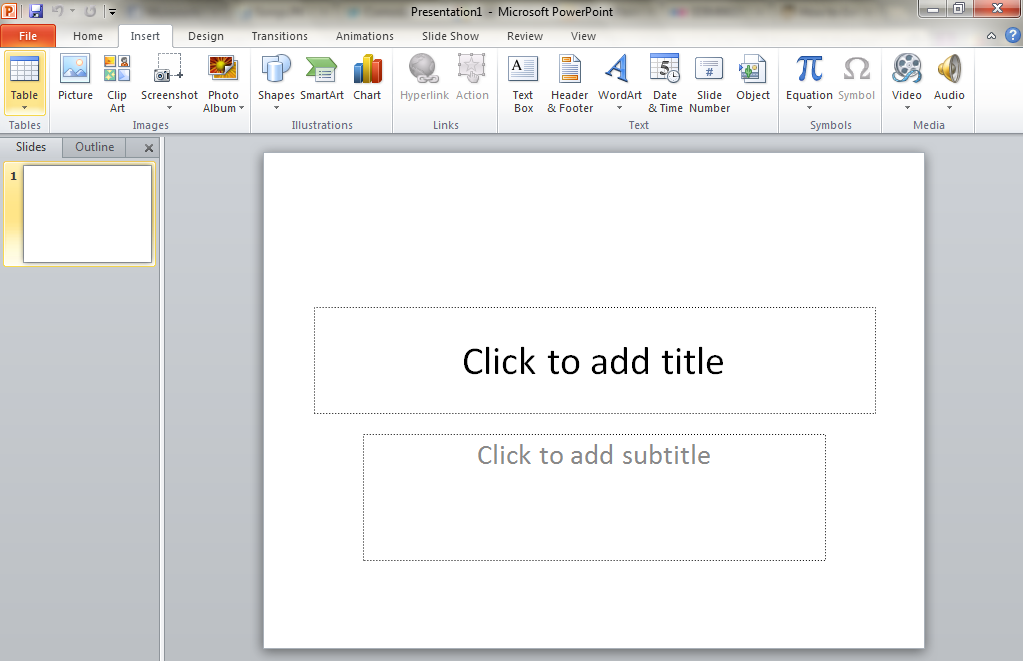
Now insert any picture which you think can be used as texture partially or fully. Just to explain, I am inserting pictures taken by me.
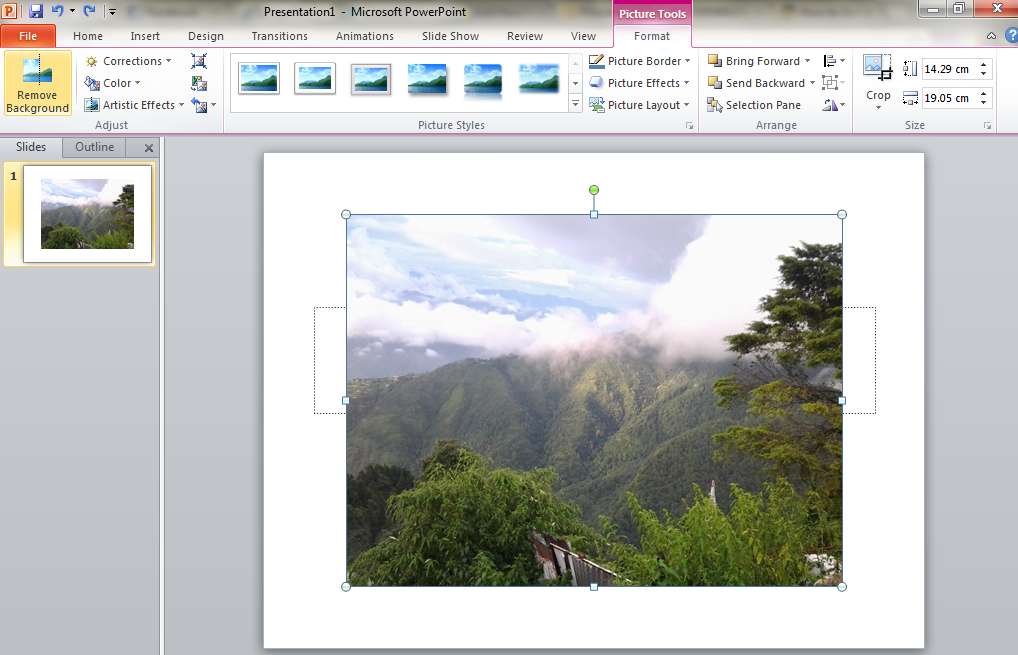
As you can see, it is a picture of hills, I believe I can make some good texture from it so let’s try it out. We will first try to play with some Colors.
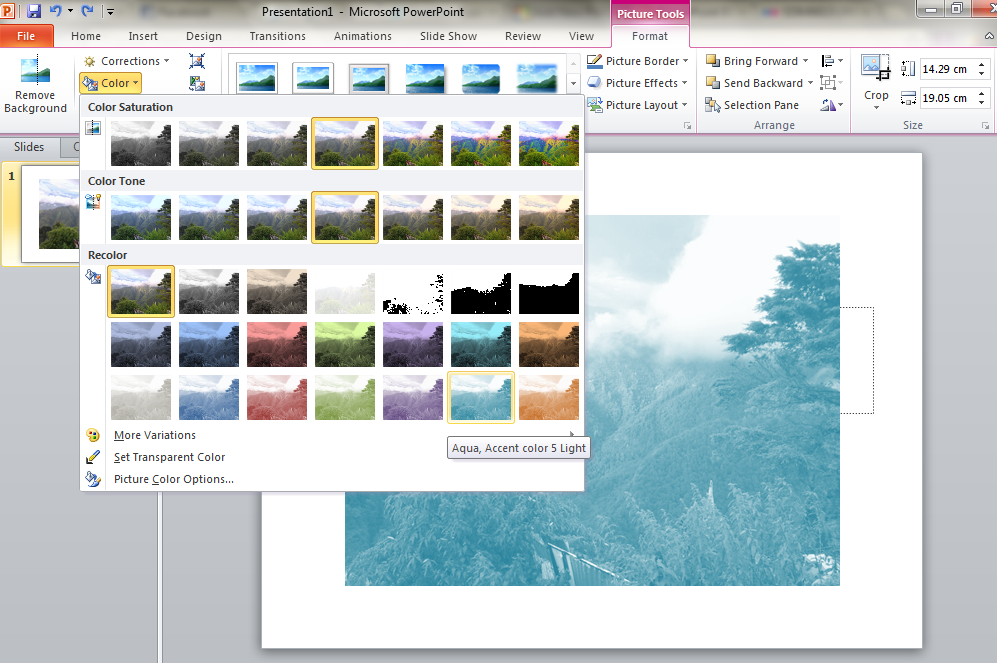
Now try out some Artistic Effects to see which style can look good for your presentation. It will depend totally upon applying the different artistic effects and colors.
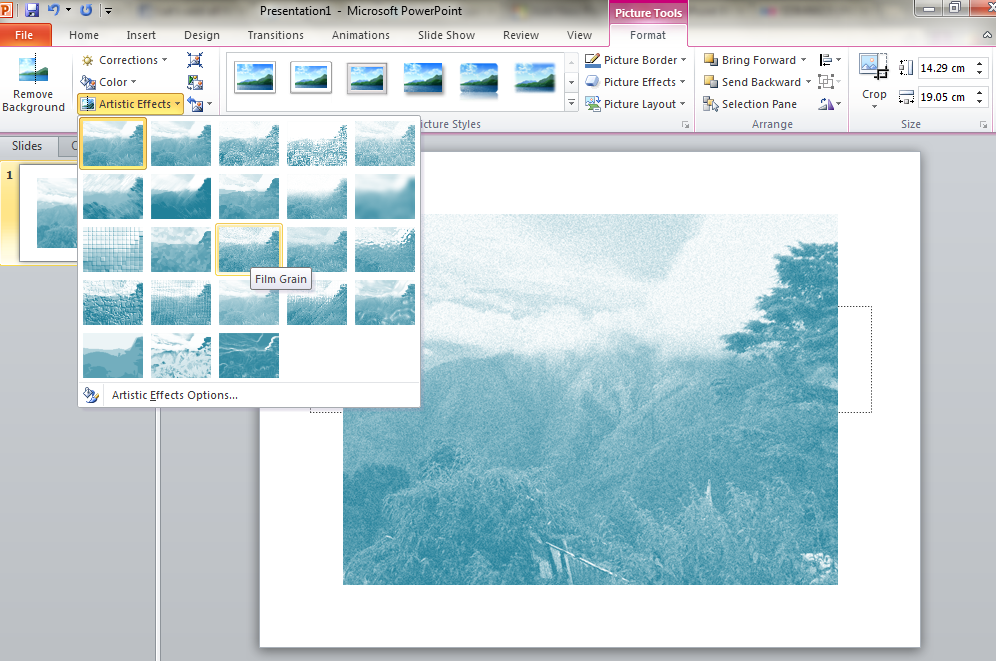
To fine-tune the texture and to try something more, you can use Corrections.
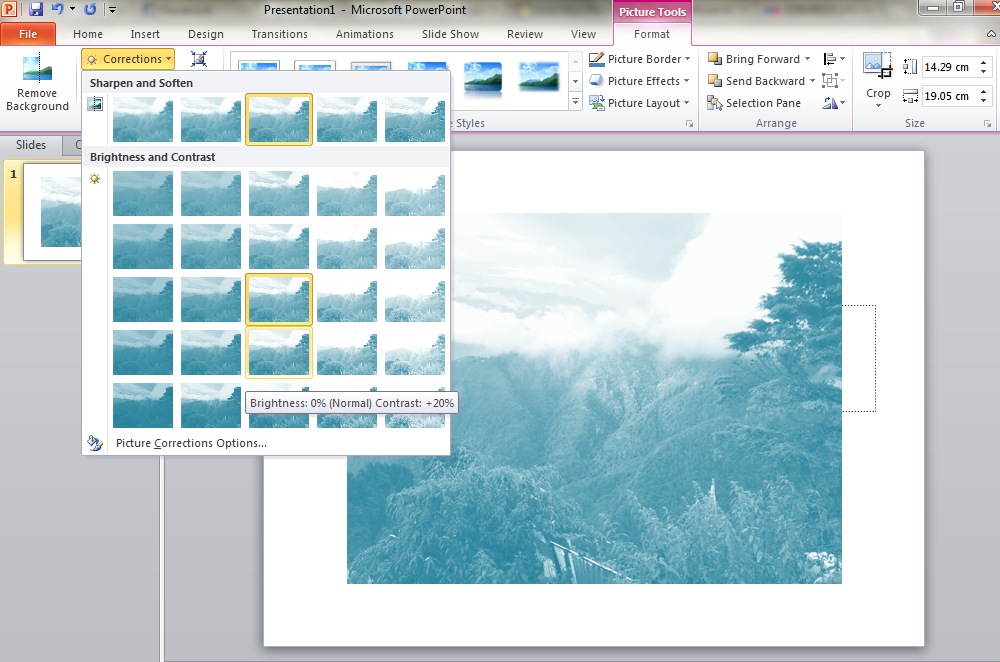
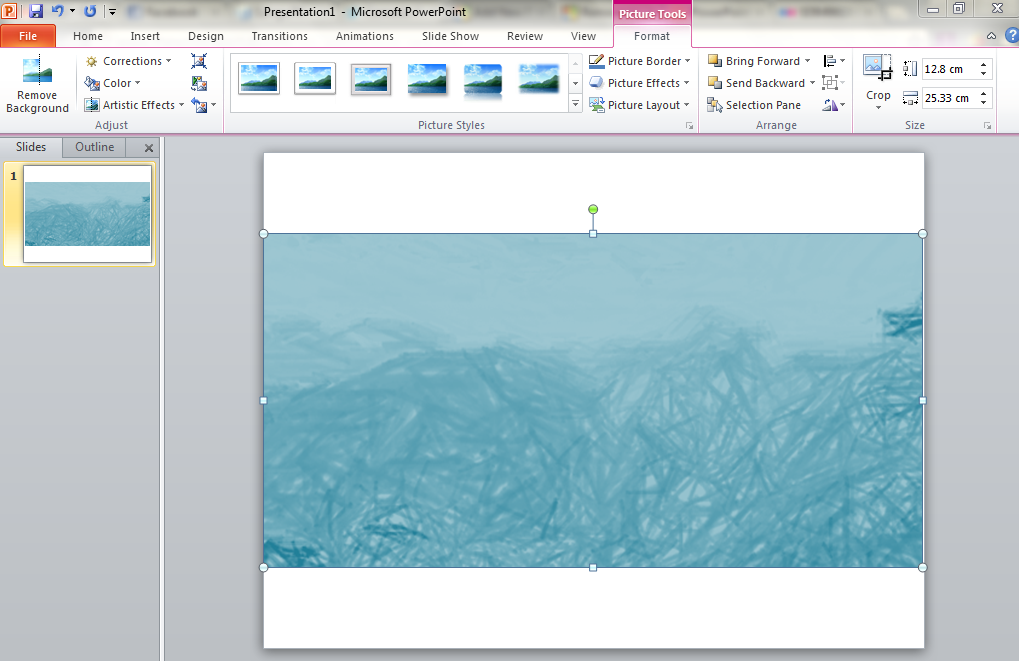
Now you can crop the picture if you want or even Remove the Background. Finally, after putting in all my creative efforts I am able to get this texture.
One problem which you might encounter is that you might not find images that can be used for making textures so I would suggest you search the images which are under Creative Commons License. This way you will find good images without any issues of Licensing or Copyright.

