
I felt the need to write this post covering some general tips for beginners since I often receive mail asking for help, to which the answer, in most cases, involves carrying out some basic troubleshooting. This article, therefore, touches upon some common steps a Windows user may take to try to fix or repair his/her Windows 11/10 computer.
Windows Troubleshooting Tips
OK, so something has gone wrong or is not working how you want it to – and you want to fix it! But before you begin, do restart your computer and see if the problem goes away.
1] Run System Restore
The first thing to do is to try to restore your Windows computer to a prior good point. To do so, open Start Menu > Accessories > System Tools > System Restore. Or else, simply type rstrui.exe in your start search and hit Enter.
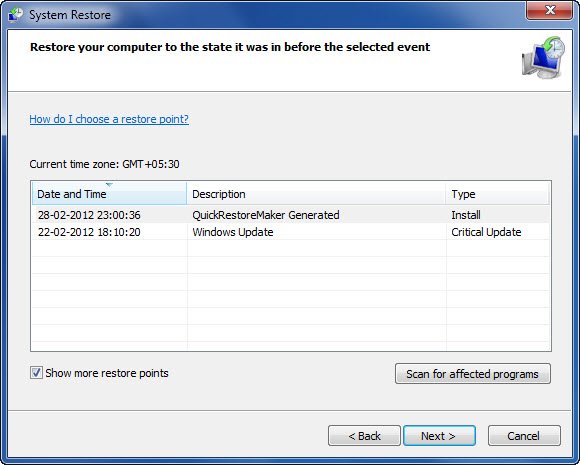
This will open System Restore. Here, select a prior good point where you know that you were not facing this problem, and try to restore your computer to this point by clicking on the Next > Finish button. Once Windows completes the restoration process and restarts, check if your problem has disappeared.
2] Run System File Checker
Another thing you can do is to run the in-built System File Checker utility. Surprisingly, this tool is not used so frequently, although it could make some of your problems go away easily. This tool checks if any of your system files have been replaced, damaged, or corrupted and replaces them with “good” files.
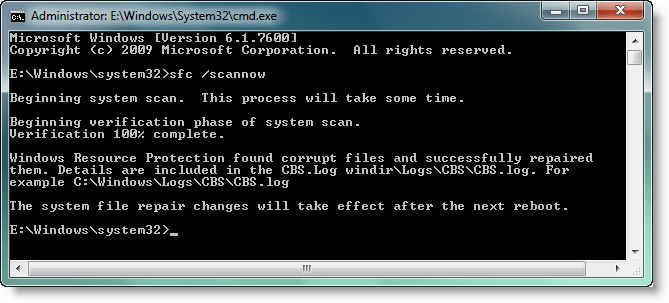
To run the System File Checker, type cmd in start search, and in the result that appears, right-click and select Run as Administrator. This will open the Command Prompt with administrative privileges.
Now type sfc /scannow and hit Enter. Go get a coffee or something since this tool will take some time to run.
Once it completes its course, it will present a report. If there are any damaged or corrupted or missing system files, they will be listed. Restart your computer. On restart, your system files will be replaced with the ‘good’ ones!
3] Fix Windows Image or Component Store corruption
You can use DISM.exe to repair a corrupt Windows Image or fix Component Store Corruption.
Use Dism /Online /Cleanup-Image /RestoreHealth.
This checks for component store corruption records the corruption and FIXES the corruption using Windows Update.
Read: Best Windows Help & Tech Support websites
4] Remove unwanted programs

Open Control Panel and check your installed programs. Do you see something you don’t want – or something you did not install, and the suspect could be a rogue or an unwanted software? Uninstall it.
5] Scan for malware
Run a full, in-depth scan of your system with your anti-virus. If your security software allows you to schedule a boot-time scan – great, go ahead and schedule one; else, a regular scan should be fine too, no issues. To save your scan time, you may want to use the Disk Cleanup utility or CCleaner or Quick Clean to quickly remove your junk files. If there are any malware that are preventing your Windows from functioning normally, your anti-virus scan should be able to take care of it, by removing the malware. You can check out this list of some good recommended free antivirus software for Windows.
6] Windows computer will not start
If you find that your Windows computer just will not start, you can repair boot problems with Windows Startup Repair. Startup Repair is a Windows recovery tool that can fix certain system problems that might prevent Windows from starting. Startup Repair scans your computer for the problem and then tries to fix it so your computer can start correctly. Startup Repair is one of the recovery tools in the System Recovery Options menu. Windows 11/10 users can access Advanced Startup Options.
7] Run Windows Update
Maybe Microsoft has released fixes for your problems – so it might be a good idea to run Windows Update and see if any are available. If they are, do download and install them.
8] Windows Desktop appears blank on startup
If you find that your computer starts but stops at the logon screen or your desktop does not appear or you get to see a black screen or you simply see your wallpaper, the reasons could be many, but in many cases, it is the explorer.exe which is not starting automatically. Well, press Ctrl-Alt-Del and start the Task Manager.
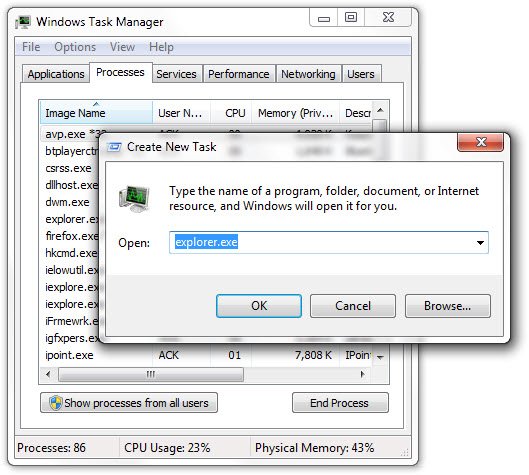
Here click on File > New Task (Run) > type “explorer.exe” and click OK. This should hopefully start your explorer.exe and bring up your desktop. This is something basic you could try. Once this is done, you can explore other troubleshooting options.
9] Fix Windows
There are several small problems, nuisances and irritants you may face occasionally…
Does your Recycle Bin not refresh correctly? Or perhaps things are not fine with your Windows Media Center and you need to flush & rebuild Windows Media Center database! Or maybe you find that for some reason your right-click context menu has been disabled in Internet Explorer! Maybe you opted to be not-warned while deleting Sticky Notes and you now want the warning dialog box back! Or then perhaps, post a malware attack you find that your task manage or cmd or your Registry Editor has been disabled!
FixWin is the Windows Doctor you definitely want to have on your computer! 1-click fixes for these and many more such common Windows problems are being offered in this well-acclaimed freeware of ours.
10] Repair Windows
If you find that your Windows installation had got badly corrupted and even running system restore, system file checker, or trying other troubleshooting steps, does not really help, and you start thinking of re-installing your Windows operating system – try a Repair Install first. Windows 8/10 users may consider using the Refresh or Reset Windows or Automatic Repair feature.
Additional Resources
For specific problems, you can also use the in-built Windows Troubleshooters or the Microsoft Fix it solutions or the Automated Troubleshooting Solutions or the Microsoft Diagnostics Service portal to resolve your issues. You may find additional posts to help solve your particular problems at the following links: Windows Help tutorials, Troubleshooting Windows, Repairing Windows, and Windows Tips.
Read: Windows 11 Support and Solutions.
And if all fails, there is always that panacea for all Windows troubles – RESET or REPAIR!
Well, these were just some of the basic troubleshooting tips. If you require something specific, just search for it here on this site, using the search bar in the sidebar. I am sure that you will find a solution. If you don’t, post your specific requirement here and we will try to prepare a tutorial for it.
If you have anything to add, please do go ahead!

