
Robocopy in Windows 11/10/8/7 is a robust, flexible, configurable tool, with over 80 switches. It can handle any batch or synchronous copy you have in mind. Robocopy is designed for reliable mirroring of directories or directory trees. It has features to ensure all NTFS attributes and properties are copied and includes additional restart code for network connections subject to disruption.
Robocopy or “Robust File Copy“, is a command-line directory replication command, which can copy files & directory trees. It has been around as an independent tool for a little while but finally in Windows Vista, someone has seen fit to give the little tool the recognition it deserves, and as a result, it now sits on a high pedestal in the system32 directory on every Windows Vista installation.
Robocopy switches
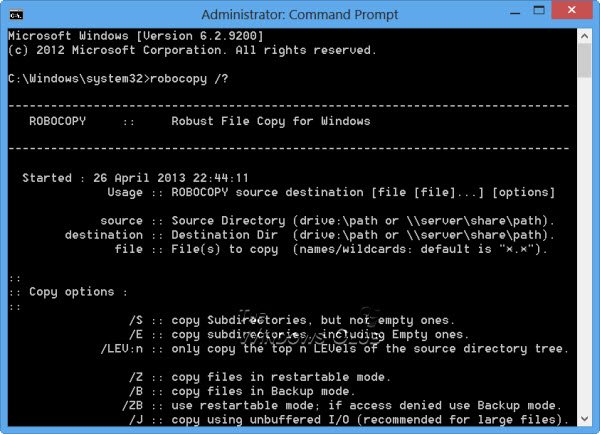
Open an elevated CMD, type robocopy /? and hit Enter to see the full set of parameters or switches available.
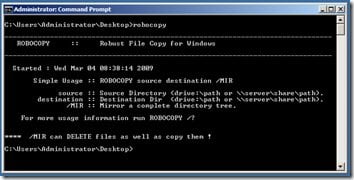
Start with the /mir and /z switches to get a sense of the power of the tool, but be careful with /mir since it will delete as well as copy files to bring the destination folder in sync with the source folder.
Robocopy in Windows
Now, in Windows 11/10/8/7, you can copy your files in multi-thread too!
Just add the /MT switch and define the number of threads and instant multi-threading copy!
To do that, the command syntax is:
ROBOCOPY /MT:
The maximum integer number one can give is 120.
Use Microsoft Robocopy GUI
It is not an easy tool to use. You may want to download the Microsoft Robocopy GUI. More on this here on microsoft.com.
Included in the folder, you will also find the full Robocopy reference guide with a full index of all of the Robocopy commands and syntax.
Under Copy options and Filters, if you move your cursor to each of the switches, you will get a tool-tip description as to what the switch will do.
For more details about each option, you can also see the Robocopy.exe Users Guide. Click on Help > Robocopy Users Guide.
You can also download and use RoboCop RoboCopy from Sourceforge. It is a GUI skin and script generator for Robocopy.exe (Win NT Resource Kit).
RichCopy from Microsoft is another tool you can consider.
Difference between XCopy and Robocopy
Robocopy replaces XCopy in the newer versions of Windows – although you will find both these tools being there in Windows 10.
The main differences between the two are:
- Robocopy uses Mirroring, XCopy does not
- Robocopy can copy over more file attributes than XCopy
- Robocopy has a /RH option to allow a set time for the copy to run
- Robocopy has a /MON:n option to check differences in files.
You can open a CMD and type Robocopy /? and XCopy /? to see the available parameters.

