
Windows lets you use the Group Policy to define user and computer configurations for groups of users and computers. With the Group Policy snap-in you can specify policy settings for the following: Registry-based policies, Security options, Software installation and maintenance options, Scripts options and Folder redirection options.
Group Policy is an essential way that most organizations enforce settings on their computers. It is flexible enough for even the most complex scenarios; however, the essential features are easy to use in simple scenarios, which are more common.
Read: How to open Group Policy Editor in Windows 11
Local Group Policy Editor in Windows 11/10
The Group Policy Editor (GPEDIT.msc) is one of the most useful tools for administering the policy on Windows. There are several desktops, start menu, taskbar, system tweaks you can apply using the Group Policy Editor in Windows 11/10/8/7. To do so, type gpedit.msc in Start Search and hit Enter. This will open the Local Group Policy Editor.
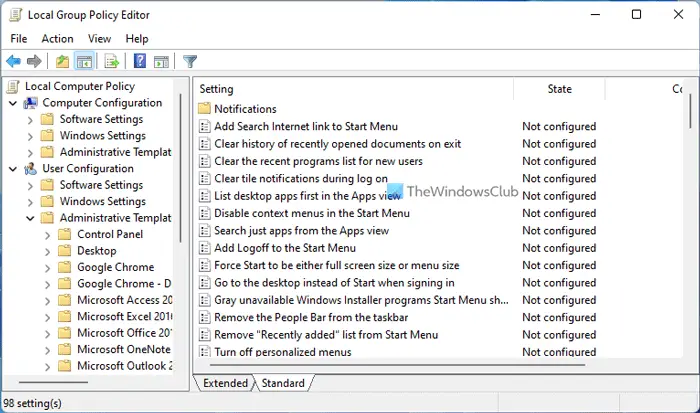
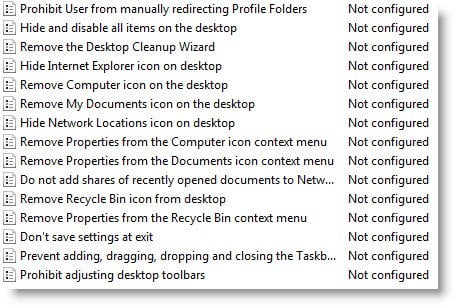
In the left pane, expand User Configuration > Administrative Templates > Desktop. In the right pane, you will see a lot of settings you can modify. Most will be Not Configured. Right-click on any and select Edit. From the dialog box which is presented, you can Enable the setting.
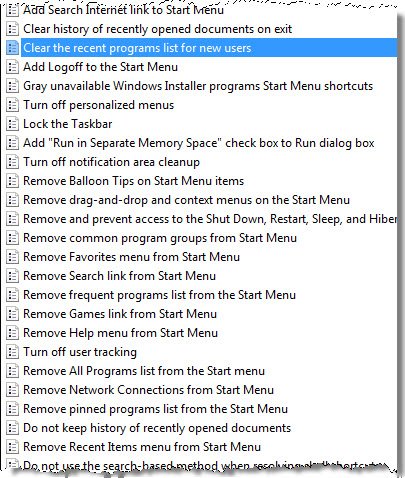
Similarly, under each category like Start Menu and Taskbar, etc, you get plenty of setting which you can tweak to your requirement in Windows 11/10.
Should you again wish to disable any of the tweaked settings you have to simply set it at Not Configured or Disabled again.
While Windows Ultimate, Professional and Enterprise editions have gpedit.msc, Windows Home Premium, Home Basic and Starter Editions do not include the Group Policy Editor. It is also available only in Windows Pro, Enterprise editions and not in Home edition.
This post will show you how to back up Group Policy Objects in Windows. The Group Policy Analyzer will help you analyze GPOs.
Does Windows 11/10 have Local Group Policy Editor?
Yes, if you are using Windows 11 or Windows 10, you can find the Local Group Policy Editor on your computer. However, it is not available in the Home edition of both versions of Windows OS. You can open the Local Group Policy Editor by pressing Win+R, typing gpedit.msc, and hitting the Enter button.
Also read:
- Group Policy Settings for Microsoft Office
- How to reset Group Policy to default
- Filter Options in Local Group Policy Editor in Windows
What can I do with GPEDIT?
You can do almost anything with GPEDIT or the Local Group Policy Editor to customize your PC. From disabling Lock Screen to preventing users from deleting Diagnostic Data, you can change any setting with the help of Group Policy. You need to find the correct setting in Computer Configuration (for all users) or User Configuration (for the current user) and change it as per your requirements.
Go here to learn about Filter Options in Local Group Policy Editor in Windows.

