
To protect your search privacy, you may wish to Turn off display of recent searches. These are the same entries that appear in the drop-down when you search through Explorer.
Windows File Explorer shows suggestion pop-ups as users type into the Search Box. These suggestions are based on their past entries into the Search Box.
Turn off display of recent searches in Explorer
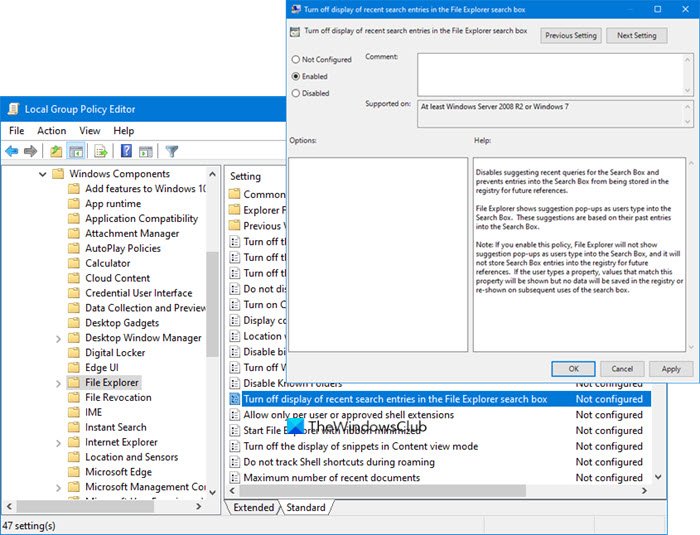
To do so, type gpedit.msc in start search and hit Enter. This will open the Group Policy Editor.
In left pane, click User Configuration > Administrative Templates > Windows Components > File Explorer.
In the right pane double click on Turn off display of recent search entries in the File Explorer search box.
In the window that opens, change the setting to Enabled. Click Apply > OK.
Disables suggesting recent queries for the Search Box and prevents entries into the Search Box from being stored in the registry for future references.
File Explorer shows suggestion pop-ups as users type into the Search Box. These suggestions are based on their past entries into the Search Box.
Note: If you enable this policy, File Explorer will not show suggestion pop-ups as users type into the Search Box, and it will not store Search Box entries into the registry for future references. If the user types a property, values that match this property will be shown but no data will be saved in the registry or re-shown on subsequent uses of the search box.
This setting disables suggesting recent queries for the Search Box and prevents entries into the Search Box from being stored in the registry for future references.
If you enable this policy, Windows File Explorer will not show suggestion pop-ups as users type into the Search Box, and it will not store Search Box entries into the registry for future references. If the user types a property, values that match this property will be shown but no data will be saved in the registry or re-shown on subsequent uses of the search box.
You can do the same using Registry Editor as well. However, before heading to the following way, it is recommended to create a System Restore point.
How to turn off display of recent search entries in File Explorer
To turn off display of recent search entries in File Explorer, follow these steps:
- Press Win+R to open the Run prompt.
- Type regedit, hit the Enter button, and click the Yes option.
- Go to Windows in HKCU.
- Right-click on Windows > New > Key.
- Name it as Explorer.
- Right-click on Explorer > New > DWORD (32-bit) Value.
- Name it as DisableSearchBoxSuggestions.
- Double-click on it to set the Value data as 1.
- Click the OK button and restart your computer.
Let check out these steps in detail.
First, you need to open the Registry Editor. You can press Win+R, type regedit, press the Enter button, and click the Yes option in the UAC prompt.
After that, navigate to this path:
HKEY_CURRENT_USER\Software\Policies\Microsoft\Windows
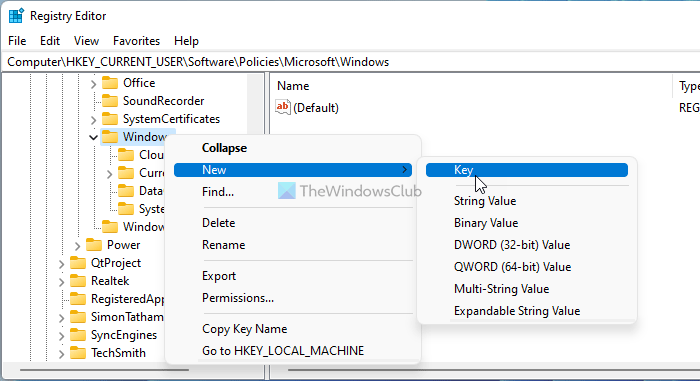
Inside the Windows key, you can see the Explorer sub-key. However, if you cannot find it there, you need to create it manually. For that, right-click on the Windows key, select New > Key, and name it Explorer.
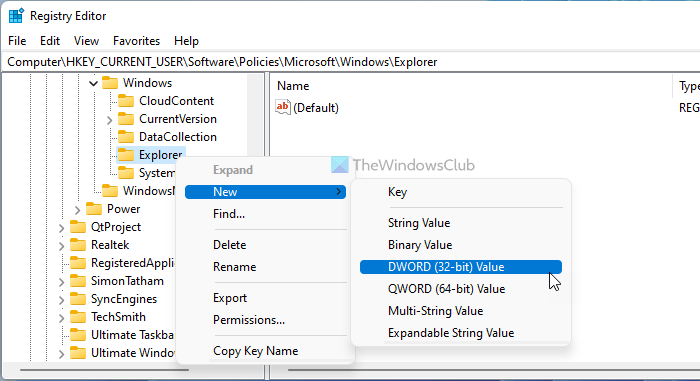
Then, right-click on the Explorer key, and select New > DWORD (32-bit) Value.
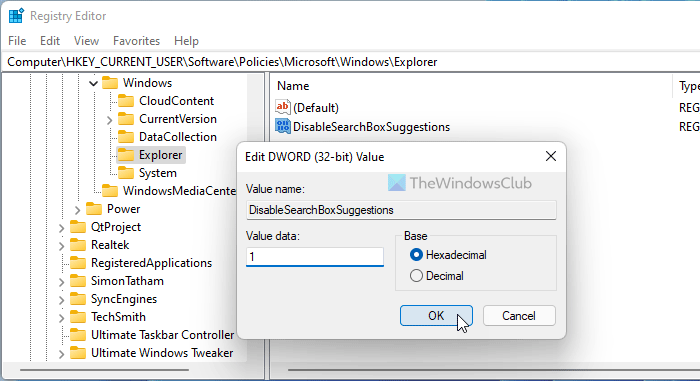
Set the name as DisableSearchBoxSuggestions. The default Value data of this DWORD value is 0, but you need to make it 1. For that, double-click on this DWORD value, enter 1 in the box and click the OK button.
Restart your computer to get the change.

