
In this article, I’m going to share my experience while troubleshooting an assembly-related issue in Windows systems. My client came with an issue where he was not able to get an Outlook add-in to work on his Windows computer. He was getting an Exception Error:
Could not load file or assembly ‘Microsoft.Office.Interop.Outlook’ or one of its dependencies. The system cannot find the file specified
while opening Outlook.
Could not load file or assembly or one of its dependencies
So I went to Start > Run and typed in Assembly.
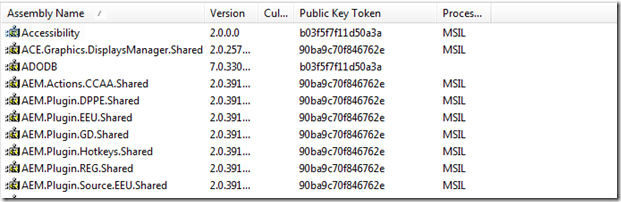
In the list, I found the specific DLL which I was looking for. When I checked up the version, I found the version seems to be different. That is, the version that the Outlook add-in was looking for was v14.0, but in the assembly I found v10.0 and v14.0 to be present. So I tried to uninstall the v10 assembly by right-clicking on the DLL and selecting Uninstall.
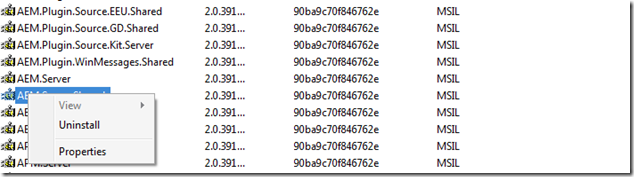
On doing it, I received the following error message:
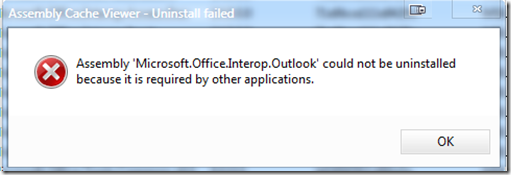
So I felt that the only way now, it seemed, was to uninstall Office and reinstall it – because it’s an entry from a previous version of Office. So I went to Programs and Features and removed Microsoft Office completely and rebooted the system. I then went back to Assembly and checked. But the file was still there, and I was just unable to remove it. I kept getting the same error message as above.
Then I remembered a method I used a long time back where I had switched the Assembly view to the Folder view.
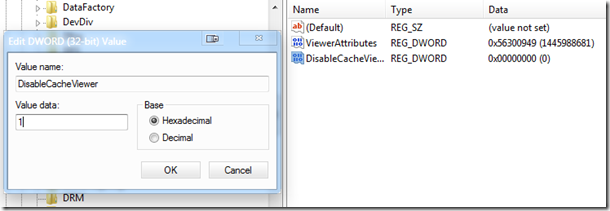
To do so, open Windows Registry and navigate to the following key:
HKEY_LOCAL_MACHINE\SOFTWARE\Microsoft\Fusion
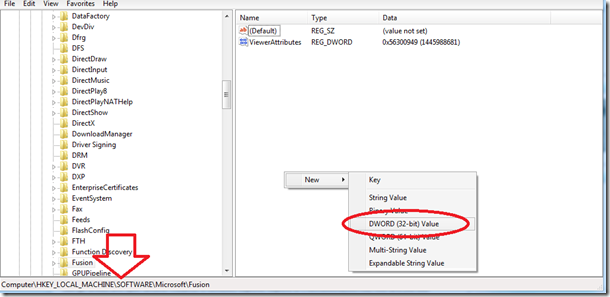
Here, create a new DWORD “DisableCacheViewer” and give it value “1”.
I now went back to Assembly, and it changed the view to Folders:
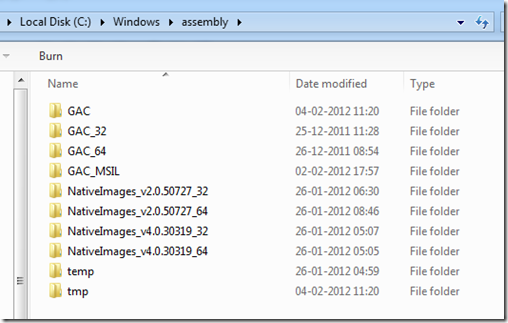
I searched the specific DLL file, removed all its entries, and rebooted the system.
Finally, I went and deleted “DisableCacheViewer” from the registry and reverted to Assembly view.
The file no longer exists. I installed Office back and installed the add-ins again, and it works just fine now.
You could easily remove Assemblies using the same method by switching to the Folder view.
I hope this tip helps you.
Why do DLL files fail to load?
There can be multiple reasons why an application file fails to load a DLL file. It could be because the DLL file is missing, or it’s unregistered or because of corruption, the file has become inaccessible. The best way to fix it is by reinstalling the application or any dependable software that can reinstall the DLL file.

