If you are facing performance-related issues like Non-responding programs, freezing, system crashes, sluggishness, etc., on your Windows PC quite often, then you can try a few of these suggested tips. They may help you resolve such issues by tuning-up Windows.
How to fix Performance issues in Windows 11/10
Here are a few steps you can take to troubleshoot Windows 11/10 Performance issues:
- Run Selective Startup
- Update Drivers
- System Maintenance
- Windows Update
- Cleaning Junk Files
- Virus Scanning
- System Integrity Check
- Hardware Diagnostic
- Windows Boot Performance Diagnostics
- Disk usage issues.
1] Selective Startup
Most of the time, a Startup service may cause issues that affect the performance of the System. A Clean Boot can resolve and pinpoint which Service is causing the problem. To identify this, we can use the System Configuration Utility to find it.
Go to Start, and under search, type in MSCONFIG and hit Enter.
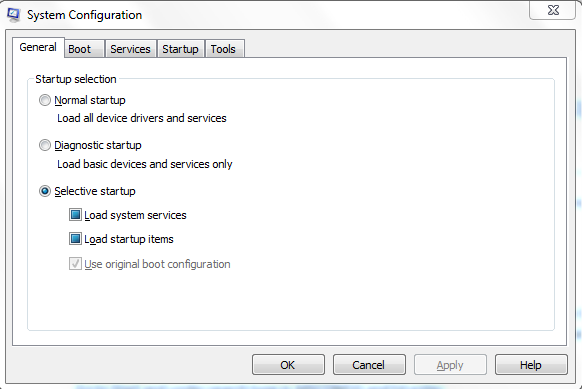
First, in the General Tab uncheck “Load Startup Items” then go to Services Tab.
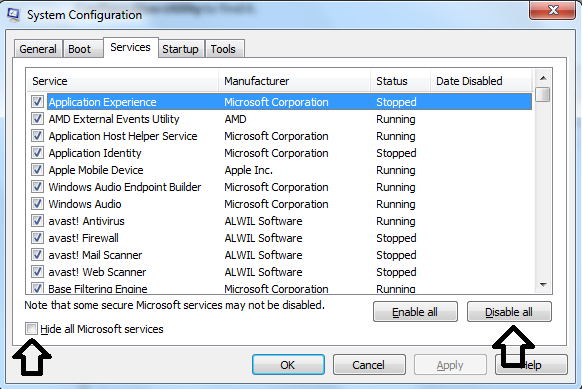
Then check on “Hide all Microsoft services” and click on “Disable all”. Click Apply and Restart the Computer.
Once the computer restarts, see if you have your issue resolved. If so, go back to MSCONFIG and first go to the Startup Tab and enable the first Startup item and reboot the System. You have to do the same procedure until you find which service or startup item is causing the System to crash.
I know it might take a while to find out which one it is, but it’s not advisable to run the System in Selective Startup all the time. Because Selective Startup is not a fix; it’s a troubleshooting step, to find the culprit that’s causing System inconsistency.
Trust me, most of the performance-related issues can be resolved by this step!
2] Update Drivers
An outdated driver can cause the System to crash and go to non-responding at times. So, it’s a good step to keep the device drivers up to date. You find the exact model of your device drivers and check the version and driver date. You could use the MSINFO32 file.
Go to Start and under search type in MSINFO32 and Hit Enter.
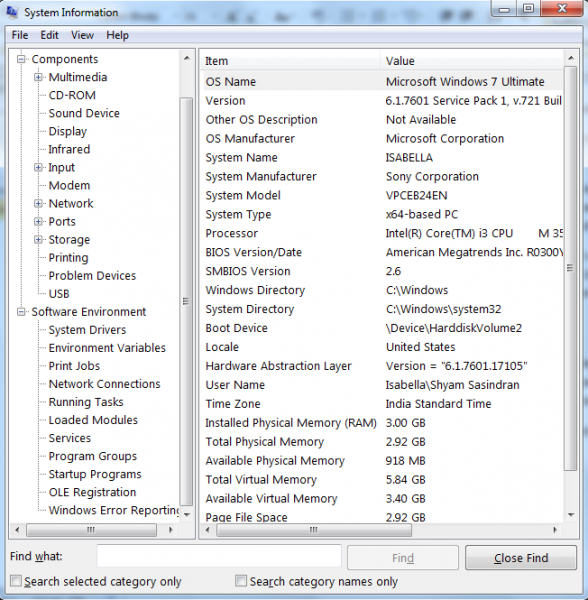
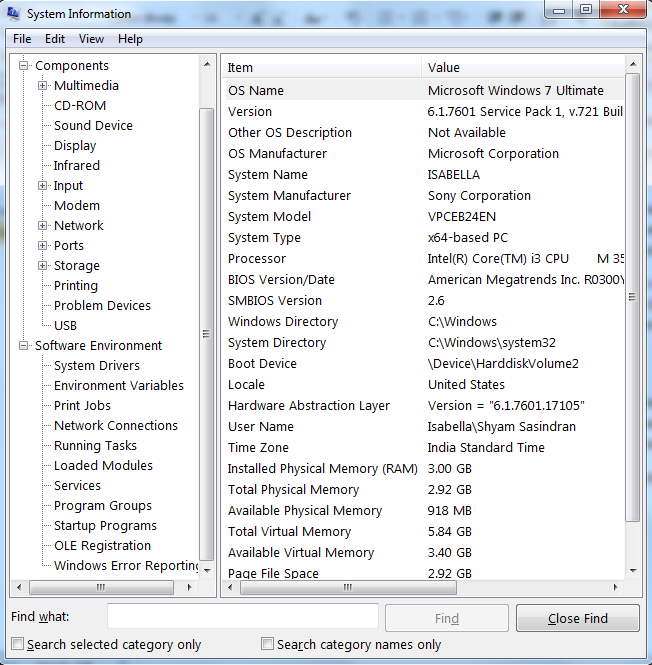
This is what the MSINFO32 looks like. Then select each non-Microsoft device, and on the Right side panel, you’ll find the model of your device, driver date version, etc.
Once you find the driver name, date, and version, go to the manufacturer’s website, go to the appropriate section and download the driver and install it.
Don’t use Windows Update or any lesser-known third-party application to auto-update the drivers because, in my opinion, most of the time, Windows Update or any of these third-party applications won’t find the best drivers, which may, in turn, cause the system to crash with a Blue Screen.
TIP: I have seen a lot of cases where a Display driver is a cause for lagging or performance-related issues it’s best to update or reinstall the Display related drivers.
3] System Maintenance
System Maintenance is a crucial system while troubleshooting performance-related problems.
Open an elevated Command Prompt, type the following and hit Enter to run the Performance Troubleshooter.
msdt.exe /id PerformanceDiagnostic
This troubleshooter helps the user adjust settings to improve operating system speed and performance.
Alternatively, Open ControlPanel > All Control Panel Items > Troubleshooting
Click on Run maintenance tasks to open the Performance Troubleshooter.
Run it and see if it helps.
Read: Beginners tips to optimize Windows for better performance.
4] Windows Update
It is important to update your Windows Operating System on a regular basis, as there will be some updates that could resolve performance issues and increase system security.
5] Cleaning Junk Files
It may not look like a great step to resolve such issues but trust me there are lots of situations where this step used to do the trick. There is a built-in cleanup tool in Windows that would help you in removing the Temp files etc., but I would recommend a freeware called CCleaner.
This will remove unused files from your system – allowing Windows to run faster and freeing up valuable hard disk space. It also cleans traces of your online activities such as your Internet history.
You may or may not want to use the Registry cleaner portion of it or any registry cleaners. The decision is, of course, yours to take! Check out one of our posts for more information Do Registry Cleaners & Defragmenters really help?
6] Virus Scanning
Most of the time, Malware or Trojan infection can cause unstable behavior in your operating system. Run a complete virus scan to make sure your computer is clean. There are a lot of freeware out there. I would recommend Windows Defender – it has a very low footprint and lesser false positives. Then download the free versions of Malwarebytes or Emsisoft Anti-malware and run a complete scan in Safe Mode.
7] System Integrity Check
SFC /SCANNOW command (System File Checker) scans the integrity of all protected Windows system files and replaces corrupted, changed, or damaged versions with the correct versions if possible.
- Go to Start and under search type in CMD then Right Click on it and click on Run as administrator.
- Then type in SFC /SCANNOW
- This article will help you analyze the SFC logs.
8] Hardware Diagnostic
The next step I would recommend is to run Hardware scans to see if some hardware failure is causing the system to crash. First, check your RAM, follow our thread that will explain to you the process Advanced Memory Diagnostic on Windows with Memtest86+ then run a Hard Drive Diagnostic. Each manufacturer would have its own diagnostic tools. Check this thread for the list HD Tools.
9] Windows Boot Performance Diagnostics
Use Windows Boot Performance Diagnostics to troubleshoot long boot times.
10] Disk usage issues
See this post if you frequently receive a 100% Disk Usage message. This post will help you if you see Random Disk Usage Spikes.
Last but not least, use a legitimate version of Windows. An illegal copy may look convenient, but you’re putting your data security at risk, and this may cause a lot of issues to your operating system.
How can I improve my Windows 11 performance?
You should disable the background apps that run unnecessarily as such apps and programs can affect the Windows 11 performance quite a bit. In addition to that, disable game mode if it is turned on when you aren’t playing a game. Also, use disk cleanup and storage sense to get rid of junk items, temporary files, etc., to free up disk space and improve Windows 11 performance. Uninstalling unwanted programs, disabling VBS, etc., can also be helpful.
You can Enhance your Windows performance by disabling startup programs, running disk cleanup, and updating to the latest software. Optimize your PC’s speed by upgrading your RAM, utilizing Performance troubleshooter, and adjusting for best performance in system properties. Regular maintenance and decluttering can lead to significant improvements.
Why is Windows 11 so laggy?
If you find that Windows 11 is laggy or slow, then make sure the disk space is free. Running Windows 11 on low storage can also make your system hang or freeze. Sometimes, running a program that uses a lot of system resources can also make it slow. Also, if you are using too many apps and programs together, then this could be the reason for it. You should also perform an antivirus scan as malicious programs can also slow down your computer.
Read next: Windows 11 Problems, Issues with solutions, and fixes.