
Maybe on one or more occasions, you might have experienced certain issues and errors with your Windows Live Messenger, like say, sign-in issues or frequent disconnections, freezing, etc. Today, I will suggest a few steps to resolve such issues. These steps are not specific to any error message.
Troubleshoot Windows Live Messenger problems
Most of them are generic, troubleshooting steps.
1. Check the Date and Time settings.
- Believe it, or not a lot of Windows Live Messenger login issues are caused by incorrect Date and Time settings.
- Open Date and Time by clicking the Start button Picture of the Start button, clicking Control Panel, clicking Clock, Language, and Region, and then clicking Date and Time.
- Click the Date and Time tab, and then click Change date and time put the correct date and time.
- Reboot your system and test it.
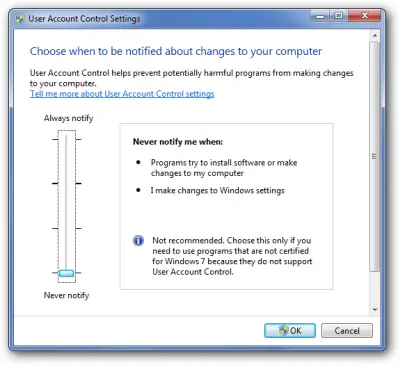
2. Disable User Account Control
- Some times UAC might cause the Messenger to stop logging into.
- Open User Accounts by clicking the Start button.
- Clicking Control Panel, clicking User Accounts and Family Safety
- Click User Accounts.
- Then move the slide bar to “Never Notify”, reboot system, and try again!
3. Disable Firewall or Reboot the System in Selective Startup.
- Some times Windows Firewall might block the connection. So we could temporarily disable Windows Firewall and test it.
- To Disable click the start button
- Under search type in Firewall.cpl and hit enter
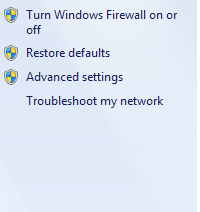
- Then click on “Turn Windows Firewall on or off”.
- Next select Turn off for both Home and Public Network
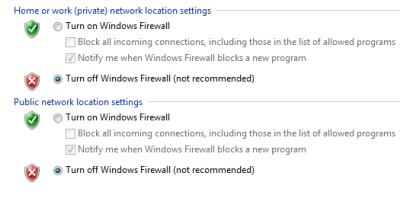
- Now open Live Messenger and test it.
4. Check the Proxy settings in Internet Explorer
- Some times the Proxy settings might be enabled on Internet Explorer that can cause issues with Windows Live Messenger
- To disable Proxy open Internet Explorer
- Go to Tools and select Internet Options
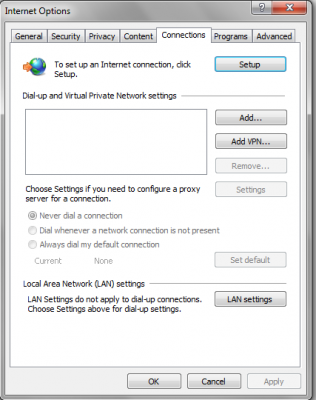
- Then click on “Connections” Tab and Click on “LAN settings”.

- Make sure “Automatically detect settings” is enabled
5. Make sure all the critical Windows Update is applied
- Some times some missing Windows Update can cause issues with Windows Live Messenger make sure your Windows is up to date.
6. Microsoft Internet Explorer SSL settings are incorrect
- Start Internet Explorer.
- On the Tools menu, click Internet Options.
- Click the Advanced tab.
- Under Security, clear the Check for Server certificate revocation (requires a restart) checkbox.
- Click OK.
- Exit Internet Explorer and Test it
7. Make sure these files are present
- Make sure the below-mentioned files are present in your Computer.
BHOCITEU.DLL
BHOCITUS.DLL
BHOECART.DLL
BHOSSAFE.DLL
EVENTDLL.DLL
HOOKTOOL.DLL
TMEEJDLL.DLL
TMEEJMD.DLL
UWEYIWE0.DLL
UWEYIWE1.DLL
- If any of these steps are missing, we have to reinstall the Messenger
8. Manually remove Windows Live Messenger
- Some times just removing from “Programs and Features” won’t help, so we have to manually remove the files.
- First, we have to shut down Windows Live Messenger if it’s running. Press Ctrl+Alt+Del and Select Start Task Manager, then click on Processes Tab, find msnmsgr.exe, and click on End Process.
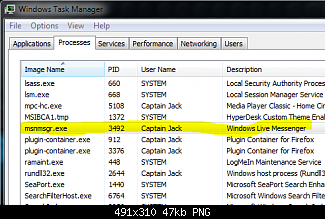
- Then we have to remove Windows Live Messenger from Programs and Features. So go to Start then under search type in Programs and Features.
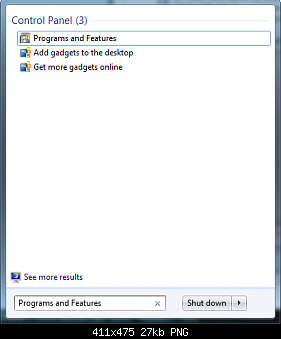
- Under Programs and Features look for Windows Live Essentials then click of Uninstall
- Then it will give you an option to Remove all the Windows Live Programs like Windows Live Mail, Windows Live Writer, etc. You might wanna remove all of them; then, it will be more smooth.
- Once the Uninstall is completed, then download and install CCleaner. Once it’s uninstalled, then run CCleaner.
- Click on Run Cleaner to make sure all the Temp files are removed.
- Now we have to remove the Contact cache folders located under the Application Data folder for that go to Start under search type in %USERPROFILE%\AppData\Local\Microsoft\ and Hit Enter and Delete the Windows Live Contacts folder.
- Now we have to delete a few leftover keys in Registry make sure you make a backup of the Registry.
- Now go to Start and under search type in Regedit and press enter.
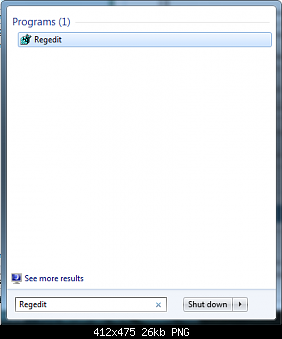
- If prompted by UAC, then click on Yes.
- In regedit, navigate to each location below.
HKEY_LOCAL_MACHINE\Software\Microsoft\Windows Live
and Delete Messenger folder
HKEY_LOCAL_MACHINE\Software\Microsoft
and Delete MSNMessenger
HKEY_CURRENT_USER\Software\Microsoft
and Delete MSNMessenger
HKEY_CURRENT_USER\Software\Microsoft\Windows Live\Communications Clients
and Delete Shared
HKEY_CURRENT_USER\Software\Microsoft
and Delete IdentityCRL
- Now reboot your computer and download and fresh copy, install it and test it
NOTE:
If Windows Live Messenger stops working due to unknown reasons without giving any error code, start with performing the following checks:
1. Verify that the Date and Time Settings on the computer are set to current
- Navigate to the notification area of the taskbar and click on date and time and then change date and time settings.
- Ensure that the date and time settings are set to the current date, time, and year, and then click OK. (If not then set it to the current date and time).
2. Verify if Windows Live Messenger is enabled through the firewall
If you are not sure which firewall you have installed on the computer. If you are using the default Windows Firewall then click on Start and open Control Panel, and open Windows Firewall, or if you are using any other third-party firewall program then look for Programs and Features to know about it from the list of installed applications.
Some popular firewall vendors include Norton, McAfee, and Zone Alarm. Open their controlling console and make the necessary changes. (You can ask me here by leaving a comment if you are not able to do it by yourself).
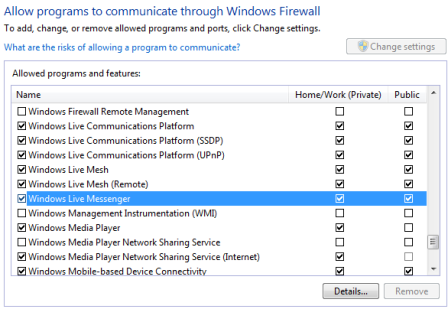
Windows Live Messenger application is installed at C:\Program Files\Windows Live\Messenger\msnmsgr.exe. Ensure that msnmsgr.exe is allowed in your firewall software. This is only a temporary workaround and you may have to reinstall the firewall software again if none of the above steps works. If you have disabled the firewall in the past, it may still be blocking Windows Live Messenger, try to restart the firewall. After the firewall software is running, make sure that Windows Live Messenger is enabled through the firewall. Also try removing the firewall program that is installed to verify that it is not causing a problem even if it is disabled.
3. Clear the Check for server certificate revocation option in Internet Explorer
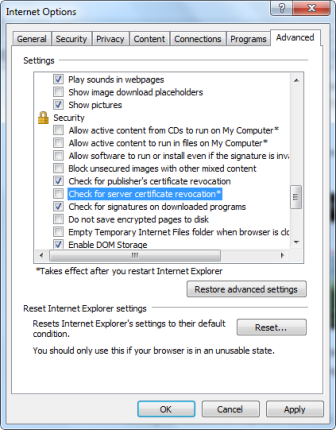
- Start Internet Explorer.
- On the Tools menu, click Internet Options.
- Click the Advanced tab.
- Under Security, clear the Check for Server certificate revocation (requires restart) checkbox.
- Click Ok.
- Exit Internet Explorer.
Restart the computer and then sign-in to Windows Live Messenger again.
I hope one of these steps help you in resolving it.

