<?xml version="1.0" encoding="UTF-8"?>
<rss version="2.0"
	xmlns:content="http://purl.org/rss/1.0/modules/content/"
	xmlns:wfw="http://wellformedweb.org/CommentAPI/"
	xmlns:dc="http://purl.org/dc/elements/1.1/"
	xmlns:atom="http://www.w3.org/2005/Atom"
	xmlns:sy="http://purl.org/rss/1.0/modules/syndication/"
	xmlns:slash="http://purl.org/rss/1.0/modules/slash/"
	>

<channel>
	<title>The Windows Club &#187; Tips</title>
	<atom:link href="http://www.thewindowsclub.com/tag/tips/feed" rel="self" type="application/rss+xml" />
	<link>http://www.thewindowsclub.com</link>
	<description>The Windows Club is  created by Anand Khanse, a Microsoft MVP and is primarily targeted at the Windows 7, 8 &#38; Vista user and will address and cover issues in relation to Microsoft and Windows OS.</description>
	<lastBuildDate>Wed, 08 Feb 2012 18:37:32 +0000</lastBuildDate>
	<language>en</language>
	<sy:updatePeriod>hourly</sy:updatePeriod>
	<sy:updateFrequency>1</sy:updateFrequency>
	<generator>http://wordpress.org/?v=3.3.1</generator>
<xhtml:meta xmlns:xhtml="http://www.w3.org/1999/xhtml" name="robots" content="noindex" />
		<item>
		<title>Internet Explorer 9 Hardware Acceleration : Enable, Disable, Troubleshoot, FAQ</title>
		<link>http://www.thewindowsclub.com/software-rendering-hardware-acceleration-internet-explorer-9?utm_source=rss&#038;utm_medium=rss&#038;utm_campaign=software-rendering-hardware-acceleration-internet-explorer-9</link>
		<comments>http://www.thewindowsclub.com/software-rendering-hardware-acceleration-internet-explorer-9#comments</comments>
		<pubDate>Tue, 07 Feb 2012 14:09:36 +0000</pubDate>
		<dc:creator>AnandK@TWC</dc:creator>
				<category><![CDATA[IE]]></category>
		<category><![CDATA[Features]]></category>
		<category><![CDATA[IE9]]></category>
		<category><![CDATA[Tips]]></category>
		<category><![CDATA[Troubleshoot]]></category>

		<guid isPermaLink="false">http://www.thewindowsclub.com/?p=43712</guid>
		<description><![CDATA[<div style=" float: left; padding: 4px; margin: 0 10px 5px 0; width: 75px; height: 75px;"><img style=" float: left; padding: 4px; margin: 0 10px 5px 0;" width="75" height="75" src="http://www.thewindowsclub.com/wp-content/themes/Twc/scripts/thumb.php?src=http://www.thewindowsclub.com/wp-content/uploads/2012/02/ie9-gpu.jpg&amp;w=75&amp;h=75&amp;zc=1"/></div>Hardware Acceleration or GPU Rendering is a new feature in Internet Explorer 9 that allows the browser to, while loading a webpage, move all graphics and text rendering from the Central Processing Unit to the Graphics Processing Unit. The idea is <span><a class="more-link" href="http://www.thewindowsclub.com/software-rendering-hardware-acceleration-internet-explorer-9">...more &#62;&#62;&#62;</a></span>]]></description>
		<wfw:commentRss>http://www.thewindowsclub.com/software-rendering-hardware-acceleration-internet-explorer-9/feed</wfw:commentRss>
		<slash:comments>6</slash:comments>
		</item>
		<item>
		<title>How to access FTP Server using Notepad++</title>
		<link>http://www.thewindowsclub.com/access-ftp-server-notepad?utm_source=rss&#038;utm_medium=rss&#038;utm_campaign=access-ftp-server-notepad</link>
		<comments>http://www.thewindowsclub.com/access-ftp-server-notepad#comments</comments>
		<pubDate>Thu, 02 Feb 2012 15:39:09 +0000</pubDate>
		<dc:creator>Azharuddin@TWC</dc:creator>
				<category><![CDATA[General]]></category>
		<category><![CDATA[FTP]]></category>
		<category><![CDATA[Notepad]]></category>
		<category><![CDATA[Plugin]]></category>
		<category><![CDATA[Tips]]></category>

		<guid isPermaLink="false">http://www.thewindowsclub.com/?p=43401</guid>
		<description><![CDATA[<div style=" float: left; padding: 4px; margin: 0 10px 5px 0; width: 75px; height: 75px;"><img style=" float: left; padding: 4px; margin: 0 10px 5px 0;" width="75" height="75" src="http://www.thewindowsclub.com/wp-content/themes/Twc/scripts/thumb.php?src=http://www.thewindowsclub.com/wp-content/uploads/2012/02/notepad-plus.jpg&amp;w=75&amp;h=75&amp;zc=1"/></div>Earlier we posted a complete screen shot tutorial on installing FileZilla client and server and synchronizing files between multiple clients. In this post I am going to show you how to synchronize or access files on your FTP Sever directly <span><a class="more-link" href="http://www.thewindowsclub.com/access-ftp-server-notepad">...more &#62;&#62;&#62;</a></span>]]></description>
		<wfw:commentRss>http://www.thewindowsclub.com/access-ftp-server-notepad/feed</wfw:commentRss>
		<slash:comments>0</slash:comments>
		</item>
		<item>
		<title>Opt out and maintain your privacy when using Google Services</title>
		<link>http://www.thewindowsclub.com/opt-out-privacy-google-search-services?utm_source=rss&#038;utm_medium=rss&#038;utm_campaign=opt-out-privacy-google-search-services</link>
		<comments>http://www.thewindowsclub.com/opt-out-privacy-google-search-services#comments</comments>
		<pubDate>Wed, 01 Feb 2012 17:30:40 +0000</pubDate>
		<dc:creator>AnandK@TWC</dc:creator>
				<category><![CDATA[General]]></category>
		<category><![CDATA[Google]]></category>
		<category><![CDATA[Privacy]]></category>
		<category><![CDATA[Tips]]></category>

		<guid isPermaLink="false">http://www.thewindowsclub.com/?p=43433</guid>
		<description><![CDATA[<div style=" float: left; padding: 4px; margin: 0 10px 5px 0; width: 75px; height: 75px;"><img style=" float: left; padding: 4px; margin: 0 10px 5px 0;" width="75" height="75" src="http://www.thewindowsclub.com/wp-content/themes/Twc/scripts/thumb.php?src=http://www.thewindowsclub.com/wp-content/uploads/2012/02/web-history.jpg&amp;w=75&amp;h=75&amp;zc=1"/></div>Google&#8217;s change in its Privacy terms has been a cause of concern for many. Google has also responded to the wide-spread out-cry about this with the suggestion that you not log in to you Google account, if you have privacy <span><a class="more-link" href="http://www.thewindowsclub.com/opt-out-privacy-google-search-services">...more &#62;&#62;&#62;</a></span>]]></description>
		<wfw:commentRss>http://www.thewindowsclub.com/opt-out-privacy-google-search-services/feed</wfw:commentRss>
		<slash:comments>12</slash:comments>
		</item>
		<item>
		<title>How To Disable Internet Explorer Auto Refresh</title>
		<link>http://www.thewindowsclub.com/disable-internet-explorer-auto-refresh?utm_source=rss&#038;utm_medium=rss&#038;utm_campaign=disable-internet-explorer-auto-refresh</link>
		<comments>http://www.thewindowsclub.com/disable-internet-explorer-auto-refresh#comments</comments>
		<pubDate>Mon, 30 Jan 2012 15:54:34 +0000</pubDate>
		<dc:creator>ArunK@TWC</dc:creator>
				<category><![CDATA[IE]]></category>
		<category><![CDATA[Tips]]></category>

		<guid isPermaLink="false">http://www.thewindowsclub.com/?p=43305</guid>
		<description><![CDATA[<div style=" float: left; padding: 4px; margin: 0 10px 5px 0; width: 75px; height: 75px;"><img style=" float: left; padding: 4px; margin: 0 10px 5px 0;" width="75" height="75" src="http://www.thewindowsclub.com/wp-content/themes/Twc/scripts/thumb.php?src=http://www.thewindowsclub.com/wp-content/uploads/2012/01/meta-refresh-ie.jpg&amp;w=75&amp;h=75&amp;zc=1"/></div>There may be times when you may want to disable the auto refresh in Internet Explorer 9 for various reasons. You might be reading some important data when the Internet Explorer’s auto refresh setting suddenly refreshes the webpage and you <span><a class="more-link" href="http://www.thewindowsclub.com/disable-internet-explorer-auto-refresh">...more &#62;&#62;&#62;</a></span>]]></description>
		<wfw:commentRss>http://www.thewindowsclub.com/disable-internet-explorer-auto-refresh/feed</wfw:commentRss>
		<slash:comments>3</slash:comments>
		</item>
		<item>
		<title>Make Explorer.exe taskbar shortcut open your favorite folder</title>
		<link>http://www.thewindowsclub.com/explorerexe-taskbar-shortcut-open-favorite-folder?utm_source=rss&#038;utm_medium=rss&#038;utm_campaign=explorerexe-taskbar-shortcut-open-favorite-folder</link>
		<comments>http://www.thewindowsclub.com/explorerexe-taskbar-shortcut-open-favorite-folder#comments</comments>
		<pubDate>Mon, 23 Jan 2012 13:49:23 +0000</pubDate>
		<dc:creator>AnandK@TWC</dc:creator>
				<category><![CDATA[Windows]]></category>
		<category><![CDATA[Explorer]]></category>
		<category><![CDATA[Tips]]></category>

		<guid isPermaLink="false">http://www.thewindowsclub.com/?p=42877</guid>
		<description><![CDATA[<div style=" float: left; padding: 4px; margin: 0 10px 5px 0; width: 75px; height: 75px;"><img style=" float: left; padding: 4px; margin: 0 10px 5px 0;" width="75" height="75" src="http://www.thewindowsclub.com/wp-content/themes/Twc/scripts/thumb.php?src=http://www.thewindowsclub.com/wp-content/uploads/2012/01/explorer-icon1-400x233.jpg&amp;w=75&amp;h=75&amp;zc=1"/></div>The Windows 7 taskbar explorer.exe shortcut icon, by defaults, opens the Libraries folder. We have already seen how you can make it open the Computer folder instead. In this post, I will tell you how to make it open any <span><a class="more-link" href="http://www.thewindowsclub.com/explorerexe-taskbar-shortcut-open-favorite-folder">...more &#62;&#62;&#62;</a></span>]]></description>
		<wfw:commentRss>http://www.thewindowsclub.com/explorerexe-taskbar-shortcut-open-favorite-folder/feed</wfw:commentRss>
		<slash:comments>1</slash:comments>
		</item>
		<item>
		<title>Fix: Jump List missing or disappeared permanently in Windows 7</title>
		<link>http://www.thewindowsclub.com/fix-jump-list-missing-disappeared-permanently-windows-7?utm_source=rss&#038;utm_medium=rss&#038;utm_campaign=fix-jump-list-missing-disappeared-permanently-windows-7</link>
		<comments>http://www.thewindowsclub.com/fix-jump-list-missing-disappeared-permanently-windows-7#comments</comments>
		<pubDate>Tue, 10 Jan 2012 16:22:57 +0000</pubDate>
		<dc:creator>AnandK@TWC</dc:creator>
				<category><![CDATA[Windows]]></category>
		<category><![CDATA[Jump List]]></category>
		<category><![CDATA[Tips]]></category>
		<category><![CDATA[Troubleshoot]]></category>

		<guid isPermaLink="false">http://www.thewindowsclub.com/?p=41991</guid>
		<description><![CDATA[<div style=" float: left; padding: 4px; margin: 0 10px 5px 0; width: 75px; height: 75px;"><img style=" float: left; padding: 4px; margin: 0 10px 5px 0;" width="75" height="75" src="http://www.thewindowsclub.com/wp-content/themes/Twc/scripts/thumb.php?src=http://www.thewindowsclub.com/wp-content/uploads/2010/09/twc-jumplist-for-ie9.png&amp;w=75&amp;h=75&amp;zc=1"/></div>Windows 7 has introduced Jump List, which is basically a list of recent documents and unique features and links for that particular program, pinned favorites, etc. By default, Windows 7 displays 10 items in the Jump List, which can ofcourse always <span><a class="more-link" href="http://www.thewindowsclub.com/fix-jump-list-missing-disappeared-permanently-windows-7">...more &#62;&#62;&#62;</a></span>]]></description>
		<wfw:commentRss>http://www.thewindowsclub.com/fix-jump-list-missing-disappeared-permanently-windows-7/feed</wfw:commentRss>
		<slash:comments>0</slash:comments>
		</item>
		<item>
		<title>Windows 7 Search Indexer Tips</title>
		<link>http://www.thewindowsclub.com/windows-7-search-indexer-tips?utm_source=rss&#038;utm_medium=rss&#038;utm_campaign=windows-7-search-indexer-tips</link>
		<comments>http://www.thewindowsclub.com/windows-7-search-indexer-tips#comments</comments>
		<pubDate>Sun, 08 Jan 2012 07:57:14 +0000</pubDate>
		<dc:creator>AnandK@TWC</dc:creator>
				<category><![CDATA[Windows]]></category>
		<category><![CDATA[Features]]></category>
		<category><![CDATA[Index]]></category>
		<category><![CDATA[Search]]></category>
		<category><![CDATA[Tips]]></category>

		<guid isPermaLink="false">http://www.thewindowsclub.com/?p=41792</guid>
		<description><![CDATA[<div style=" float: left; padding: 4px; margin: 0 10px 5px 0; width: 75px; height: 75px;"><img style=" float: left; padding: 4px; margin: 0 10px 5px 0;" width="75" height="75" src="http://www.thewindowsclub.com/wp-content/themes/Twc/scripts/thumb.php?src=http://www.thewindowsclub.com/wp-content/uploads/2012/01/indexing-options-1.jpg&amp;w=75&amp;h=75&amp;zc=1"/></div>Windows 7 has a powerful Search feature that allows you to quickly search for files on your computer. Windows Search creates and then uses what is called as the Index to perform very fast searches on your computer. This article <span><a class="more-link" href="http://www.thewindowsclub.com/windows-7-search-indexer-tips">...more &#62;&#62;&#62;</a></span>]]></description>
		<wfw:commentRss>http://www.thewindowsclub.com/windows-7-search-indexer-tips/feed</wfw:commentRss>
		<slash:comments>5</slash:comments>
		</item>
		<item>
		<title>PayPal Login : How to Sign up and Sign in securely</title>
		<link>http://www.thewindowsclub.com/paypal-login-sign-in?utm_source=rss&#038;utm_medium=rss&#038;utm_campaign=paypal-login-sign-in</link>
		<comments>http://www.thewindowsclub.com/paypal-login-sign-in#comments</comments>
		<pubDate>Sun, 01 Jan 2012 09:48:07 +0000</pubDate>
		<dc:creator>AnandK@TWC</dc:creator>
				<category><![CDATA[Security]]></category>
		<category><![CDATA[PayPal]]></category>
		<category><![CDATA[Tips]]></category>

		<guid isPermaLink="false">http://www.thewindowsclub.com/?p=41361</guid>
		<description><![CDATA[<div style=" float: left; padding: 4px; margin: 0 10px 5px 0; width: 75px; height: 75px;"><img style=" float: left; padding: 4px; margin: 0 10px 5px 0;" width="75" height="75" src="http://www.thewindowsclub.com/wp-content/themes/Twc/scripts/thumb.php?src=http://www.thewindowsclub.com/wp-content/uploads/2012/01/paypal-up-1-400x196.jpg&amp;w=75&amp;h=75&amp;zc=1"/></div>PayPal is one of the most popular and secure services which you can use to shop and sell online, and to send and receive money. Since financial transactions are involved, it is very important to learn and know how to set up <span><a class="more-link" href="http://www.thewindowsclub.com/paypal-login-sign-in">...more &#62;&#62;&#62;</a></span>]]></description>
		<wfw:commentRss>http://www.thewindowsclub.com/paypal-login-sign-in/feed</wfw:commentRss>
		<slash:comments>0</slash:comments>
		</item>
		<item>
		<title>Fix: Desktop does not refresh automatically in Windows 7</title>
		<link>http://www.thewindowsclub.com/desktop-does-not-refresh-automatically-windows?utm_source=rss&#038;utm_medium=rss&#038;utm_campaign=desktop-does-not-refresh-automatically-windows</link>
		<comments>http://www.thewindowsclub.com/desktop-does-not-refresh-automatically-windows#comments</comments>
		<pubDate>Wed, 28 Dec 2011 18:00:14 +0000</pubDate>
		<dc:creator>AnandK@TWC</dc:creator>
				<category><![CDATA[Windows]]></category>
		<category><![CDATA[Desktop]]></category>
		<category><![CDATA[Tips]]></category>

		<guid isPermaLink="false">http://www.thewindowsclub.com/?p=41187</guid>
		<description><![CDATA[<div style=" float: left; padding: 4px; margin: 0 10px 5px 0; width: 75px; height: 75px;"><img style=" float: left; padding: 4px; margin: 0 10px 5px 0;" width="75" height="75" src="http://www.thewindowsclub.com/wp-content/themes/Twc/scripts/thumb.php?src=http://www.thewindowsclub.com/wp-content/uploads/2011/12/dontrefresh-600x374.jpg&amp;w=75&amp;h=75&amp;zc=1"/></div>The Desktop or Explorer window or folder will automatically refresh itself when you make a change to its contents. This could be creating a new shortcut, creating or saving a new file or folder in it, and so on. But <span><a class="more-link" href="http://www.thewindowsclub.com/desktop-does-not-refresh-automatically-windows">...more &#62;&#62;&#62;</a></span>]]></description>
		<wfw:commentRss>http://www.thewindowsclub.com/desktop-does-not-refresh-automatically-windows/feed</wfw:commentRss>
		<slash:comments>6</slash:comments>
		</item>
		<item>
		<title>What does Refresh Desktop or Refresh explorer window actually do?</title>
		<link>http://www.thewindowsclub.com/refresh-desktop-folder-windows?utm_source=rss&#038;utm_medium=rss&#038;utm_campaign=refresh-desktop-folder-windows</link>
		<comments>http://www.thewindowsclub.com/refresh-desktop-folder-windows#comments</comments>
		<pubDate>Wed, 28 Dec 2011 17:59:09 +0000</pubDate>
		<dc:creator>AnandK@TWC</dc:creator>
				<category><![CDATA[Windows]]></category>
		<category><![CDATA[Desktop]]></category>
		<category><![CDATA[Tips]]></category>

		<guid isPermaLink="false">http://www.thewindowsclub.com/?p=41185</guid>
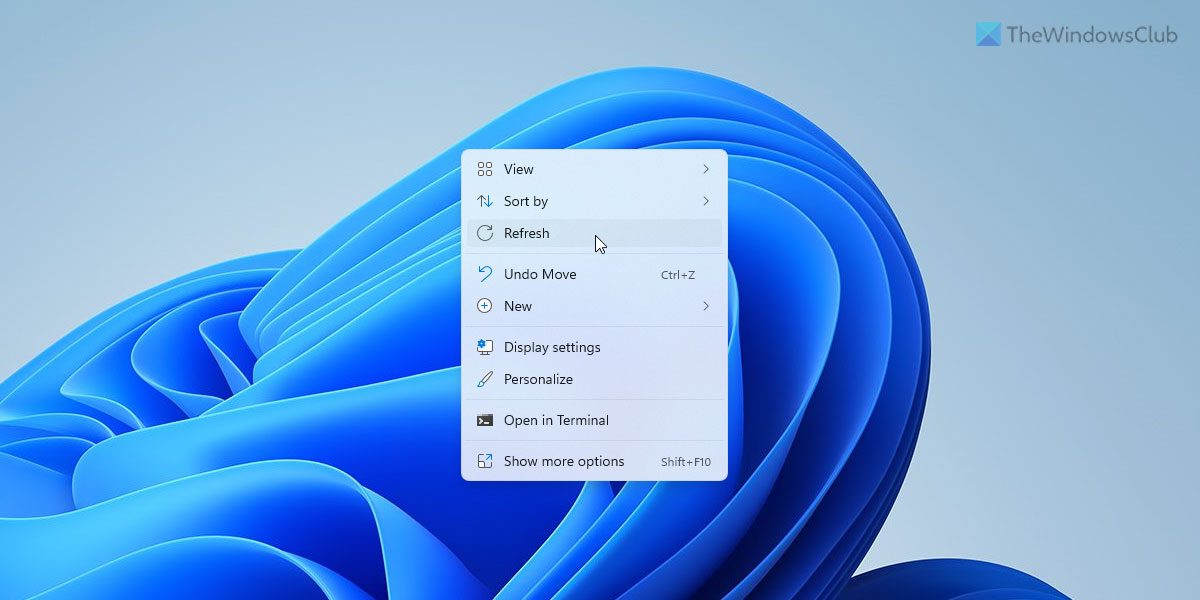
		<description><![CDATA[<div style=" float: left; padding: 4px; margin: 0 10px 5px 0; width: 75px; height: 75px;"><img style=" float: left; padding: 4px; margin: 0 10px 5px 0;" width="75" height="75" src="http://www.thewindowsclub.com/wp-content/themes/Twc/scripts/thumb.php?src=http://www.thewindowsclub.com/wp-content/uploads/2011/12/refresh-desktop.jpg&amp;w=75&amp;h=75&amp;zc=1"/></div>I am sure that you must have noticed that when you right-click on your Windows desktop or inside an open explorer window, you see an option called Refresh in the context menu. The Refresh option has been there since you can remember! <span><a class="more-link" href="http://www.thewindowsclub.com/refresh-desktop-folder-windows">...more &#62;&#62;&#62;</a></span>]]></description>
		<wfw:commentRss>http://www.thewindowsclub.com/refresh-desktop-folder-windows/feed</wfw:commentRss>
		<slash:comments>4</slash:comments>
		</item>
	</channel>
</rss>