<?xml version="1.0" encoding="UTF-8"?>
<rss version="2.0"
	xmlns:content="http://purl.org/rss/1.0/modules/content/"
	xmlns:wfw="http://wellformedweb.org/CommentAPI/"
	xmlns:dc="http://purl.org/dc/elements/1.1/"
	xmlns:atom="http://www.w3.org/2005/Atom"
	xmlns:sy="http://purl.org/rss/1.0/modules/syndication/"
	xmlns:slash="http://purl.org/rss/1.0/modules/slash/"
	>

<channel>
	<title>The Windows Club &#187; Libraries</title>
	<atom:link href="http://www.thewindowsclub.com/tag/libraries/feed" rel="self" type="application/rss+xml" />
	<link>http://www.thewindowsclub.com</link>
	<description>The Windows Club is  created by Anand Khanse, a Microsoft MVP and is primarily targeted at the Windows 7, 8 &#38; Vista user and will address and cover issues in relation to Microsoft and Windows OS.</description>
	<lastBuildDate>Thu, 09 Feb 2012 03:47:25 +0000</lastBuildDate>
	<language>en</language>
	<sy:updatePeriod>hourly</sy:updatePeriod>
	<sy:updateFrequency>1</sy:updateFrequency>
	<generator>http://wordpress.org/?v=3.3.1</generator>
<xhtml:meta xmlns:xhtml="http://www.w3.org/1999/xhtml" name="robots" content="noindex" />
		<item>
		<title>Fix: Windows 7 Libraries folder keeps opening or popping up at startup</title>
		<link>http://www.thewindowsclub.com/fix-windows-7-libraries-folder-keeps-opening-or-popping-up-at-startup?utm_source=rss&#038;utm_medium=rss&#038;utm_campaign=fix-windows-7-libraries-folder-keeps-opening-or-popping-up-at-startup</link>
		<comments>http://www.thewindowsclub.com/fix-windows-7-libraries-folder-keeps-opening-or-popping-up-at-startup#comments</comments>
		<pubDate>Sat, 04 Jun 2011 15:02:21 +0000</pubDate>
		<dc:creator>AnandK@TWC</dc:creator>
				<category><![CDATA[Windows]]></category>
		<category><![CDATA[Libraries]]></category>
		<category><![CDATA[Troubleshoot]]></category>

		<guid isPermaLink="false">http://www.thewindowsclub.com/?p=28527</guid>
		<description><![CDATA[<div style=" float: left; padding: 4px; margin: 0 10px 5px 0; width: 75px; height: 75px;"><img style=" float: left; padding: 4px; margin: 0 10px 5px 0;" width="75" height="75" src="http://www.thewindowsclub.com/wp-content/themes/Twc/scripts/thumb.php?src=http://www.thewindowsclub.com/wp-content/uploads/2011/06/performance-check-600x456.png&amp;w=75&amp;h=75&amp;zc=1"/></div>If you find that your Libraries folder in Windows 7 opens on startup, then you may want to try some of these troubleshooting steps. These are just of the things which come to my mind and you may try them <span><a class="more-link" href="http://www.thewindowsclub.com/fix-windows-7-libraries-folder-keeps-opening-or-popping-up-at-startup">...more &#62;&#62;&#62;</a></span>]]></description>
		<wfw:commentRss>http://www.thewindowsclub.com/fix-windows-7-libraries-folder-keeps-opening-or-popping-up-at-startup/feed</wfw:commentRss>
		<slash:comments>1</slash:comments>
		</item>
		<item>
		<title>Fix: Error 16389, Unable to create the file New Library.library.ms in Windows</title>
		<link>http://www.thewindowsclub.com/fix-error-16389-unable-to-create-the-file-new-library-library-ms-in-windows?utm_source=rss&#038;utm_medium=rss&#038;utm_campaign=fix-error-16389-unable-to-create-the-file-new-library-library-ms-in-windows</link>
		<comments>http://www.thewindowsclub.com/fix-error-16389-unable-to-create-the-file-new-library-library-ms-in-windows#comments</comments>
		<pubDate>Sat, 23 Apr 2011 15:39:19 +0000</pubDate>
		<dc:creator>AnandK@TWC</dc:creator>
				<category><![CDATA[Windows]]></category>
		<category><![CDATA[Group Policy]]></category>
		<category><![CDATA[Libraries]]></category>
		<category><![CDATA[Tips]]></category>

		<guid isPermaLink="false">http://www.thewindowsclub.com/?p=26898</guid>
		<description><![CDATA[<div style=" float: left; padding: 4px; margin: 0 10px 5px 0; width: 75px; height: 75px;"><img style=" float: left; padding: 4px; margin: 0 10px 5px 0;" width="75" height="75" src="http://www.thewindowsclub.com/wp-content/themes/Twc/scripts/thumb.php?src=http://www.thewindowsclub.com/wp-content/uploads/2011/04/gpedity-lib1-600x419.jpg&amp;w=75&amp;h=75&amp;zc=1"/></div>If you try to create a new Library on Windows 7 or Windows Server 2008 R2, but you find that you are unable to, then this article may interest you. Not only will you be unable to create the new <span><a class="more-link" href="http://www.thewindowsclub.com/fix-error-16389-unable-to-create-the-file-new-library-library-ms-in-windows">...more &#62;&#62;&#62;</a></span>]]></description>
		<wfw:commentRss>http://www.thewindowsclub.com/fix-error-16389-unable-to-create-the-file-new-library-library-ms-in-windows/feed</wfw:commentRss>
		<slash:comments>0</slash:comments>
		</item>
		<item>
		<title>Tweak Libraries in Windows 7 with Librarian</title>
		<link>http://www.thewindowsclub.com/tweak-libraries-in-windows-7-with-librarian?utm_source=rss&#038;utm_medium=rss&#038;utm_campaign=tweak-libraries-in-windows-7-with-librarian</link>
		<comments>http://www.thewindowsclub.com/tweak-libraries-in-windows-7-with-librarian#comments</comments>
		<pubDate>Fri, 22 Oct 2010 22:39:03 +0000</pubDate>
		<dc:creator>AnandK@TWC</dc:creator>
				<category><![CDATA[Downloads]]></category>
		<category><![CDATA[Libraries]]></category>

		<guid isPermaLink="false">http://www.thewindowsclub.com/?p=19488</guid>
		<description><![CDATA[<div style=" float: left; padding: 4px; margin: 0 10px 5px 0; width: 75px; height: 75px;"><img style=" float: left; padding: 4px; margin: 0 10px 5px 0;" width="75" height="75" src="http://www.thewindowsclub.com/wp-content/themes/Twc/scripts/thumb.php?src=http://www.thewindowsclub.com/wp-content/uploads/2010/10/windows7-librarian.png&amp;w=75&amp;h=75&amp;zc=1"/></div>Librarian is a freeware Libraries Management Utility that allows you tweak Libraries in Windows 7, easily. Libraries are where you go to manage your documents, music, pictures, and other files. Features: Create a new library with any folder(s) inside Change <span><a class="more-link" href="http://www.thewindowsclub.com/tweak-libraries-in-windows-7-with-librarian">...more &#62;&#62;&#62;</a></span>]]></description>
		<wfw:commentRss>http://www.thewindowsclub.com/tweak-libraries-in-windows-7-with-librarian/feed</wfw:commentRss>
		<slash:comments>0</slash:comments>
		</item>
		<item>
		<title>Which folders can be added to the Windows 7 library?</title>
		<link>http://www.thewindowsclub.com/which-folders-can-be-added-to-the-windows-7-library?utm_source=rss&#038;utm_medium=rss&#038;utm_campaign=which-folders-can-be-added-to-the-windows-7-library</link>
		<comments>http://www.thewindowsclub.com/which-folders-can-be-added-to-the-windows-7-library#comments</comments>
		<pubDate>Sun, 07 Feb 2010 21:39:24 +0000</pubDate>
		<dc:creator>AnandK@TWC</dc:creator>
				<category><![CDATA[Windows]]></category>
		<category><![CDATA[Features]]></category>
		<category><![CDATA[Libraries]]></category>

		<guid isPermaLink="false">http://www.thewindowsclub.com/?p=6503</guid>
		<description><![CDATA[In Windows 7, you can include folders in a library from many different locations, such as your computer&#8217;s C drive, an external hard drive, or a network. The primary requirement for a new library location is that the content in <span><a class="more-link" href="http://www.thewindowsclub.com/which-folders-can-be-added-to-the-windows-7-library">...more &#62;&#62;&#62;</a></span>]]></description>
		<wfw:commentRss>http://www.thewindowsclub.com/which-folders-can-be-added-to-the-windows-7-library/feed</wfw:commentRss>
		<slash:comments>0</slash:comments>
		</item>
		<item>
		<title>Add Network Location or any non-indexed locations to Windows 7 Libraries</title>
		<link>http://www.thewindowsclub.com/add-network-location-or-any-non-indexed-locations-to-windows-7-libraries?utm_source=rss&#038;utm_medium=rss&#038;utm_campaign=add-network-location-or-any-non-indexed-locations-to-windows-7-libraries</link>
		<comments>http://www.thewindowsclub.com/add-network-location-or-any-non-indexed-locations-to-windows-7-libraries#comments</comments>
		<pubDate>Wed, 27 Jan 2010 13:31:29 +0000</pubDate>
		<dc:creator>AnandK@TWC</dc:creator>
				<category><![CDATA[Downloads]]></category>
		<category><![CDATA[Libraries]]></category>

		<guid isPermaLink="false">http://www.thewindowsclub.com/?p=6193</guid>
		<description><![CDATA[<div style=" float: left; padding: 4px; margin: 0 10px 5px 0; width: 75px; height: 75px;"><img style=" float: left; padding: 4px; margin: 0 10px 5px 0;" width="75" height="75" src="http://www.thewindowsclub.com/wp-content/themes/Twc/scripts/thumb.php?src=http://www.thewindowsclub.com/wp-content/uploads/2010/01/win7-library-tool.png&amp;w=75&amp;h=75&amp;zc=1"/></div>Windows 7 libraries are a very useful feature. Unfortunately you cannot add certain locations like  network locations and other non-indexed locations to it easily. You can always do so using the command line utility slutil.exe programatically, but this freeware tool <span><a class="more-link" href="http://www.thewindowsclub.com/add-network-location-or-any-non-indexed-locations-to-windows-7-libraries">...more &#62;&#62;&#62;</a></span>]]></description>
		<wfw:commentRss>http://www.thewindowsclub.com/add-network-location-or-any-non-indexed-locations-to-windows-7-libraries/feed</wfw:commentRss>
		<slash:comments>0</slash:comments>
		</item>
		<item>
		<title>How to replace Library icons easily in Windows 7</title>
		<link>http://www.thewindowsclub.com/how-to-replace-library-icons-easily-in-windows-7?utm_source=rss&#038;utm_medium=rss&#038;utm_campaign=how-to-replace-library-icons-easily-in-windows-7</link>
		<comments>http://www.thewindowsclub.com/how-to-replace-library-icons-easily-in-windows-7#comments</comments>
		<pubDate>Mon, 09 Nov 2009 16:08:07 +0000</pubDate>
		<dc:creator>AnandK@TWC</dc:creator>
				<category><![CDATA[Downloads]]></category>
		<category><![CDATA[Customize]]></category>
		<category><![CDATA[Icons]]></category>
		<category><![CDATA[Libraries]]></category>

		<guid isPermaLink="false">http://www.thewindowsclub.com/?p=4577</guid>
		<description><![CDATA[<div style=" float: left; padding: 4px; margin: 0 10px 5px 0; width: 75px; height: 75px;"><img style=" float: left; padding: 4px; margin: 0 10px 5px 0;" width="75" height="75" src="http://www.thewindowsclub.com/wp-content/themes/Twc/scripts/thumb.php?src=http://www.thewindowsclub.com/wp-content/uploads/2009/11/libraryicons.png&amp;w=75&amp;h=75&amp;zc=1"/></div>If you wish to change the Library icons in Windows 7, you can now do so easily with the help of this freeware utility. Replace Librarie Icons is a freeware portable tool which lets you change the Windows Libraries Icons. <span><a class="more-link" href="http://www.thewindowsclub.com/how-to-replace-library-icons-easily-in-windows-7">...more &#62;&#62;&#62;</a></span>]]></description>
		<wfw:commentRss>http://www.thewindowsclub.com/how-to-replace-library-icons-easily-in-windows-7/feed</wfw:commentRss>
		<slash:comments>0</slash:comments>
		</item>
		<item>
		<title>How to disable Homegroup &amp; Libraries in Windows 7</title>
		<link>http://www.thewindowsclub.com/how-to-disable-homegroup-libraries-in-windows-7?utm_source=rss&#038;utm_medium=rss&#038;utm_campaign=how-to-disable-homegroup-libraries-in-windows-7</link>
		<comments>http://www.thewindowsclub.com/how-to-disable-homegroup-libraries-in-windows-7#comments</comments>
		<pubDate>Fri, 16 Oct 2009 17:19:28 +0000</pubDate>
		<dc:creator>AnandK@TWC</dc:creator>
				<category><![CDATA[Windows]]></category>
		<category><![CDATA[Homegroup]]></category>
		<category><![CDATA[Libraries]]></category>
		<category><![CDATA[Tips]]></category>

		<guid isPermaLink="false">http://www.thewindowsclub.com/?p=4044</guid>
		<description><![CDATA[If you do not like or use the two new features of Windows 7 viz Homegroups &#38; Libraries, and would like to disable them, here is how you can do so easily as follows: How to disable Homegroups: Open Windows <span><a class="more-link" href="http://www.thewindowsclub.com/how-to-disable-homegroup-libraries-in-windows-7">...more &#62;&#62;&#62;</a></span>]]></description>
		<wfw:commentRss>http://www.thewindowsclub.com/how-to-disable-homegroup-libraries-in-windows-7/feed</wfw:commentRss>
		<slash:comments>0</slash:comments>
		</item>
		<item>
		<title>Microsoft Help – Windows 7 Libraries FAQ</title>
		<link>http://www.thewindowsclub.com/microsoft-help-windows-7-libraries-faq?utm_source=rss&#038;utm_medium=rss&#038;utm_campaign=microsoft-help-windows-7-libraries-faq</link>
		<comments>http://www.thewindowsclub.com/microsoft-help-windows-7-libraries-faq#comments</comments>
		<pubDate>Mon, 20 Jul 2009 09:59:07 +0000</pubDate>
		<dc:creator>AnandK@TWC</dc:creator>
				<category><![CDATA[Windows]]></category>
		<category><![CDATA[FAQ]]></category>
		<category><![CDATA[Features]]></category>
		<category><![CDATA[Libraries]]></category>

		<guid isPermaLink="false">http://www.thewindowsclub.com/?p=2065</guid>
		<description><![CDATA[<div style=" float: left; padding: 4px; margin: 0 10px 5px 0; width: 75px; height: 75px;"><img style=" float: left; padding: 4px; margin: 0 10px 5px 0;" width="75" height="75" src="http://www.thewindowsclub.com/wp-content/themes/Twc/scripts/thumb.php?src=http://www.thewindowsclub.com/wp-content/uploads/2009/07/libraries-icon.png&amp;w=75&amp;h=75&amp;zc=1"/></div>In Windows 7, you see, Personal Documents, Personal Downloads, Personal Photos, Personal Videos, and Personal Music. You will also see a change in naming in the Public User Profile: Public Documents, Public Downloads, Public Photos, Public Videos, and Public Music. <span><a class="more-link" href="http://www.thewindowsclub.com/microsoft-help-windows-7-libraries-faq">...more &#62;&#62;&#62;</a></span>]]></description>
		<wfw:commentRss>http://www.thewindowsclub.com/microsoft-help-windows-7-libraries-faq/feed</wfw:commentRss>
		<slash:comments>0</slash:comments>
		</item>
		<item>
		<title>Pin Libraries or Search Connectors to Search Again &amp; Start Menu</title>
		<link>http://www.thewindowsclub.com/pin-libraries-or-search-connectors-to-search-again-start-menu?utm_source=rss&#038;utm_medium=rss&#038;utm_campaign=pin-libraries-or-search-connectors-to-search-again-start-menu</link>
		<comments>http://www.thewindowsclub.com/pin-libraries-or-search-connectors-to-search-again-start-menu#comments</comments>
		<pubDate>Sun, 19 Jul 2009 13:21:18 +0000</pubDate>
		<dc:creator>AnandK@TWC</dc:creator>
				<category><![CDATA[Windows]]></category>
		<category><![CDATA[Libraries]]></category>
		<category><![CDATA[Tips]]></category>

		<guid isPermaLink="false">http://www.thewindowsclub.com/?p=2048</guid>
		<description><![CDATA[<div style=" float: left; padding: 4px; margin: 0 10px 5px 0; width: 75px; height: 75px;"><img style=" float: left; padding: 4px; margin: 0 10px 5px 0;" width="75" height="75" src="http://www.thewindowsclub.com/wp-content/themes/Twc/scripts/thumb.php?src=http://www.thewindowsclub.com/wp-content/uploads/2009/07/pinlibraries1.png&amp;w=75&amp;h=75&amp;zc=1"/></div>There is a group policy setting in Windows 7 which will let you pin Libraries or Seach Connectors to the Search again links and the Start Menu. This policy setting allows up to five Libraries or Search Connectors to be <span><a class="more-link" href="http://www.thewindowsclub.com/pin-libraries-or-search-connectors-to-search-again-start-menu">...more &#62;&#62;&#62;</a></span>]]></description>
		<wfw:commentRss>http://www.thewindowsclub.com/pin-libraries-or-search-connectors-to-search-again-start-menu/feed</wfw:commentRss>
		<slash:comments>0</slash:comments>
		</item>
		<item>
		<title>How to add Folder or Library to Favorites Link in Windows 7 explorer.</title>
		<link>http://www.thewindowsclub.com/how-to-add-folder-or-library-to-favorites-link-in-windows-7-explorer?utm_source=rss&#038;utm_medium=rss&#038;utm_campaign=how-to-add-folder-or-library-to-favorites-link-in-windows-7-explorer</link>
		<comments>http://www.thewindowsclub.com/how-to-add-folder-or-library-to-favorites-link-in-windows-7-explorer#comments</comments>
		<pubDate>Thu, 23 Apr 2009 06:30:54 +0000</pubDate>
		<dc:creator>AnandK@TWC</dc:creator>
				<category><![CDATA[Windows]]></category>
		<category><![CDATA[Explorer]]></category>
		<category><![CDATA[Favorites]]></category>
		<category><![CDATA[Libraries]]></category>
		<category><![CDATA[Tips]]></category>

		<guid isPermaLink="false">http://www.thewindowsclub.com/?p=817</guid>
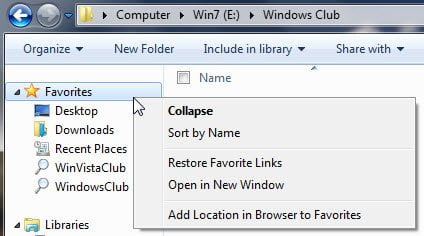
		<description><![CDATA[<div style=" float: left; padding: 4px; margin: 0 10px 5px 0; width: 75px; height: 75px;"><img style=" float: left; padding: 4px; margin: 0 10px 5px 0;" width="75" height="75" src="http://www.thewindowsclub.com/wp-content/themes/Twc/scripts/thumb.php?src=http://www.thewindowsclub.com/wp-content/uploads/2009/04/addfav.jpg&amp;w=75&amp;h=75&amp;zc=1"/></div>In the Windows explorer, on the left side, you have the navigation pane, in which a sections is Favorites, where you can see places like Desktop, Recent Places, etc.  If you wish, you can add a folder or library to <span><a class="more-link" href="http://www.thewindowsclub.com/how-to-add-folder-or-library-to-favorites-link-in-windows-7-explorer">...more &#62;&#62;&#62;</a></span>]]></description>
		<wfw:commentRss>http://www.thewindowsclub.com/how-to-add-folder-or-library-to-favorites-link-in-windows-7-explorer/feed</wfw:commentRss>
		<slash:comments>0</slash:comments>
		</item>
	</channel>
</rss>