Windows makes smart use of the user account to give you control over your system. To make it work for you, you’ll want to make sure that your account, which is the system administrator account, is password protected. You can set up Activity Monitoring to do your snooping for you.
Parental Control Features in Windows 7
Parental Controls not only let you pick which games your children can play; they also give you the power to block dubious websites, set time limits, and even block specific programs on your PC to keep the youngsters from messing with your business documents. In short, you take control of how your kids use PC.
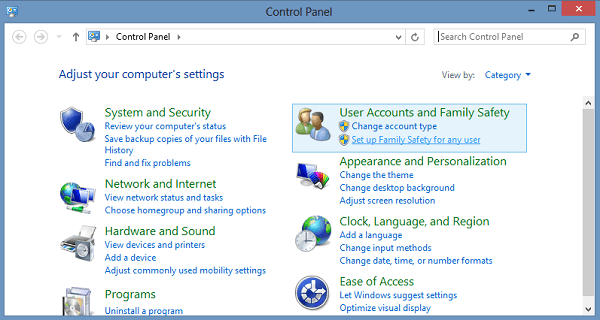
- Open the Control Panel and then click “Set up family safety for any user”.
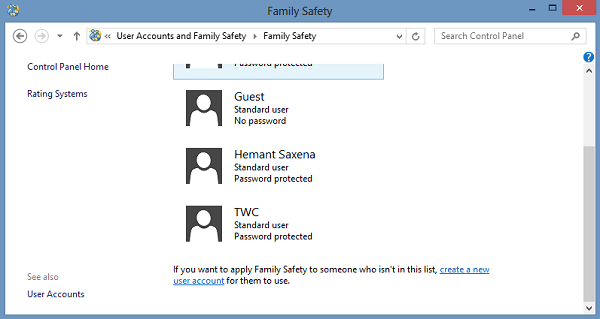
- Choose which user you’d like to adjust the setting for. If your child doesn’t already have his or her own user account, you can create one by clicking “Create a new user account” from the bottom of this screen.
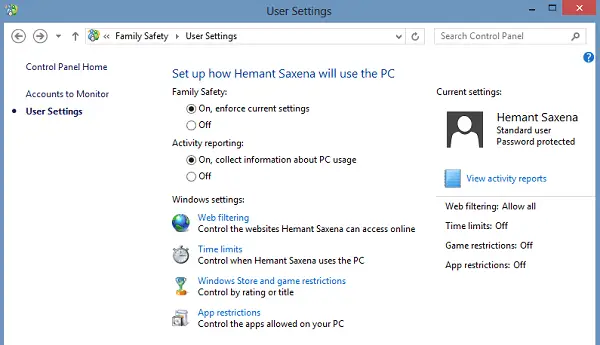
- The user controls menu is the heart of windows’ Parental Controls, giving you a quick glance at your current settings and acting as a gateway to all of this user’s restrictions.
Windows Store and Game Restrictions menu
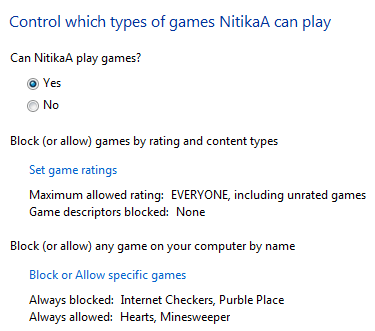
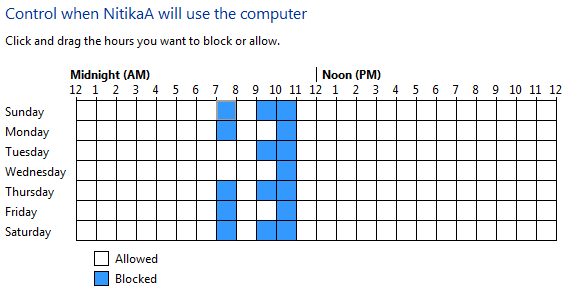
Here you can choose which games or Windows Store apps a user can access. You can select any specific game you’d like to block or allow, regardless of its rating. If you don’t want to let your kids play at odd times, go back to the User Controls menu and click Time limits. Click the boxes in the grid to block specific time slots.
You can control access to games, choose an age-rating level, choose the types of content you want to block, and decide whether you want to allow or block unrated or specific games.
Web Filtering
Windows’ Parental Controls also let you control web surfing and access to other programs on your PC. For Instance, you can set a web filtering level and allow or block specific websites to help keep your child away from potentially harmful websites.
App Restrictions
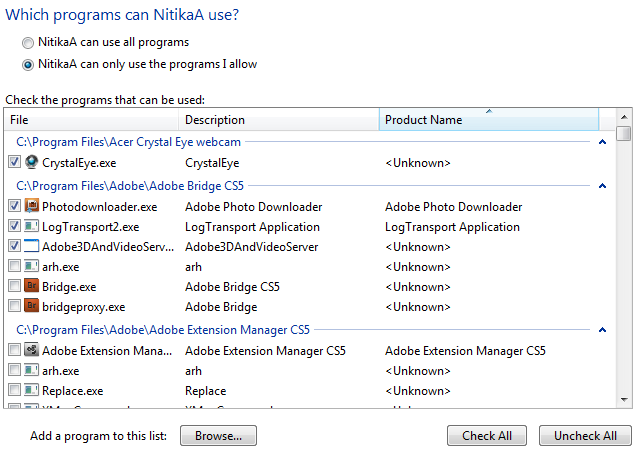
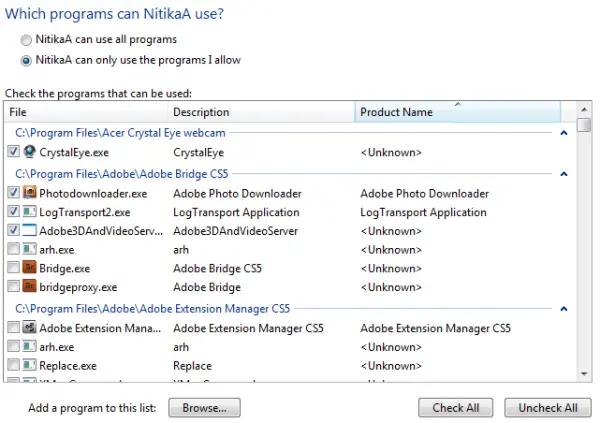
To keep the kids from messing around in your finance program, you can block it in the Application Restrictions menu just by putting a checkmark next to it.
This feature will surely give you some relief that your child’s computer habits are somehow in your control. When your child try to play a game or run a program that will be blocked by you using Parental Controls, a notification is displayed, that the program has been blocked. Your child can click a link in the notification to request permission for access to that game or program. You can allow access by entering your account information.
You can prevent children from running programs that you don’t want them to run.
Time limits
You can set time limits to control when children are allowed to log on to the computer. Time limits prevent children from logging on during the specified hours. You can set different logon hours for every day of the week. If they’re logged on when their allotted time ends, they’ll be automatically logged off. This will really help you if your child uses the computer continuously for a longer time period.
So with Parental Controls, you can control your Child’s activities and how he/she uses the computer.
Stay tuned, in my next article I will tell you about how to install advanced features such as Web filtering, activity reports, etc. using Parental Controls.