
Your processor automatically allocates system resources to all the applications running on your system. Well! If you need the system to prioritize a task, just change the process priority. In this post, we will see how to change process priority for running processes using the Task Manager, PowerShell and Command Prompt in Windows 11/10..
Windows applications and processes are prioritized based on the following levels:
- Realtime.
- High.
- Above normal.
- Normal.
- Below normal.
- Low.
The higher up the priority level assigned to the process, the more processor resources it uses; hence, the better the performance of the application using the process.
The Windows system automatically assigns priority levels to running processes, but you can manually change these levels. This guide will show you three ways to carry out this operation.
Note that although you can easily set process priorities, these changes are temporary because the process reverts to its default priority level when you close the program or reboot your computer.
How to change Process Priority in Windows 11/10
There are three ways to change the priority level of processes running on your machine. You can do this using the following methods:
- Change the priority in Task Manager
- Set the process priority using PowerShell
- Set the priority level using Command Prompt
Read on to learn how to carry out the above operations without running into serious complications.
1] Change the process priority in Task Manager
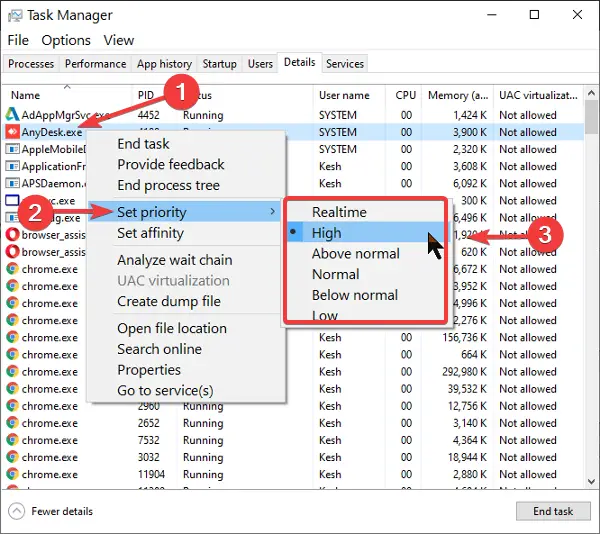
To set the priority in Task ManagerRight-click on the Start button and select Task Manager. Click on the downward-facing arrow at the bottom of the Task Manager screen for More details.
Switch to the Details tab at the top of the window. Here, find the process for which you wish to change its priority and hover on Set priority.
From the context menu, select the priority level for the chosen application or process. You can choose between the given priority levels.
Hit the Change priority button and close the Task Manager.
2] Set the process priority using PowerShell
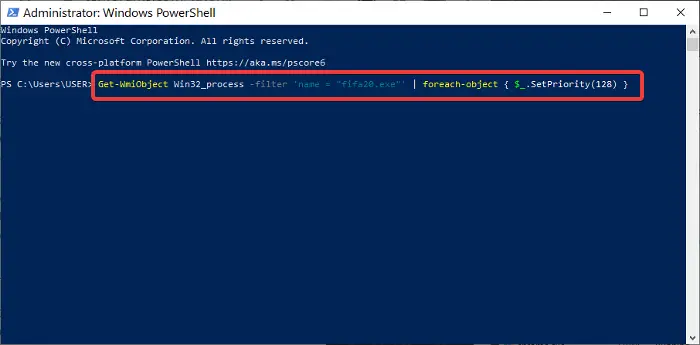
Unlike the Task Manager method, PowerShell doesn’t name the priority levels in English terms. Instead, you have to set the priority level using designated IDs.
The table below shows the various priority levels and their corresponding IDs:
| Priority Level | Corresponding ID |
| Realtime | 256 |
| High | 128 |
| Above normal | 32768 |
| Normal | 32 |
| Below normal | 16384 |
| Low | 64 |
With that said, follow the steps below to change program/process priority levels using PowerShell.
Press the Windows key and search for PowerShell. Click on the program from the search results.
In the PowerShell window, enter the following command and hit ENTER.
Get-WmiObject Win32_process -filter 'name = "ProcessName.exe"' | foreach-object { $_.SetPriority(PriorityLevelID) }
In the command above, replace ProcessName with the name of the process or application for which you wish to change its priority level.
Similarly, change PriorityLevelID to the priority level number.
3] Set the priority level using Command Prompt
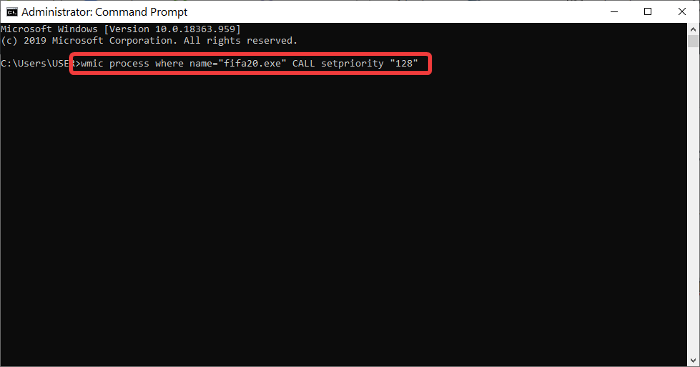
Press the Windows key + R combination to bring up the Run dialog box. Here, type in cmd and press ENTER.
In the Command Prompt window, enter the command below and press ENTER.
wmic process where name="ProcessName" CALL setpriority "PriorityLevelID"
NOTE: In the above command, replace ProcessName with the name of the process whose priority level you want to change.
Also, performing this operation with this command, like in PowerShell, uses the designated priority level IDs. So, when inputting the command above, be sure to replace PriorityLevelID with the corresponding ID from the table in the previous solution.
If you wish to make use of the actual priority level names as we did in the Task Manager method, you can use the command below.
wmic process where name="ProcessName" CALL setpriority "PriorityLevelName"
For this command, remember to also replace ProcessName with the name of the application/process, and PriorityLevelName with the priority level you want to use (Realtime, High, Above Normal, Normal, Below Normal, or Low).
Having learned the three ways to set process priority levels in Windows 11/10, I must warn you against putting programs to the real-time priority level. This allows the process to utilize the maximum amount of resources, potentially hampering the performance of other applications.
TIP: See this post if you can’t set Process Priority in Task Manager.
How to save Process Priority in Task Manager of Windows 11
To ensure your priority is saved, you can use this free tool called Prio Process Priority Saver. It is free for personal use.
Prio allows a user to save the priority specified by the user for any process. Once installed, it will provide a menu option, Save Priority, to save a process’s priority.
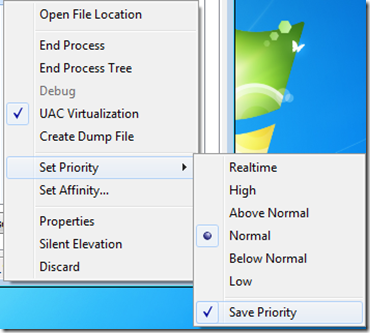
Prio will save the applied changes, and every time a new instance of the process is executed, it will hold the priority as set by the user. This may come in handy when you don’t want to assign the same priority to a process every time you execute it, instead, you want to do it in one go.
Prio also enhances the standard Processes tab with useful tooltips containing detailed information about each running process. It adds a TCP/IP tab to display all established TCP connections and all open ports (TCP and UDP), among other features.
Which command can change the priority of a running process?
You can change the priority of a running process using the command – wmic process where name="ProcessName" CALL setpriority "PriorityLevelID". You need to replace ProcessName with the name of the process you want to edit and PriorityLevelID with the corresponding value from the list mentioned earlier.
