
In Windows 11/10, you can schedule any task to initiate automatically using the Task Scheduler utility. Task Scheduler is a Microsoft Management Console (MMC) snap-in. It allows you to create a task that opens the program for you automatically according to the schedule you choose.
For example, if you use a financial program on a certain day each month, you can schedule a task that opens the program automatically to avoid the risk of forgetting to open it yourself.
Create Basic Task Wizard using Windows Task Scheduler
You can use the Create Basic Task Wizard in Task Scheduler to schedule a program or task to run automatically in Windows 10. Let us see how to do it.
How to create a Task using Task Scheduler in Windows 11/10
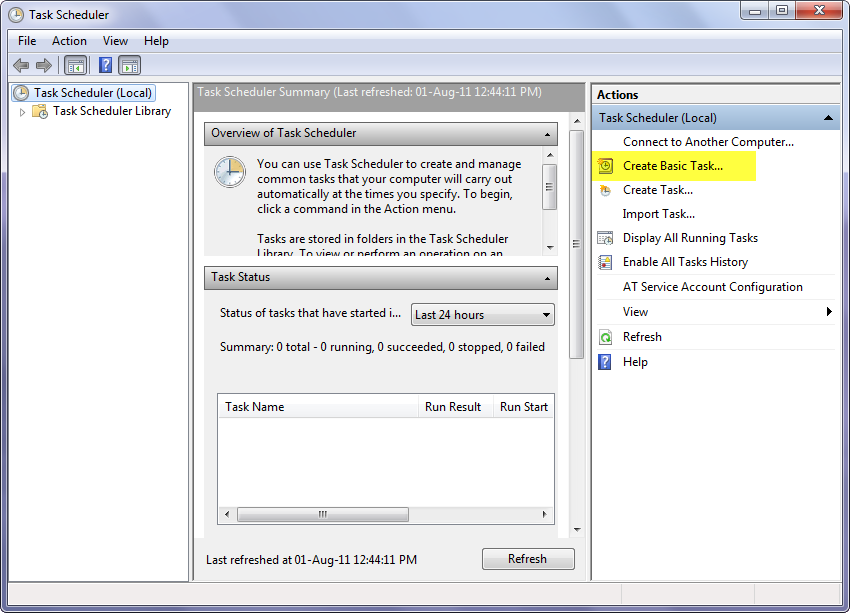
- Go to Control Panel
- Search for Task Scheduler and open it.
- Click the Action menu
- Then click Create Basic Task.
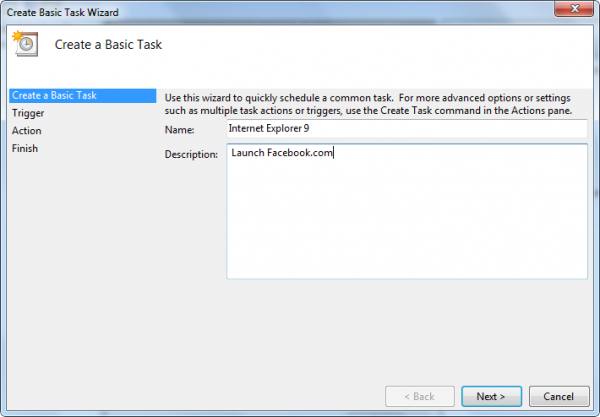
- Type a name for the task and an optional description
- Then click Next.

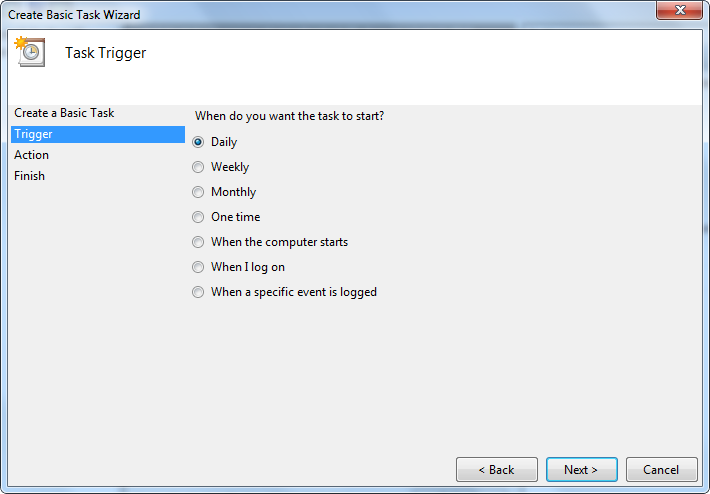
Now do one of the following:
- To select a schedule based on the calendar, click Daily, Weekly, Monthly, or One time, click Next; specify the schedule you want to use, and then click Next.
- To select a schedule based on common recurring events, click When the computer starts or When I log on, and then click Next.
- To select a schedule based on specific events, click When a specific event is logged, click Next; specify the event log and other information using the drop-down lists, and then click Next.
To schedule a program to start automatically, click Start a program, and then click Next. 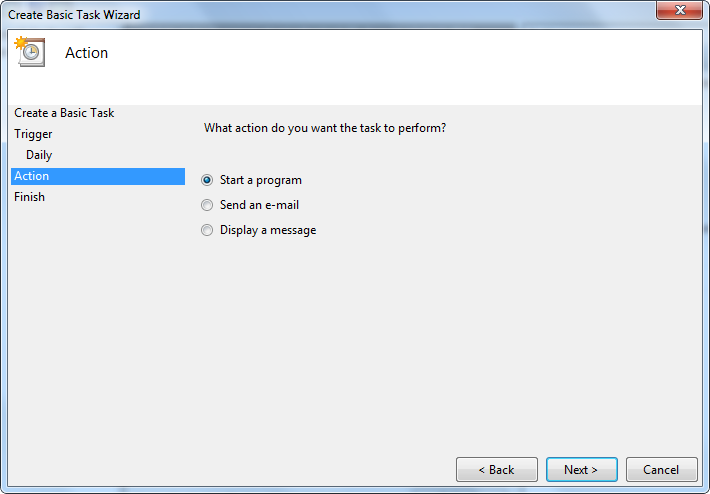
Click Browse to find the program you want to start, and then click Next.
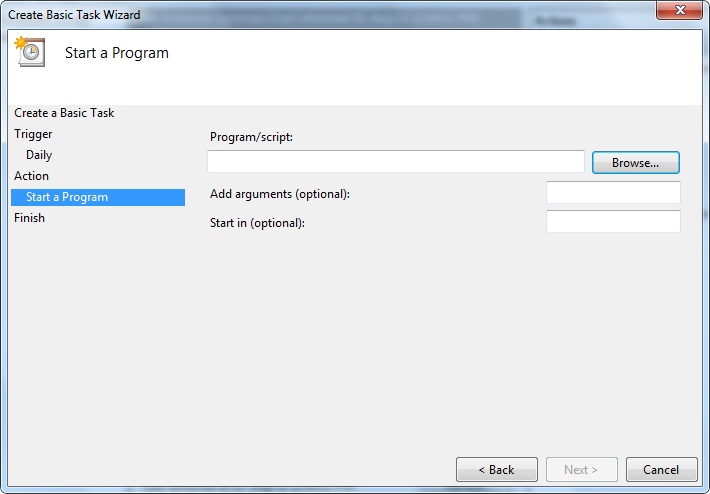
Click Finish.
Related: How to delay a Scheduled Task.
How to schedule a task to run automatically when the computer starts
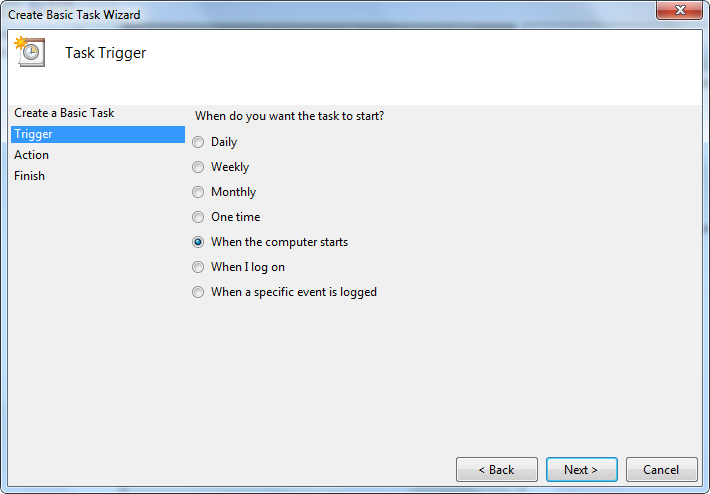
If you want a task to run when the Windows computer starts, whether a user is logged on or not, follow these steps:
- Go to Control Panel and search for Task Scheduler and open it.
- Click the Action menu, and then click Create Basic Task.
- Type a name for the task and an optional description, and then click Next.
- Click When the computer starts, and then click Next.
- To schedule a program to start automatically, click Start a program, and then click Next.
- Click Browse to find the program you want to start, and then click Next.
- Select the Open the Properties dialog for this task when I click Finish checkbox and click Finish.
- In the Properties dialog box, select Run whether the user is logged on or not, and then click OK.
You can also use PowerShell to Delete or Create a Scheduled Task.
That’s it!
Related reads:

