
Microsoft has provided Windows 11/10 with built-in security software, Microsoft Defender. Microsoft Defender or Windows Defender is an anti-malware component of Windows Security. It’s free, easy to use, and has great features like other competitor antivirus software in its class. In this post, we will see how to schedule a full scan in Windows Defender.
How to schedule a Windows Defender scan
To schedule periodic full scans in Windows Defender that will run in the background and safeguard your Windows from malware, you have to make use of the built-in Task Scheduler.
1. Press Windows Key + R combination and put taskschd.msc in the Run dialog box. Click OK.
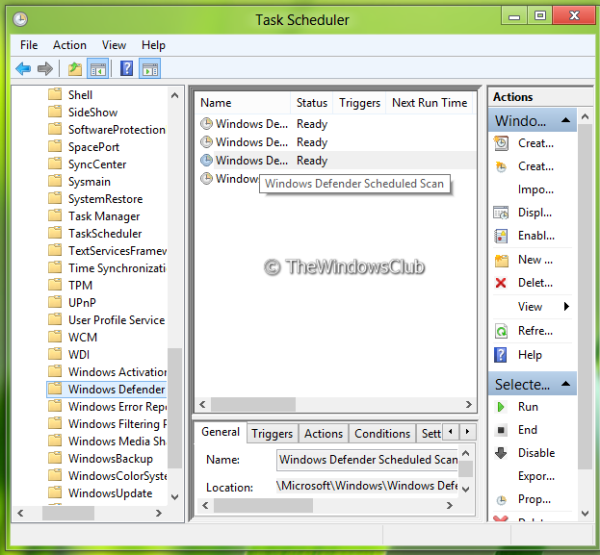
2. On the Task Scheduler window, in the left pane, navigate to Task Scheduler -> Microsoft -> Windows -> Windows Defender.
Now in the mid pane, select the third name that is for Windows Defender Scheduled Scan as shown below:
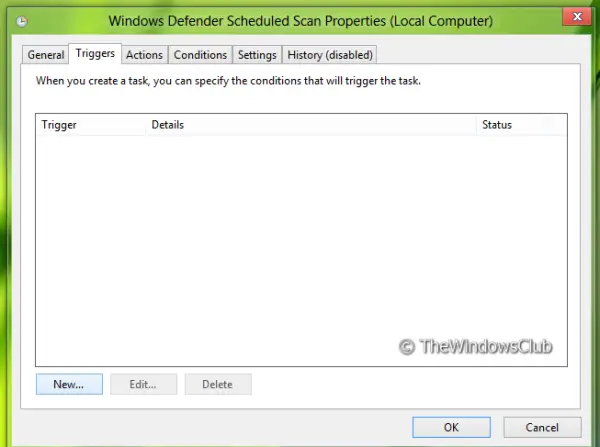
3. Now you’ll be taken to the following location, where you have to switch to the Triggers tab. Click New.
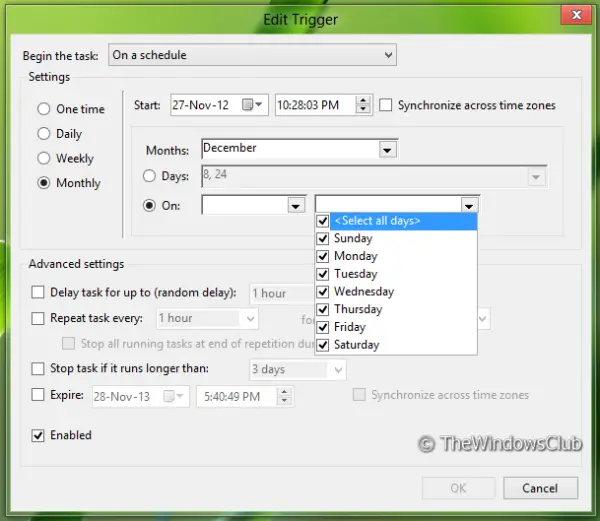
4. Now we’re going to schedule the scan, so configure it as shown in the window below. Firstly choose to Begin the task as On a schedule, then in the Settings section, select your priority to have scanned. Make sure you have checked Enabled at the left bottom corner of this window. Finally, click OK.
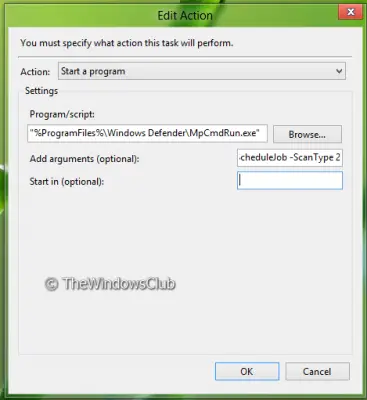
5. Next, switch to Actions tab and click Edit.
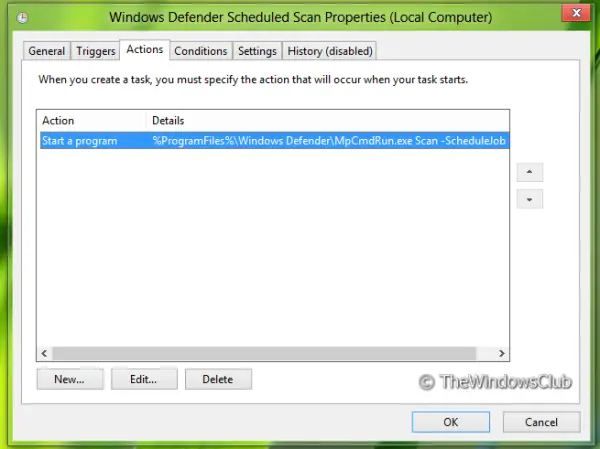
6. First of all, embed the Program Script within quotes as it is not there, by default.
And to this, you can add two types of arguments here, Scan -ScheduleJob for Quick Scan and Scan -ScheduleJob -ScanType 2 for Full Scan. Click OK.
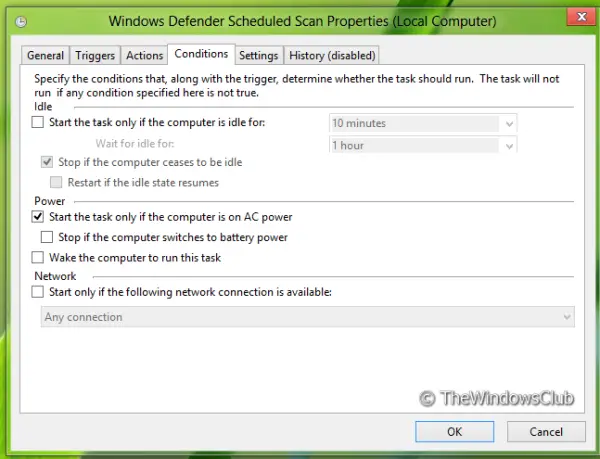
7. Now come to Conditions tab and select the Power options according to your best-suited priority.
It will be beneficial to set your device to ON itself if it is not ON at the scheduled time. Here you can also configure the priority for the network.
8. Thus we’re done now as far as scheduling is concerned. You can confirm it by in the window, where the Next Run Time is shown as per your choices provided in step 4.
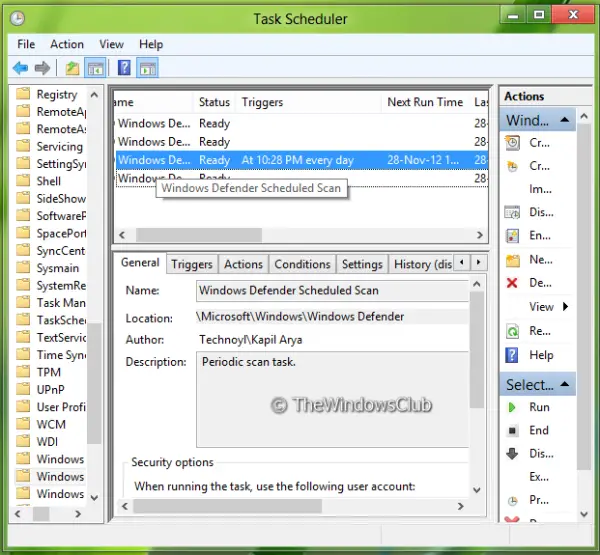
Windows Defender will automatically scan your computer at the scheduled time.
I hope you found the article useful.
Learn how to update Windows Defender even when Automatic Windows Updates is disabled.

