
If Windows 11/10 does not know how to open a particular file type, or if there are multiple apps that can open a file type or extension, it may show you a pop-up saying How do you want open this file, Look for an app in the Store or Look for another app on this PC? If you want to disable this popup, then this post will help you.
Remove Look for an App in the Microsoft Store
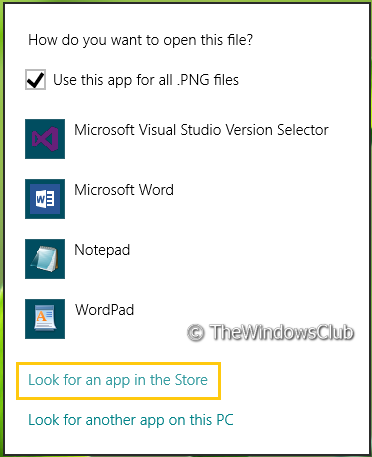
In this article, we’ll explain two ways to remove such an option. As you can see in the image above, this prompt is displayed when you right-click on a file and the pick up Choose default program. Here the Look for an app in the Store is of no use for many and could be removed.
There are two ways to do it:
Remove Look for an App in the Store using Registry Editor
1. Press the Windows Key + R simultaneously and put regedit in Run dialog box.
2. Navigate here:
HKEY_CURRENT_USER\Software\Policies\Microsoft\Windows\Explorer
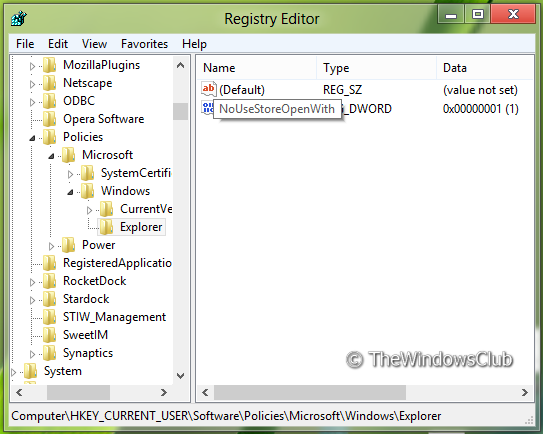
3. Now right-click in the right pane of the window. Create a DWORD value and name it “NoUseStoreOpenWith”. Apply the same thing with the following location as well:
HKEY_LOCAL_MACHINE\SOFTWARE\Policies\Microsoft\Windows\Explorer
4. Right-click on the above-created DWORD value, select Modify. You will get this window:
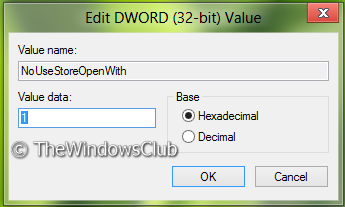
5. Now you can use the following values for Value data section:
- Display Look For An App In The Store option = ‘0’ (Default setting)
- Do NOT Display Look For An App In The Store option = ‘1‘
6. Close Registry Editor and reboot to see results.
Random read: Set different colors for the window border and the taskbar in Windows.
Remove Look for an App in the Store using Group Policy Editor
1. Press Windows Key + R combination and put gpedit.msc in Run dialog box.
2. In the left pane, navigate to:
User Configuration -> Administrative Templates -> System -> Internet Communication Management -> Internet Communication settings.
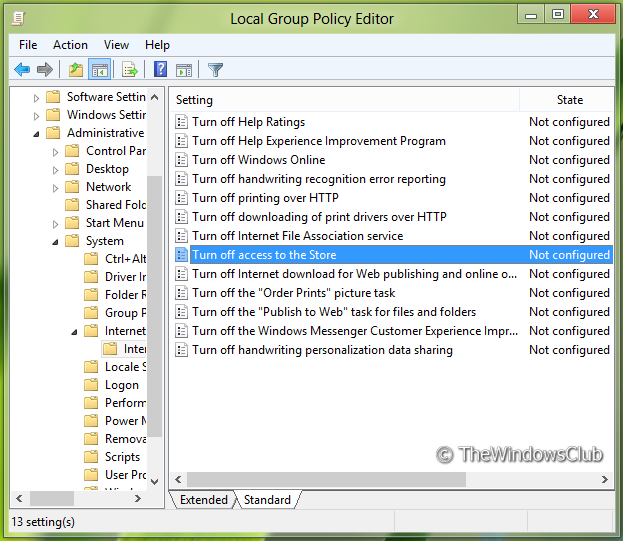
3. Now look in the right pane. You’ll get the policy named Turn off access to the Store as shown above.
4. Double-click on this policy to get the window shown below.
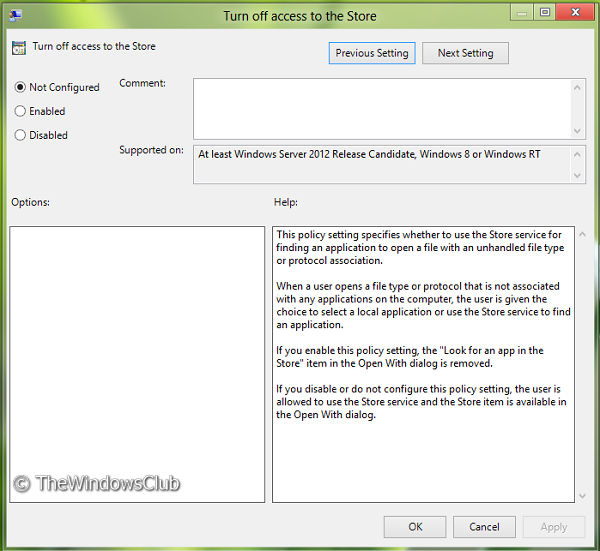
5. Now you can use the following settings:
- Display Look For An App In The Store option = Select Disabled or Not configured (Default Setting)
- Do NOT Display Look For An App In The Store option = Select Enabled
This policy setting specifies whether to use the Store service for finding an application to open a file with an unhandled file type or protocol association. When a user opens a file type or protocol that is not associated with any applications on the computer, the user is given the choice to select a local application or use the Store service to find an application. If you enable this policy setting, the “Look for an app in the Store” item in the Open With dialog is removed. If you disable or do not configure this policy setting, the user is allowed to use the Store service and the Store item is available in the Open With dialog.
After making changes click Apply followed by OK.
That’s it. Reboot to see the results.
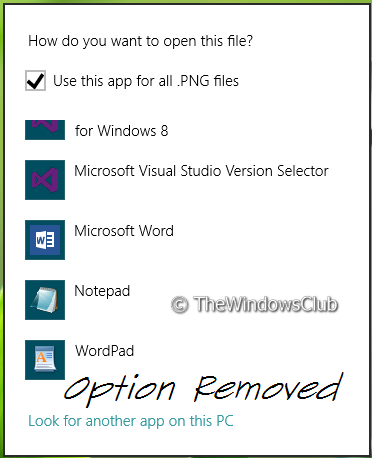
Certain editions of Windows do not include the Group Policy Editor – they can use the registry tweak or add the GPEDIT to their Home Edition.
