
Recently we’ve posted the trick on how to remove Network from Windows Explorer navigation pane. Today, in this article, I am going to share with you the same trick for Computer or This PC link. The only difference between these two parts of the Explorer navigation pane is the difference in the Registry location of their roots.
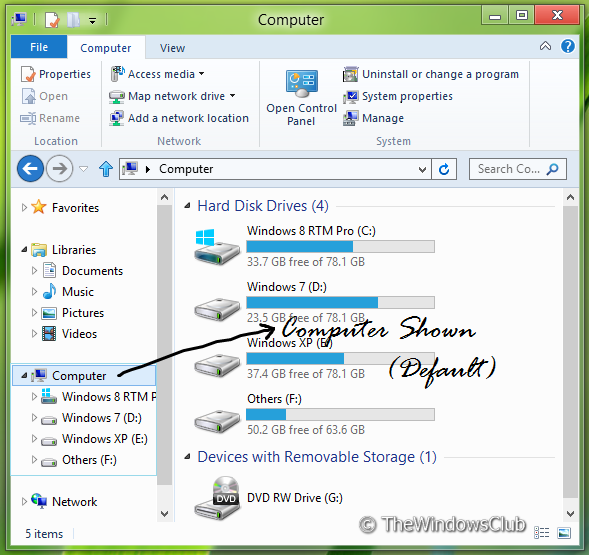
Remove This PC link in Explorer Navigation Pane
Removing Computer from the navigation pane may not make sense to most of us; but if you are using a multi-user Windows and do not want to let others access your system root files easily, then this trick might be helpful to you.
If ever you find that your Explorer has been corrupted and find that this link has gone missing – then too you will find this tip useful, as you will have to do the opposite to get the This PC/Computer link back.
To begin, you will have to open the Registry Editor.
1. Press Windows Key + R combination on the keyboard and type Regedt32.exe in Run dialog box. Press OK.
2. Navigate to the following key:
HKEY_CLASSES_ROOT\CLSID\{20D04FE0-3AEA-1069-A2D8-08002B30309D}\ShellFolder
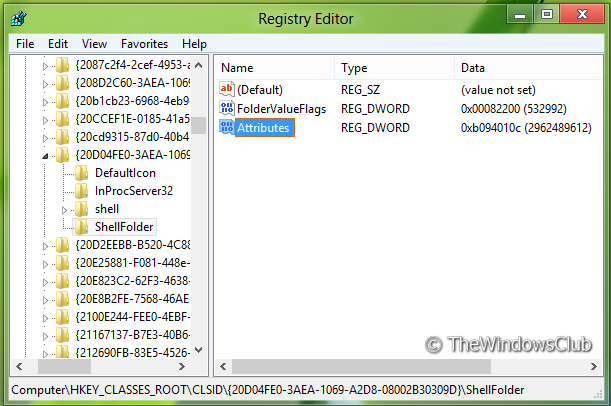
3. First of all, in the left pane, take ownership of key ShellFolder. This article will tell you how to take full control or ownership of registry keys.
4. Now in the right pane, create a 32-bit DWORD. Name it Attributes, double-click and look out for Value data section.
Use the following values for the corresponding operation:
- To remove This PC from Explorer navigation pane : b094010c
- To display This PC from Explorer navigation pane : b084010c or delete the DWORD Attributes (Default)
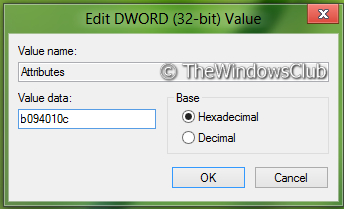
Click OK.
5. These steps apply to 32-bit users only.
If you’re using 64-bit Windows then perform steps 3, 4 for this location:
HKEY_LOCAL_MACHINE\SOFTWARE\Wow6432Node\Classes\CLSID\{20D04FE0-3AEA-1069-A2D8-08002B30309D}\ShellFolder
6. Reboot the machine and you’ll see that This PC has been removed from the Explorer pane.
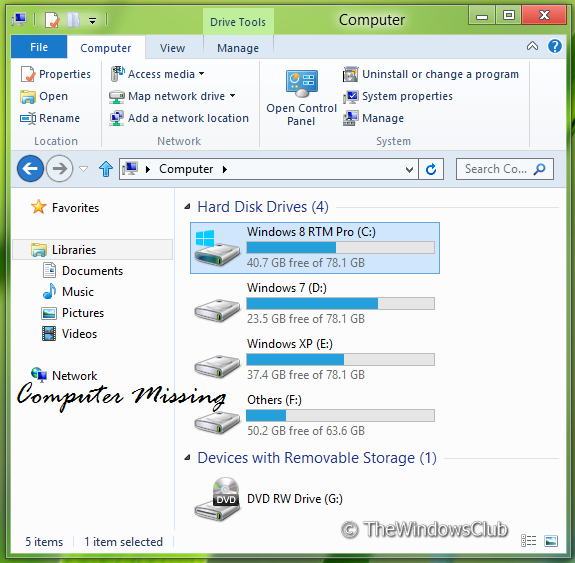
If you want to display the This PC link back, in the Windows Explorer pane, just delete the DWORD Attributes created in step 4.
Do remember to create a system restore first!

