How to use Read Mode feature in Word 2013

Speed Up My PC

The changes in appearance and layout will be immediately visible to anyone who sees the new version of the Word. The new word processing program Word 2013 looks much better than the older version. Since this is not the final version of the Microsoft’s favorite text editor, what we could do at this point is try to adapt ourselves to the new features included. One feature that we will explore today is ‘Read Mode’ of Word 2013.

Read Mode Feature in Word 2013

Word 2013 to some extent sports a Metro user interface with new features. And one such new feature is the availability of a new reading mode. ‘Reading Mode’, sounds quite unusual, isn’t it? Most people recognize the Office application as either a text-editor or as a tool to create documents but not as a reading app. But once those documents are written and shared, they’re read. With this information in mind, the Word engineering team wanted to focus on creating a refreshed, modern reading experience for the new Word 2013; one that optimized for the times when the user is focused on consuming, not creating, content. ‘Read Mode’ feature aims to change this.

When you open any Word 2013 document in the Read Mode you will observe that the document is transformed into an interactive digital magazine. While doing so, it removes all the tool bars and tabs from the interface and provides only basic reading tools.

Turn on Read Mode

If you wish to enable or switch to the Read Mode in Word 2013, do the following:

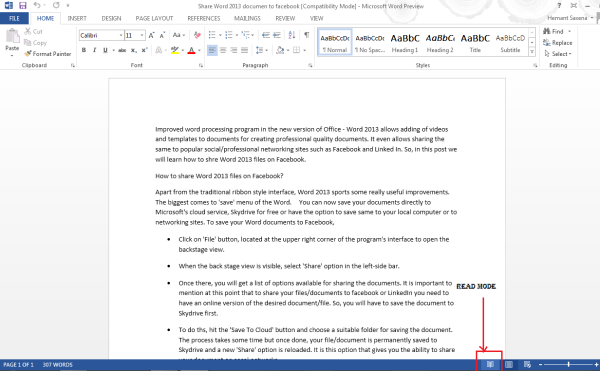
Open a document in Word 2013 and find and click on the ‘Read Mode’ icon at the bottom, to activate the reading mode. The icon is present just below your document. Checkout the screen-shot below!

Read Mode Icon 600x371 How to use Read Mode feature in Word 2013

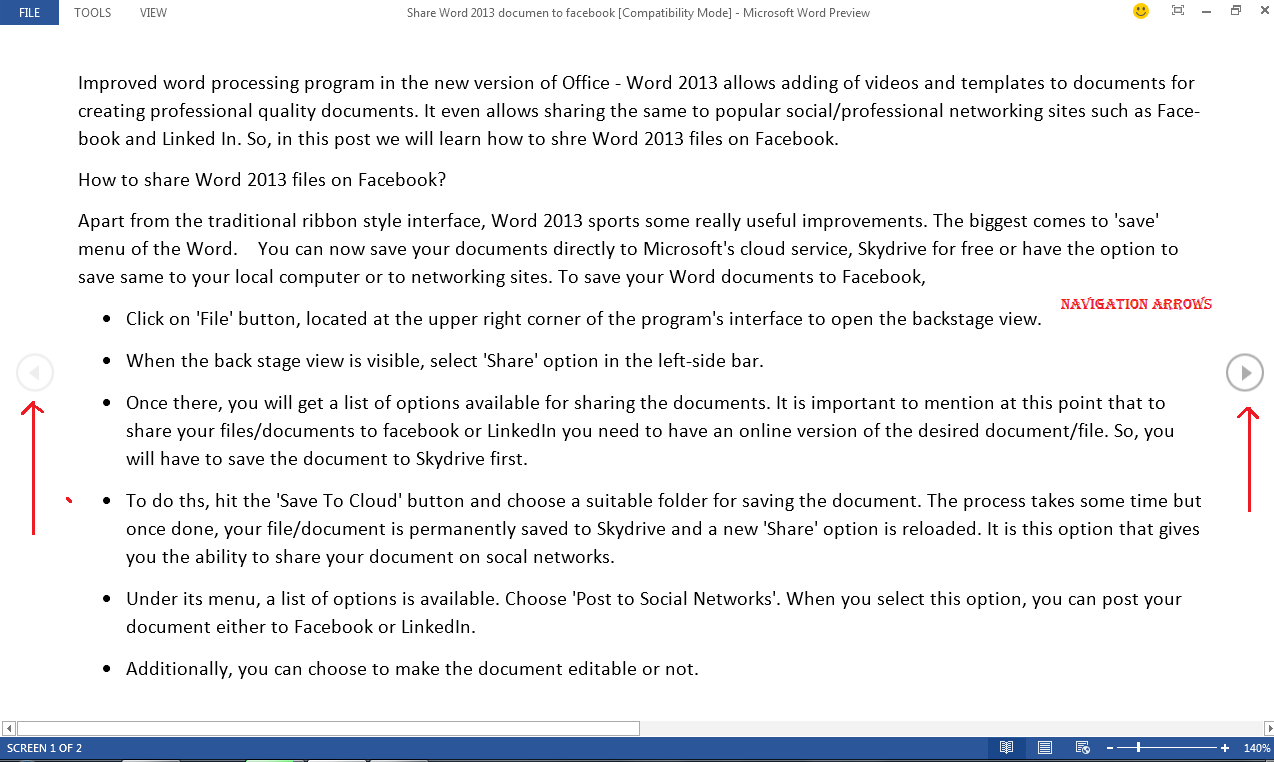
After you click it, your document will be displayed in columns layout. You will notice read mode arrows being displayed on both, right as well as left hand side. This is to provide easy navigation.
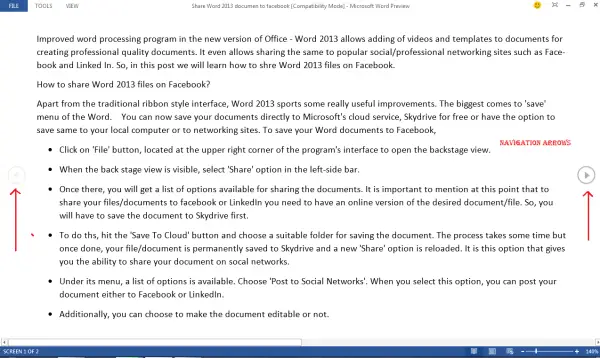
Navigation Arrows1 600x358 How to use Read Mode feature in Word 2013

If you wish, you could set the width of the column by clicking the ‘View’ menu option and choosing ‘Column Width’. Apart from this, there are other tools also present for setting the page layout, color, etc.

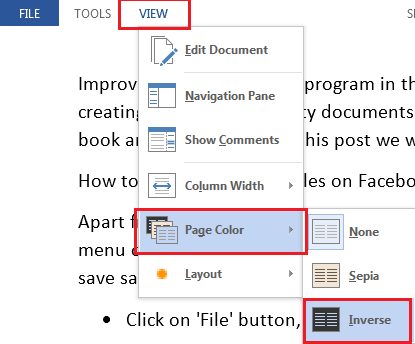
Color option of the read mode allows you to select a color you would like to read your document in. There are 3 choices offered (None, Sepia. Inverse)

Page color How to use Read Mode feature in Word 2013

You can choose the one to set the color of your document in the read mode.
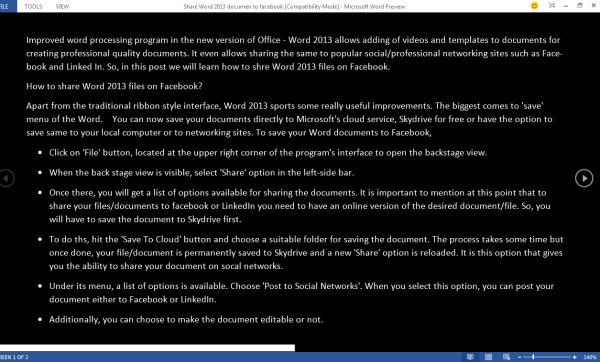
Inverse color option 600x362 How to use Read Mode feature in Word 2013

If your Document contains any comment, they can be read in Read Mode as well. To read them in the read mode simply select the Show Comments menu option from the View menu option.
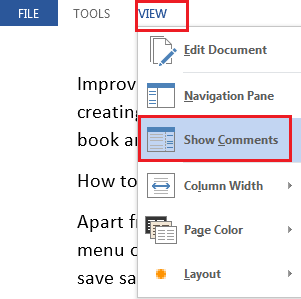
Show Comments How to use Read Mode feature in Word 2013

The comments can then be read along-side the document.

Read Mode reflows the document to the constraints of the device on which you’re reading, ensuring that reading feels as comfortable on a 7” screen as a 24” one – a set of columns fit to the screen that scroll left to right. It creates these columns automatically based on three user-configurable settings: Column width preference, Text size & Window size.

Try the Read Mode on Office 2013 and let us know your experience.

Posted by on , in Category Office with Tags
The author Hemant Saxena is a post-graduate in bio-technology and has an immense interest in following Windows, Office and other technology developments. Quiet by nature, he is an avid Lacrosse player.
  • Filip Vande Weghe

    And how do I turn OFF Read mode ?

    I’m using automation (from a Delphi app) to open documents in Word, but they open in Read mode ON. Ik would like to be able to turn readmode OFF as the default behaviour.

    Any suggestions ?

  • Morten

    It may sound like a rather strange idea, but I would like to have the option of also being able to write new text and edit ALSO in the Read Mode, as it is a mode of viewing that REALLY FULLY USES THE ENTIRE OF THE REAL ESTATE OF THE SCREEN.

    1) Is this possible now?
    2) If not yet possible, can and will it be made an option?

  • Peter

    HOW DO I TURN IT OFF?!

  • http://www.facebook.com/paul.rogers.hills Paul Rogers

    2010 had an almost identical view option called Full Screen Reading, which also screwed up formatting. Besides the name, what’s the change?

    Anyway, I found out how to turn it off: http://www.dotnetmafia.com/blogs/dotnettipoftheday/archive/2012/10/03/how-to-disable-reading-view-in-word-2013-preview.aspx

  • roro44

    What causes this behavior is Protected View. In protected mode, you cannot edit the document, so Word goes into Reading Mode. To disable Protected View, when you open a protected document go to File -> Info -> Protected View Settings. Uncheck the boxes.

    http://www.thewindowsclub.com/how-to-disable-protected-view-in-microsoft-office-2010