
There may be times that you would like to prevent other standard users from shutting down or restarting the Windows 11/10/8/7 computer. This article will tell you how you can do so by creating a separate Group Policy object for non-administrators. When you enable this setting, the shutdown, restart, sleep, and hibernate buttons will be removed.
Prevent access to shutdown, restart, sleep, hibernate commands
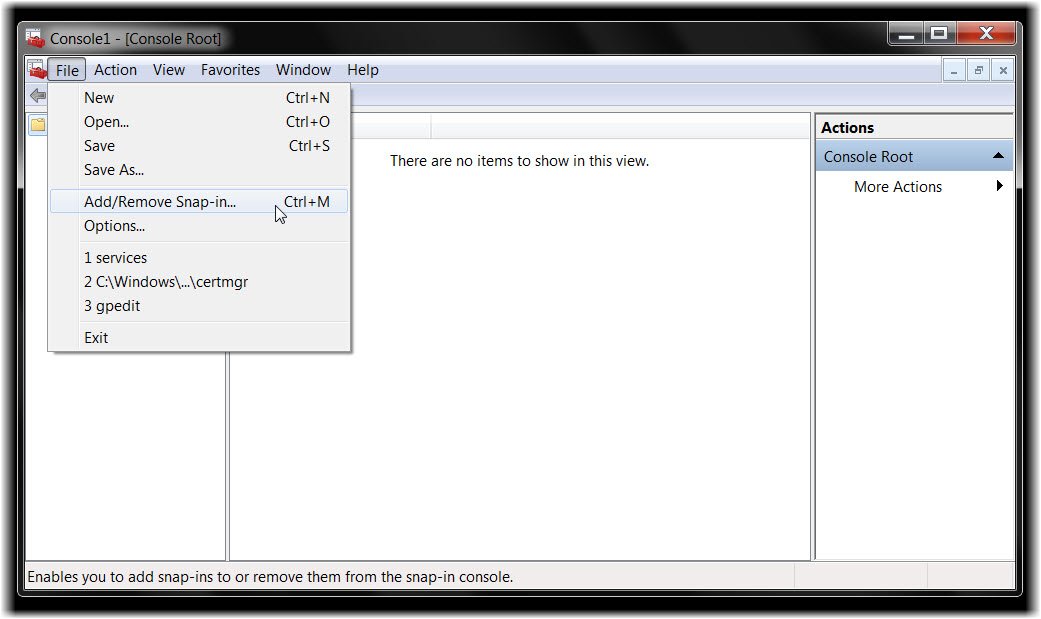
To do so, type mmc in start search and hit Enter to open the Microsoft Management Console. In the File tab, click on Add/Remove Snap-in.
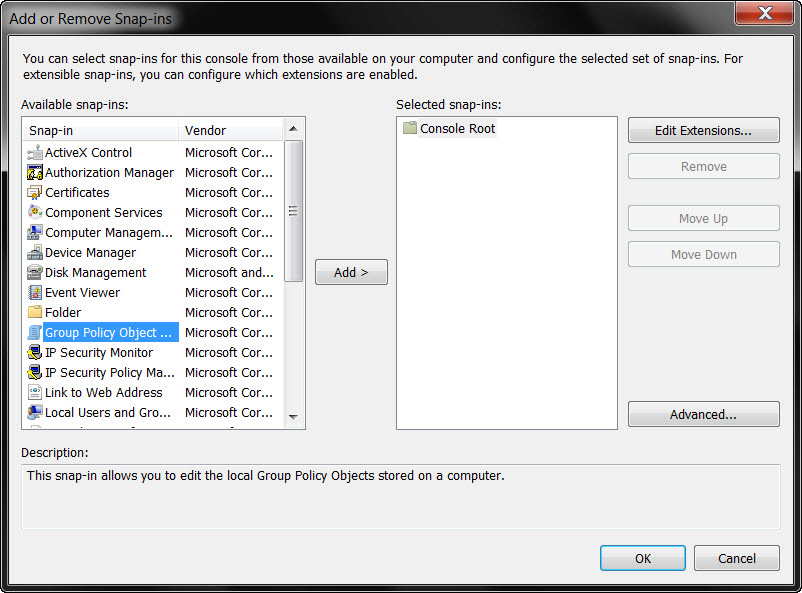
In the left side, under the available Snap-in’s, select Group Policy Object and double-click on it.
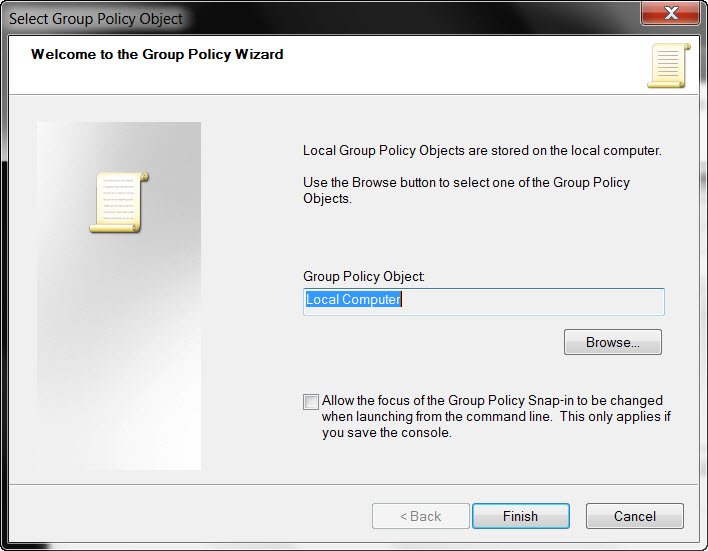
This will open the Group Policy Wizard. Under the Local Computer Group Policy Object, click Browse.
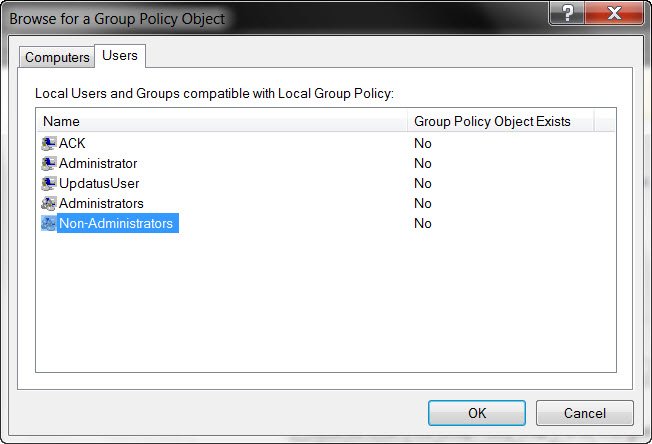
Under the Users tab, select Non-Administrators and click OK.
Next, under the newly created Local Computer \ Non-Administrators policy object in the left pane, navigate to User Configuration > Administrative Templates > Start Menu and Taskbar.
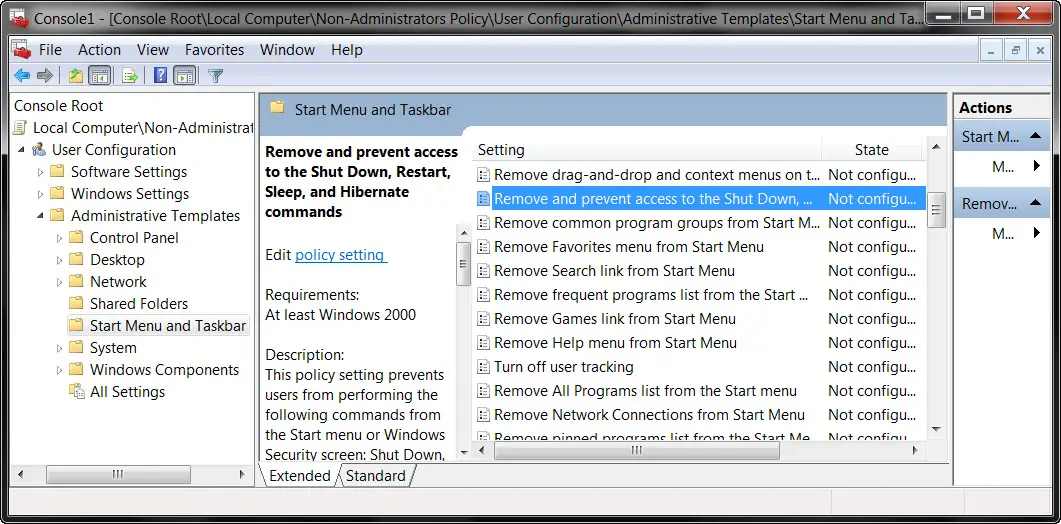
In the right pane, select Remove and prevent access to the shutdown, restart, sleep, and hibernate commands and double-click on it. Select Enable > Apply/OK.
This policy setting prevents users from performing the following commands from the Start menu or Windows Security screen: Shut Down, Restart, Sleep, and Hibernate. This policy setting does not prevent users from running Windows-based programs that perform these functions.
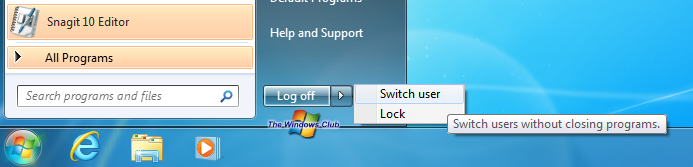
If you enable this policy setting, the Power button, and the Shut Down, Restart, Sleep, and Hibernate commands are removed from the Start menu. The Power button is also removed from the Windows Security screen, which appears when you press CTRL+ALT+DELETE.
Read: You don’t have permission to shut down and restart this computer.
Prevent specific users from shutting down Windows
You can also prevent specific users from being able to shut down the computer. To do so, open gpedit.msc and navigate to the following:

Computer Configuration > Windows Settings > Security Settings > Local Policies > User Rights Assignment > Shut Down the System.
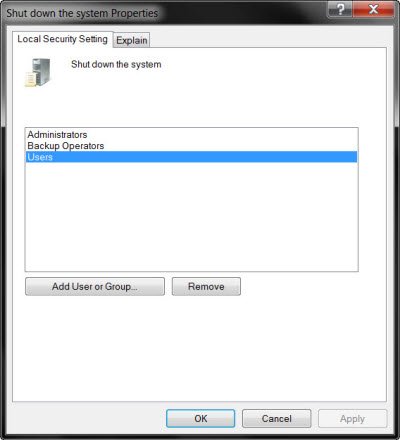
Double click on it > Select Users > Press Remove > Apply/OK.
This security setting determines which users who are logged on locally to the computer can or cannot shut down the operating system using the Shut Down command.
To disallow only specific users, you will have to add the standard user account name you want to be unable to shut down or restart the computer.
See how you can remove the Power or Shutdown button from Login Screen, Start Menu, WinX menu in Windows 11/10.

