
If you are making a presentation, then you want to turn on the Presentation settings on your Windows 11/10/8/7 laptop. Presentation settings are options on your laptop that you can apply when giving a presentation. If you’ve ever had your display screen turn black during a presentation, you’ll appreciate the option allowing you to automatically turn off your screen saver every time you give a presentation.
Prevent Laptop from going to Sleep during Presentation
When presentation settings are turned on, your laptop stays awake and system notifications are turned off. You can also turn off the screen saver, adjust the speaker volume, and change your desktop background image. Your settings are automatically saved and applied every time you give a presentation unless you manually turn them off.
Turn on or off Windows Presentation Settings
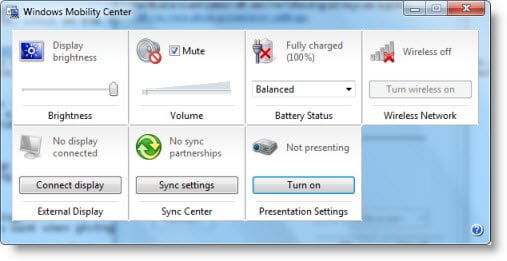
To do so, through the Control Panel, open Windows Mobility Center and in the Presentation Settings tile, click on the Turn On button.
This will turn on the Presentation Settings.
Additionally to change settings, type presentationsettings.exe in Start Search and hit Enter.
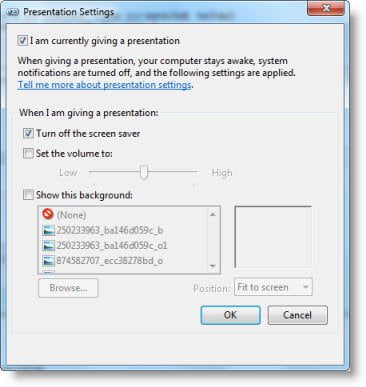
Change the settings to what you want them to be, while giving a presentation.
Check I am currently giving a presentation.
Also select Turn off the screen saver.
Having done that, you may set a specific volume level and then finally click OK.
When you make these changes, your Windows laptop will not Sleep nor send notifications during a presentation.
You can also create a desktop shortcut for it using the path as-
C:\Windows\System32\PresentationSettings.exe
If you wish to, you can also use the commands to control Presentation Settings or Mode from a script-
presentationsettings /start
and
presentationsettings /stop
Hope this helps.
TIP: Tools like Mouse Jiggler, Sleep Preventer can also help prevent the computer from switching to Sleep, Hibernate, Standby mode.

