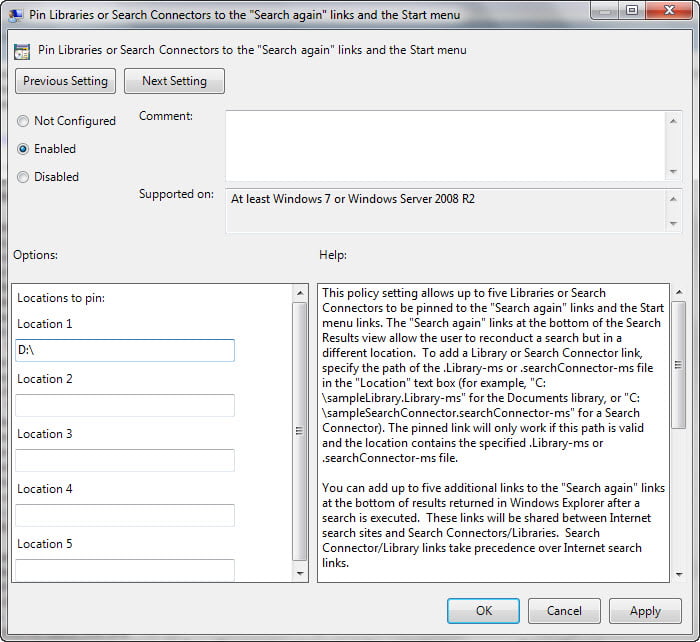
There is a Group Policy setting in Windows which will let you pin Windows Libraries or Seach Connectors to the ‘Search again’ links and the Start Menu. This policy setting allows up to five Libraries or Search Connectors to be pinned to the “Search again” links and the Start menu links. The “Search again” links at the bottom of the Search Results view allow the user to reconduct a search but in a different location.
Pin Libraries or Search Connectors to ‘Search Again’ & Start Menu
To configure it, type gpedit.msc in start search and hit Enter to open the Group Policy Editor.
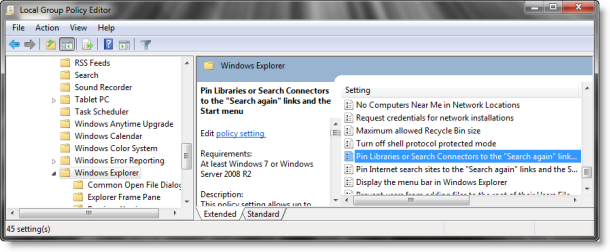
Navigate to User Configuration > Administrative Templates > Windows components > Windows Explorer.
Now in the right side, double click on Pin Libraries or Seach Connectors to the Search again links and the Start Menu.
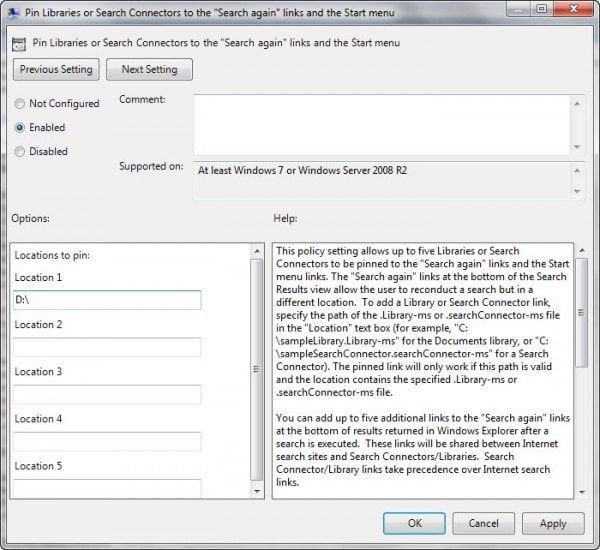
To add a Library or Search Connector link, specify the path of the .Library-ms or .searchConnector-ms file in the “Location” text box (for example, “C:\sampleLibrary.Library-ms” for the Documents library, or “C:\sampleSearchConnector.searchConnector-ms” for a Search Connector). The pinned link will only work if this path is valid and the location contains the specified .Library-ms or .searchConnector-ms file.
You can add up to five additional links to the “Search again” links at the bottom of results returned in Windows Explorer after a search is executed. These links will be shared between Internet search sites and Search Connectors/Libraries. Search Connector/Library links take precedence over Internet search links.
The first several links will also be pinned to the Start menu. A total of four links can be included on the Start menu. The “See more results” link will be pinned first by default, unless it is disabled via Group Policy. The “Search the Internet” link is pinned second, if it is pinned via Group Policy (though this link is disabled by default). If a custom Internet search link is pinned using the “Custom Internet search provider” Group Policy, this link will be pinned third on the Start menu. The remaining link(s) will be shared between pinned Search Connectors/Libraries and pinned Internet/intranet search links. Search Connector/Library links take precedence over Internet/intranet search links.
If you enable this policy setting, the specified Libraries or Search Connectors will appear in the “Search again” links and the Start menu links.
If you disable or do not configure this policy setting, no Libraries or Search Connectors will appear in the “Search again” links or the Start menu links.
Also read: Pin Internet sites to Search Again & Start Menu.