
I encountered this situation several times, when the client complained about the Outlook.exe process remains in memory, and the Task Manager even after closing the program. Each scenario was different, but I fixed it a couple of times. In this article, I’ll share those possible fixes.
Fix Outlook.exe remains in memory
Below are the two methods that helped me figure out the problem that kept Outlook consuming memory.
- Office Addin Manager
- Power Explorer
Check one after the other to find out what worked for you.
1] Office Addin Manager
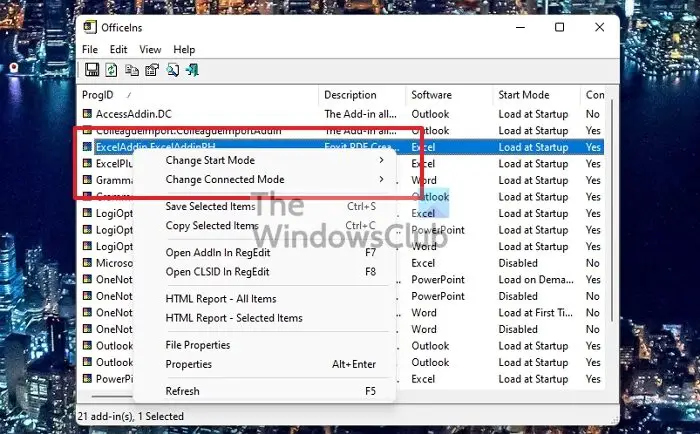
In most cases, I have found that security suites like Kaspersky, Norton 360, etc., are the culprits. Each security software has an anti-spam plugin, which sometimes causes Outlook.exe to hang. So, in such cases, you could try disabling the add-in and see if it works. I suggest using OfficeIns to disable the add-ins because it’s much easier than disabling them from Outlook’s Add-in Manager.
- You can download OfficeIns from Nirsoft.
- Close Outlook.
- Make sure it’s not running in the Task Manager. Then open OfficeIns.
- Select the Add-in and Right Click on it.
- You’ll find an option called Change Start Mode and select Disabled
- Then, select Change Connect Mode and select No.
Once you disable the add-in, open Outlook and test it. If it works, contact the software vendor to find out what’s causing the problem and make sure Outlook.exe remains in memory no longer a problem.
2] Power Explorer
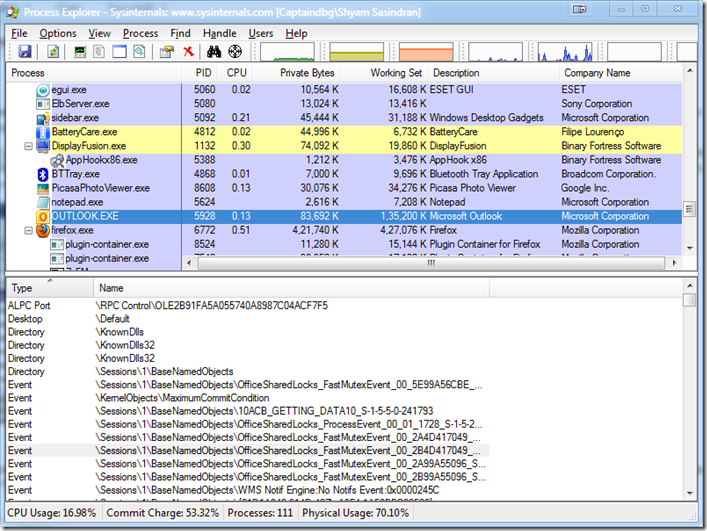
The second scenario I have seen is when using Team Viewer. Once, I had a client with a similar problem. There were no add-ins enabled, as I had disabled all of them. Then I installed Process Explorer and selected Outlook.exe. Then I went to the View menu and selected Show Lower Pane.
I went through each handle from the list and found TeamViewer related files there. But I didn’t find any add-ins in Outlook. Then I noticed this handle had been placed near the minimize button.

I couldn’t find a way to disable it. So I went to “MSCONFIG” and disabled Team Viewer from “Startup” and “Services” and then rebooted the system. I opened Outlook, waited a few minutes, and closed it. It was no longer showing up in the Task Manager.
I hope some of these tips help you fix this problem. If not, leave a comment at the end of the post.
Read: Fix: Body of Emails or Text is missing in Outlook.
How do I stop Outlook from running in the background?
The best way to keep it off the background is to use Windows settings and turn it off. In Windows Settings > Apps > Apps & Features, click on the menu to open Advanced Options for Outlook. In the Background apps permissions dropdown, select Never. Another way of doing this is to disable it from launching with other Startup programs. You can do this using the Task Manager Startup section.
How do I minimize Outlook instead of closing?
Use the System Tray option to keep it running in the background, but do not want it to take up space on the taskbar. Right-click the Outlook icon in the system tray and select Hide when minimized. It will automatically hide it from the taskbar and only appear when you click on the System tray icon.
