
This post is meant for new Gamers and will talk about how to set up multiplayer gaming on a Windows Network. After reading this tutorial, you can simply go ahead and arrange a gaming party with all your gamer friends and I am sure you’ll really enjoy playing multiplayer games! So let’s see how to engage in multiplayer gaming on a Windows PC.
Multiplayer Network Gaming on Windows PC
Multiplayer Gaming using a Router
Things you’ll need:
- A Wireless router,
- Windows 11/10 PC,
- And a Game, of course.
This way is basically for those who own a Wireless Router. In this method, you can connect all your other PCs or laptops to a single router and any one of you can host a server and others can join it.
A router mostly comes with four empty LAN ports (for PCs without Wi-Fi) but remember you can connect unlimited Wi-Fi Devices to the router. Some routers come with an in-built feature, that lets you create a LAN server, for e.g. I own a Belkin Standard Modem plus Router and it has this feature in-built.
The other way to do it is:
- Connect all the PCs with the router with a wired or wireless connection.
- On your, Router Page check whether all the PCs are connected properly or not.
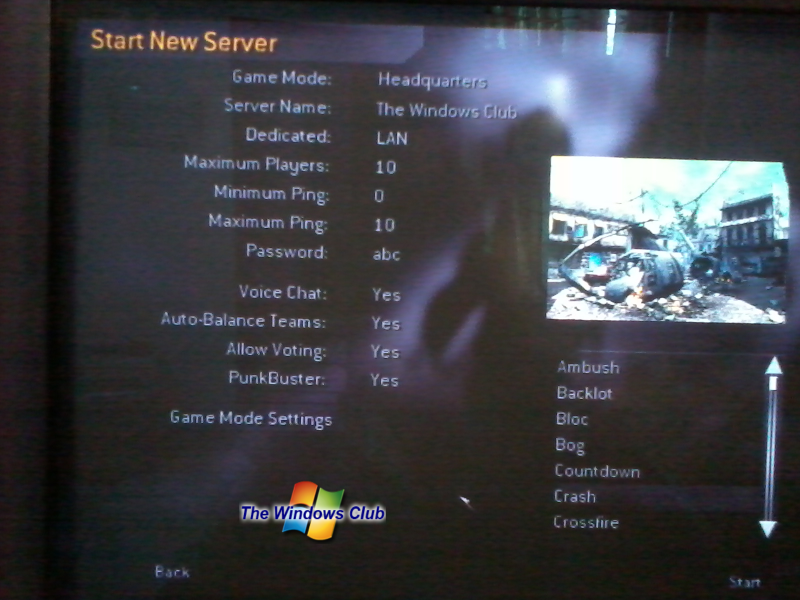
- Now run a game you want to play multiplayer and go to multiplayer options and click on create a server. I am playing Call of Duty: Modern Warfare.
- Well, this is the main step. When you click on Create a server, your game will be minimized and you would be allowed to grant permission to the game to cross the Windows Firewall. Click on allow access button and you are done!
- Now ask all your gamer friends to connect to the LAN server you just created.
That’s all now you can play all your favorite multiplayer games with this method, using a Router.
Multiplayer Gaming – Non-Router Way
Thing’s you’ll need: A Windows PC with internal Wi-Fi, an Internet connection and a Game.
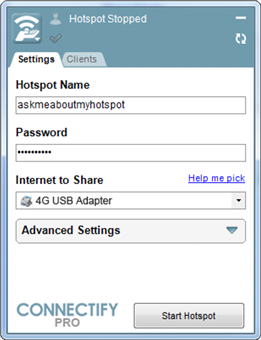
- Go to www.connectify.me and download Connectify Lite (free).
- Connectify lets you easily convert your Wi-Fi enabled PC to a Wi-Fi hotspot.
- Now open Connectify and enter your desired settings and simply create a hotspot.
- Now follow all the steps mentioned in Method 1.
This was a simple tutorial guiding you on how you can enjoy multiplayer gaming on your Windows PCs.
Now go arrange a Gaming Party and enjoy yourself. Happy Gaming!

