
Information is stored somewhere. Sometimes it’s not suited for its original location. If you’re running low on disk space, added a new drive array, or just curious; this is a simple procedure to move a database(s) in Microsoft SQL Server to that new desired location, painlessly. Obviously, maintain best practice procedures in the proper placement of said DB. It’s always a swell idea to have your databases segregated to allow for maximum I/O.
Move Microsoft SQL Server Database
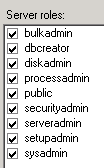
Several things you’ll need:
- An account within the local administrator’s group
- A SQL Server instance
- SQL Server Management Studio
- SA privileges to your SQL Server
This would probably work:
Locate the directory of your SQL Database needing to be moved. By default (which isn’t a good practice) the location of your databases are here:
C:\Program Files\Microsoft SQL Server\MSSQL10_50.MSSQLSERVER\MSSQL\DATA
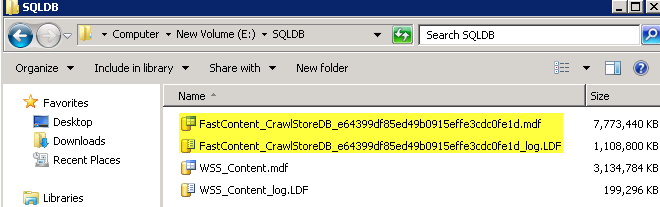
Unlike yours, this particular one is located here. I’d double check but if you’re ridiculously confident don’t bother.
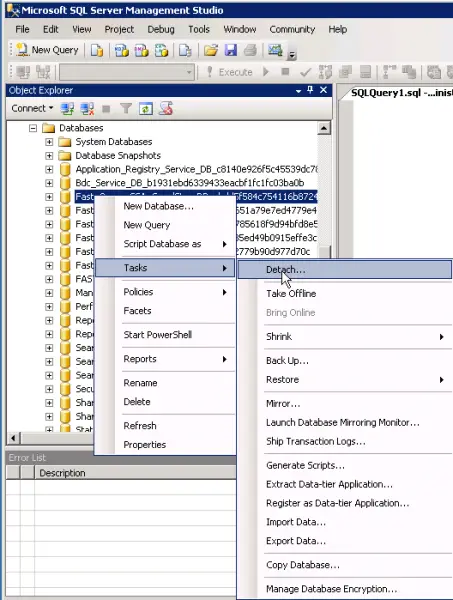
Now, go into SQL Server Management Studio. Locate the database you intend to move and right-click that bad boy. Move your mouse down a bit until you get to Tasks. Let that menu pop out and click Detach.
This here window comes up. If there are active connections, it’d probably be best to tell those users to hurry up since you’re busy doing some nerd work to allow them to be more productive. If they refuse, there’s a check box to kick them out. I tend to check that box regardless.
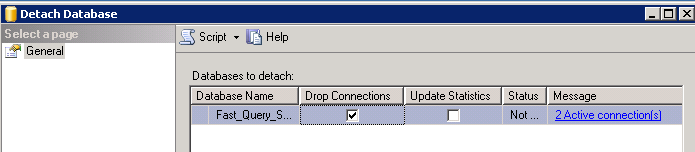
Then click OK.
Ok, now go back to that directory where the database is located. Select both the .MDF and LDF files. Cut and Paste them into the new location, hopefully making note of that new location since you will need it.
So it may take a while to copy to its new location. Find something else to do during this time. It wouldn’t hurt to read various other articles published by The Windows Club. Once it’s there go back into SQL Server Management Studio. Right-Click the databases Folder, The click Attach.
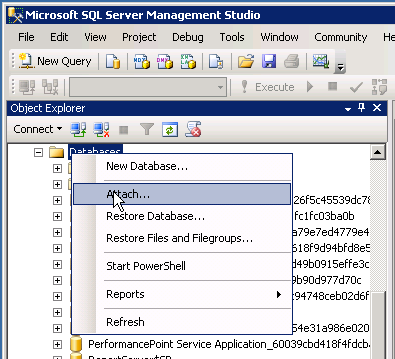
Locate the new location of your database, then select the database and click OK.
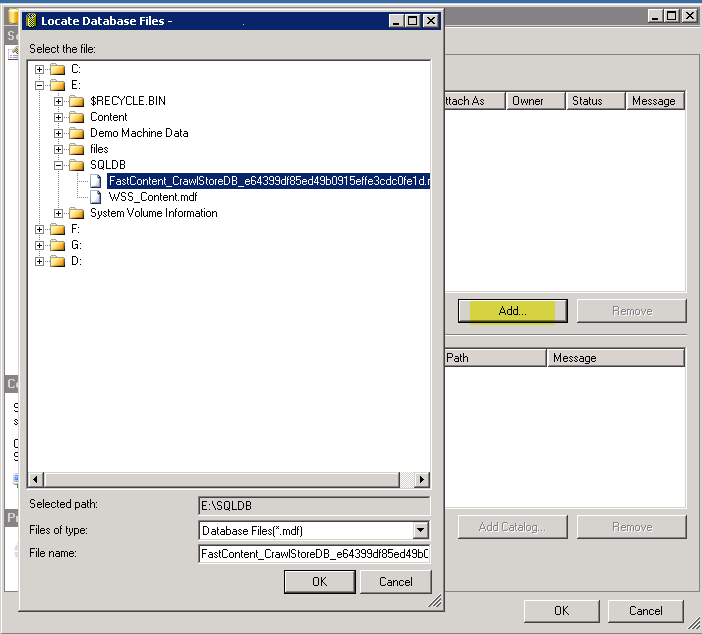
Click, OK. Click OK on the next window. Hit that F5 Key to refresh the SQL window. If your database is there, then you did a great job. Otherwise…There’s always event viewer.
Link of Interest: SQL Server Downloads via Microsoft.
Guest Post By: Greg Partlow

