
If you find that the time you have to hover your mouse cursor over the taskbar icon for the taskbar thumbnail preview to appear way too much, you can make them appear faster in Windows 11/10 OS.
Make Taskbar Thumbnail Previews appear faster
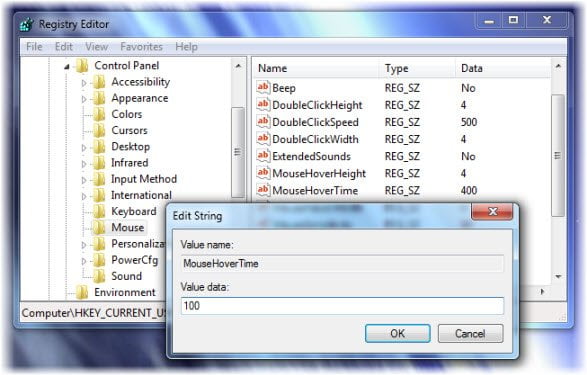
Change Taskbar Thumbnail Hover Speed
- Open regedit and navigate to the following registry key:
HKEY_CURRENT_USER\Control Panel\Mouse
- In the right pane, right-click on MouseHoverTime. Select Modify. The default value is 400 ms. Set the new value at, say, 100.
- Click OK—exit regedit. Reboot.
You will see that when you hover, the taskbar previews now appear much faster.
MouseHoverTime indicates the amount of time, in milliseconds, that a mouse pointer must remain within an area the size of the MouseHoverSize property to generate a mouse hover message.
MouseHoverSize indicates the size of the rectangle within which the mouse pointer has to stay for the mouse hover time before a mouse hover message is generated. You can see that all these, including height & width, can be changed here.
Do note that MouseHoverTime will customize the hover time globally, as it will adjust the mouse hover delay for everything, including tooltips, taskbar icons, start menu, etc.
I prefer to have faster previews, tooltips, etc., so I have suggested this tip.
If you wish only to customize the Taskbar Preview Thumbnail Hover Delay, then, INSTEAD, add a new DWORD named “ExtendedUIHoverTime” and give it a value of 100.
This post will help you if Taskbar Thumbnail Preview is not working.
Related posts:
- Enable or Disable Thumbnail Previews in Windows File Explorer
- How to increase Taskbar Thumbnail Preview size in Windows.
UPDATE: Our Taskbar Thumbnail Tweaker may interest you.
How do I disable or delay taskbar previews?
The most straightforward way is to use the Group Policy Editor and then turn off the Turnoff taskbar thumbnails policy. It will ensure the preview is entirely disabled. The policy is available under User Configuration > Administrative Templates > Start Menu and Taskbar. Since it is being disabled for a particular user, others will still see the preview.
Why is my right-click taskbar so slow in Windows?
It happens because of a conflict with third-party software that might be loading slowly. You must manually check if you have installed any application that integrates with the right-click context menu and then update accordingly. An easy way would be to remove the integration using the software options.

