Access and Launch Metro Apps from Windows 8 Desktop or Taskbar

Speed Up My PC

Change is the law of nature and it seems that Microsoft is strictly following it. I’m saying so because of the new features introduced in Windows 8 – the most important being the Start Screen and Metro Apps, which are radically different from what Windows users have been used to.

Many like what Windows 8 offers; but not all of its features. One of my friend told me that he hates the Start Screen, but loves to use Metro Apps. He wanted to know if there was any way he could launch apps from the desktop itself. This question, made me write this article. Actually he asked me, how he could launch the Metro Apps without going to Start Screen.

I’m pretty sure that most of you may also have the same question. So without wasting any more of your time, here is how to access Metro Apps bypassing Start Screen, from the Windows 8 desktop.

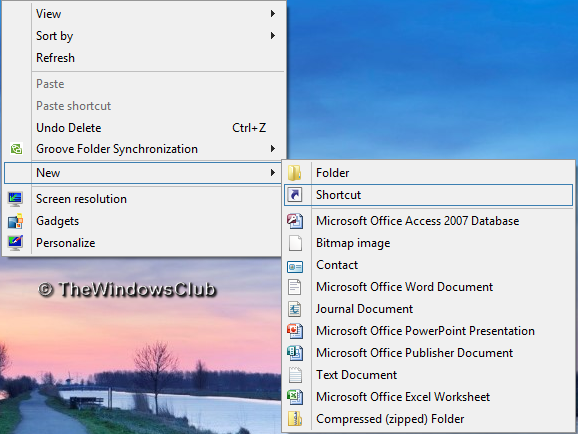
1. Right click on Desktop and select New -> Shortcut.

Windows 8 CP Metro Apps From Desktop Access and Launch Metro Apps from Windows 8 Desktop or Taskbar

2. In Create Shortcut window type the following location and click Next:

%windir%\explorer.exe shell:::{4234d49b-0245-4df3-b780-3893943456e1}

Windows 8 CP Metro Apps From Desktop 3 Access and Launch Metro Apps from Windows 8 Desktop or Taskbar

3. Finally give a name to this shortcut, say, Metro Apps. You can later change its icon, by right-clicking this icon and selecting Properties -> Change icon. Now pin the shortcut to the taskbar.

Windows 8 CP Metro Apps From Desktop 2 Access and Launch Metro Apps from Windows 8 Desktop or Taskbar

That’s it!

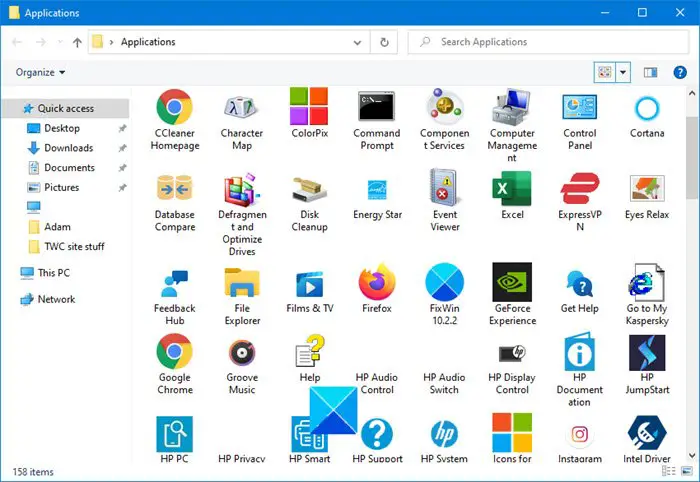
Click this shortcut in task bar, and the full list of Metro Apps will open in Windows explorer. You now don’t need to go to the Start Screen each time to run a Metro App.

Windows 8 Safe Boot 4 Access and Launch Metro Apps from Windows 8 Desktop or Taskbar
You will be able to open the Metro Apps, from this open explorer window.

Go here to see all the new Shortcuts, Shell Commands and CLSID in Windows 8.

Posted by on , in Category Windows with Tags
Kapil is passionate Windows blogger who loves to write about Windows tricks, tips and customization. He loves to help people in troubleshooting their problems.
  • http://funallo.blogspot.in/ Divya

    The new Metro UI in Windows 8 is very visually appealing and gives you very quick access to all of your favourite apps.