
You can use the Content Advisor settings to control what content can or cannot be viewed on your Windows computer. You can set and reset the Content Advisor and its password easily or through the Registry too.
Content Advisor in Internet Options of Windows
To access Content Advisor search for and open Internet Options > Content tab.
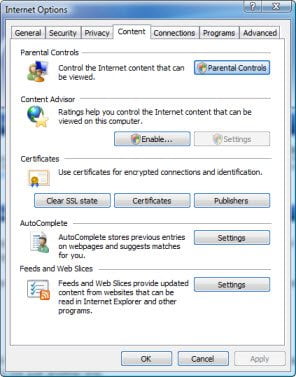
Click on Enable Content Advisor. You can also execute the following command to open the Content Advisor window directly-
RunDll32.exe msrating.dll,RatingSetupUI
Here, you can decide on the internet content to allow, approve URLs’s or block particular websites.
Under the General tab, you can set or change the Supervisor password, which allows you to change content advisor settings.
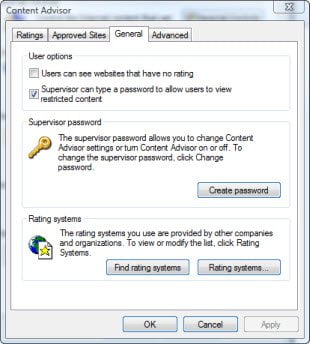
Internet Options Content Advisor password lost
If, for some reason, you forget the Content Advisor password, you can always open regedit and navigate to
HKEY_LOCAL_MACHINE\SOFTWARE\Microsoft\Windows\CurrentVersion\Policies
Here in he right pane, delete Key which stores the details.

Reset Content Advisor in Internet Options
Should you wish to completely reset the Content Advisor in Internet Options back to, its default settings, then in the left pane, you have to delete Ratings key.
I hope this helps.
Content Advisor is disabled by default in the recent versions of Windows. Learn how to enable Content Advisor in Windows.

