
Pinned Taskbar Programs allow you to pin your favorite program icons to your Windows 11/10 Taskbar. But if you want to remove all the Pinned Taskbar Programs in Windows 11/10, and prevent users from pinning or unpinning them, here is how you can do so.
Remove Pinned Taskbar Programs in Windows 11/10
Type gpedit.msc in Start Search and hit Enter. This will open the Local Group Policy Editor. The Local Group Policy Editor is available in the Windows Pro/Enterprise/Business editions and is not available in Home or Starter editions.
In the left pane, expand User Configuration > Administrative Templates > Start Menu and Taskbar.
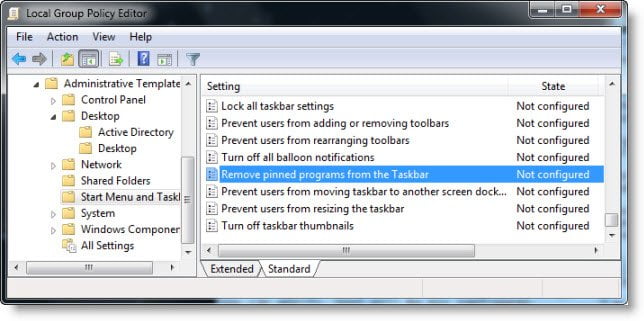
In the right pane, right-click on Remove pinned programs from the taskbar and click on Edit.
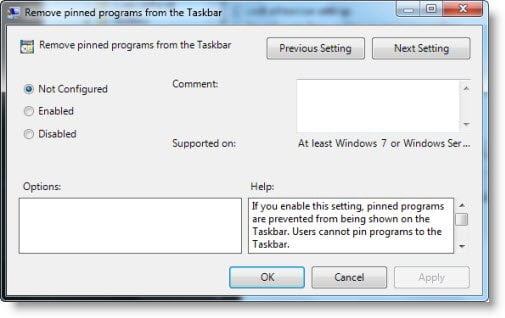
To enable this setting, select Enabled > Apply > OK. Exit. Reboot.
If you enable this setting, pinned programs are prevented from being shown on the Taskbar. Users cannot pin programs to the Taskbar. If you disable this setting or do not configure it, users can pin programs so that the program shortcuts stay on the Taskbar.
To disable back, this Taskbar Pinned Programs setting, simply select Not Configured or Disabled.
Hope this helps!
Similar reads:

