
If you shake any open window application fast, in Windows 11/10, it minimizes all other windows, leaving this one open. Shake the window again, and all the closed windows will open up again. This is Aero Shake. In Windows 11/10 this feature is disabled by default and also referred to as Shake To Minimize. But then, as life is all about having options, if you don’t like or use this feature, you can easily disable Aero Shake.
How to enable or disable Aero Shake in Windows
1] Using Windows 11/10 Settings
You can now turn on or off Aero Shake via Windows Settings as follows:
- Open Settings
- Click open System
- Select Multitasking.
- Turn off the toggle for Title bar window shake – When I grab a windows’ title bar and shake it, minimize all other windows
- This will disable Aero Shake.
2] Using Ultimate Windows Tweaker
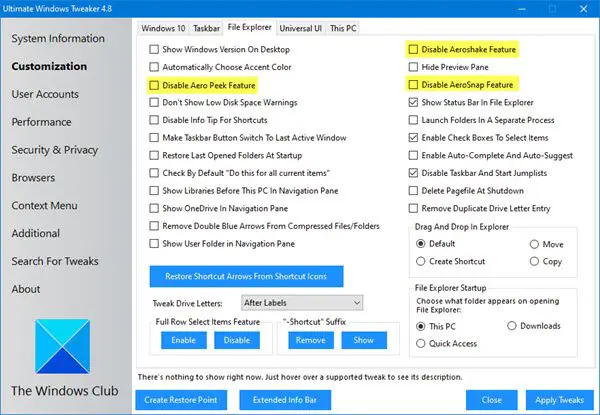
Download our portable freeware Ultimate Windows Tweaker.
You will find the tweak under Customization > File Explorer.
3] Using Group Policy Editor
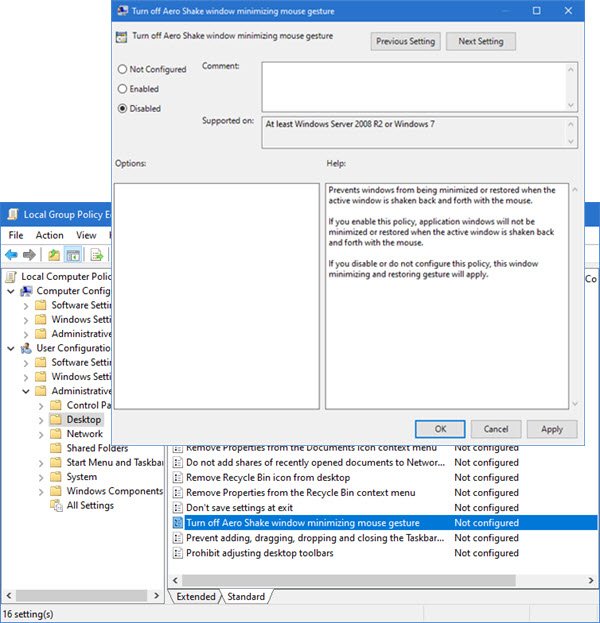
To disable Aero Shake, type gpedit.msc in the Start search box and hit Enter to open the Group Policy Editor.
Navigate to User Configuration > Administrative Templates > Desktop
Now in the right pane, navigate to Turn off Aero Shake window minimizing mouse gesture.
This policy setting prevents windows from being minimized or restored when the active window is shaken back and forth with the mouse. If you enable this policy, application windows will not be minimized or restored when the active window is shaken back and forth with the mouse. If you disable or do not configure this policy, this window minimizing and restoring gesture will apply.
Click on Edit policy setting and in the window which appears, change its status to Enabled.
Click Apply > OK.
4] Using Registry Editor
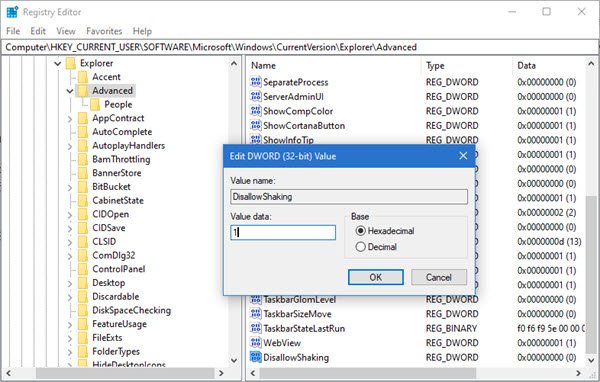
Open Registry Editor and navigate to the following key:
Computer\HKEY_CURRENT_USER\Software\Microsoft\Windows\CurrentVersion\Explorer\Advanced
See if DWORD DisallowShaking exists. If it does not, create it and give it a value of 1.
Exit REGEDIT and restart your PC.
I hope this helps!

