
In earlier versions of Windows, the default interval that users were notified of password expiration was 14 days before expiration. In Windows 11/10 now, the default password expiry notice occurs 5 days before the password expiration date. This is by design. But if you’d like to change this password expiry notice period, you can do so as follows:
Change Password expiration policies in Windows 10
You should know that Windows 10 v1903 has dropped Password expiration policies. So this will work on earlier Windows versions only. Some of you may want to read how to Harden Windows Login Password Policy & Account Lockout Policy instead.
Using Group Policy Editor

Run gpedit.msc, to open the Group Policy Editor and navigate to the following setting:
Computer Configuration > Windows Settings > Security Settings > Local Policies > Security Options.
Double-click Interactive Logon Prompt user to change password before expiration.
Make the required changes here.
Using Registry Editor
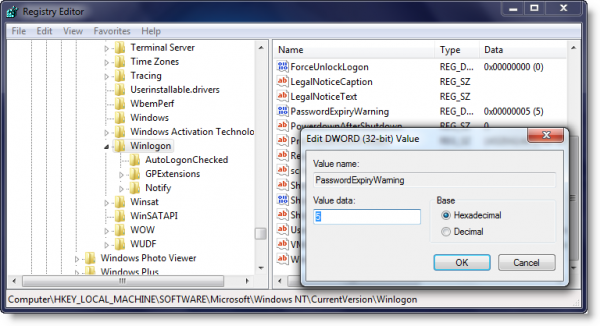
Run regedit and navigate to the following key:
HKEY_LOCAL_MACHINE\SOFTWARE\Microsoft\Windows NT\CurrentVersion\Winlogon
Set the value of PasswordExpiryWarning to the period you want and Exit.
I hope this helps!
Read next: The user’s account has expired on Windows.

