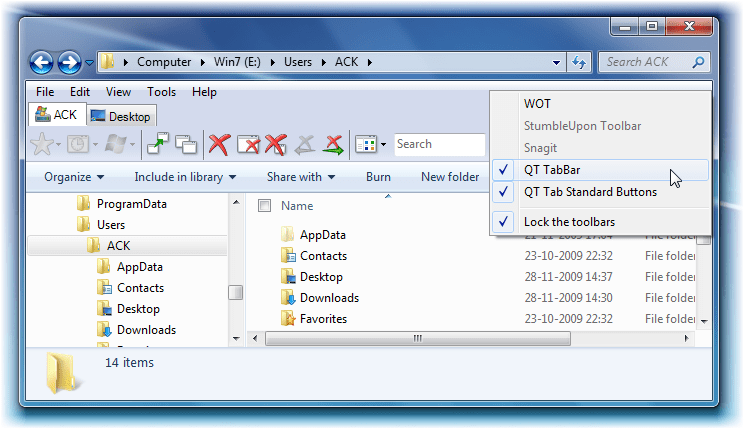
The Windows File Explorer is feature-rich and quite a handy file and folder manager. But if you are looking forward to adding tabs, and many other features, to make the humble explorer run on steroids, you can check out some of these freeware applications and add-ins. Like the tabbed browsing feature in Internet Explorer, you can also add Tabs to your Windows Explorer, using these tools.
Explorer replacement & alternative software
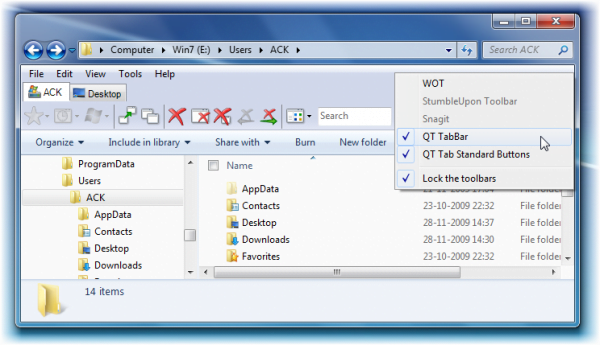
You can download and check out QTTabBar. It is an Add-In that gives Tab Browsing Feature to your Explorer. It also adds a few other features like a drop-down preview, useful toolbar buttons, Recently Closed button, plus plugin support. Do read the instructions before installing it.
In case you Menu Bar is not visible, please enable it. Now right-click on it and enable QTTabBar.
Alternatively, there are also some explorer.exe replacement freeware available, which, along with tabs, panes, add many more features to the Windows Explorer.
You can also check these out:
- Explorer++
- Total Commander
- muCommander
-
7 Plus which lets you add many features to Windows xplorer.exe
-
Classic Shell which lets you add Up button, show title bar, get a classic feel, etc
-
Custom Explorer Toolbar for Windows
-
Better Explorer: An Explorer replacement with ribbon toolbar
-
XYplorer
- Xplorer2 Lite has a nice easy-to-use, tabbed, dual-pane interface
- UltraExplorer
- File Explorer Apps for Windows
- Clover
- Q-Dir. It is a quad explorer
- Double Commander
- Multi-Commander.
You might want to also check out some of the best File Manager and Explorer apps for Windows 11/10 in Microsoft Store.
Have a look at them before you decide to settle down with one.