
You might encounter a situation where video streaming won’t work properly. For example, on YouTube, the full-screen feature may not work, the video might get stuck, or there might be only sound but no picture. In this article, I’ll suggest a few tips to resolve such issues.

Video streaming and buffering problems in Windows 11/10
If you face problems playing video content on your Windows 11/10 PC, try these suggestions; one of them is sure to help you:
- Update Video Drivers
- Update Video player software
- Disable Adaptive brightness
- Change buffer settings in Windows Media Player
- Disable Hardware acceleration
- Clear browser cache
- Reset the browser.
Let us see these in detail.
1] Update Video Drivers
 Ensure that you have the latest display drivers installed. Sometimes outdated display drivers can misbehave. So go to the appropriate manufacturer’s website and find your display card model and download the latest drivers for it.
For instance, if you have an ATI Radeon, visit ATI’s website, search for your model, and download the driver. Sometimes, you won’t find the correct drive on the manufacturer’s website if it’s a Notebook. So go to the Notebook manufacturer’s website and download it from there.
2] Update Video player software
Update your Adobe Flash player, QuickTime player, DivX Web Player, etc., as applicable. These are the common software used for streaming videos. If one of this software is corrupted or out-of-date, then you might experience issues in streaming videos. So visit each manufacturer’s website and look for the new version, and download it. Ensure you remove the old version and download the correct application for your device.
3] Disable Adaptive brightness
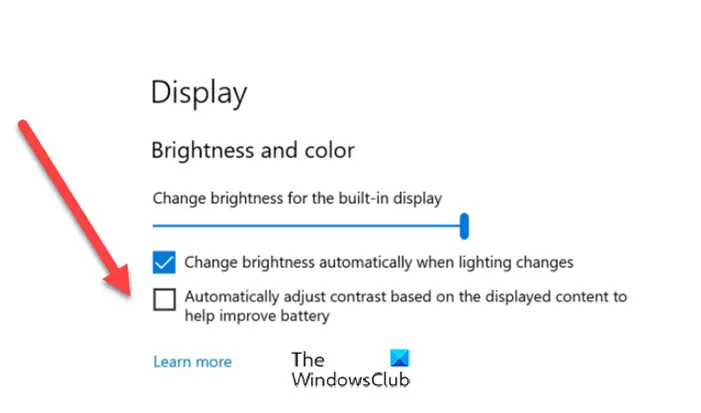
Disable Adaptive brightness and see if that helps.
4] Change buffer settings in Windows Media Player
- Open Windows Media Player.
- Click Organize > Options > Performance tab
- Go to Network Buffering.
- Change the Buffer value from 5 to 10.
5] Disable Hardware acceleration
I have seen many times that Flash videos, face rendering issues with Hardware Acceleration. In such a case, I recommend you disable Hardware Acceleration and then restart the browser to see if it helps.
To disable the Hardware acceleration, follow these steps.
Right-click on the Flash video you are watching.
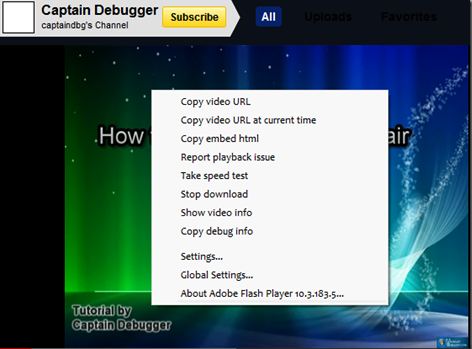
Click on Settings (Not Global setting).
Then click on the First tab.

Make sure that the “Enable Hardware acceleration” box is unchecked.
6] Clear browser cache
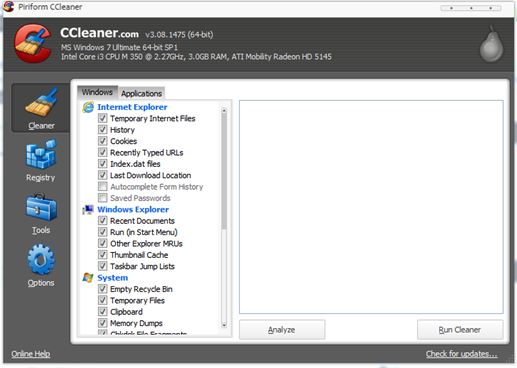
Clear the cache, cookies and Temp files. Sometimes, these files can interfere with a browser’s proper functioning. The best and easiest way of doing this is using a small application called CCleaner. This program will help you clear the cache, cookies, temps files, etc.
Once all the cache, cookies, and temp files are cleared, then open the browser and try again.
6] Reset the browser
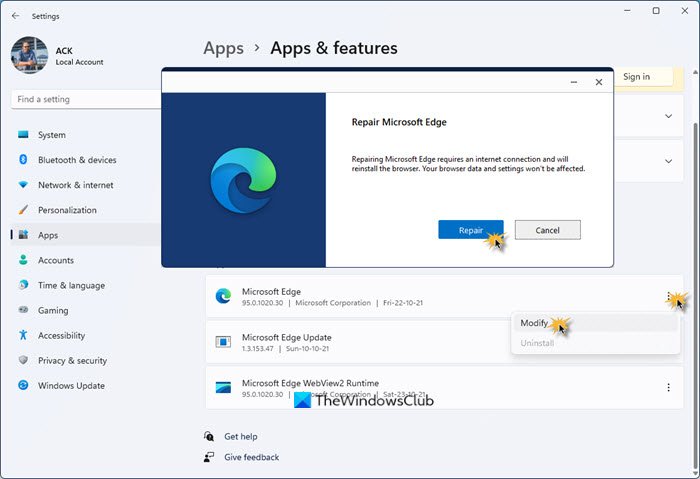
As a last resort, you could reset the browser to default settings, reset Winsock, reset the LSP, and flush the DNS. to make sure everything is working fine.
If you are aware of any additional fixes, please share them with us.
Why do streaming videos keep Buffering?
Buffering is the action of downloading the video content before it’s played. When the video is played at a speed faster than the speed at which the video content is downloaded, you encounter video buffering problems.
How can I fix Streaming problems on Windows 11/10?
Updating display drivers and the software you use to stream videos is likely to help resolve the video streaming issue in Windows 11/10. For more suggestions, refer to the suggestions provided above in this post.
