
Some users are encountering the upgrade error 0x80070570 – 0x2000C while upgrading to Windows 11 – or when installing Windows 11 Feature Upgrades. This post offers the most suitable solutions you can try to successfully resolve this issue.
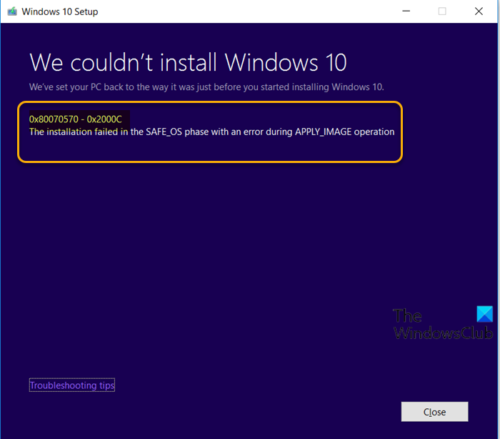
When you encounter this issue, you’ll receive the following full error message;
We couldn’t install Windows 11/10
We’ve set your PC back to the way it was just before you started installing Windows.
0x80070570 – 0x2000C
The installation failed in the SAFE_OS phase with an error during APPLY_IMAGE operation.
Error code 0x80070570, ERROR_FILE_CORRUPT indicates that the OS files could have become corrupted.
Fix Windows Upgrade error 0x80070570 – 0x2000C
If you’re facing this issue, you can try our recommended solutions below, in no particular order and see if that helps resolve it. If your Windows will not boot to the desktop, you need to enter Advanced Startup options or boot into Safe Mode and then access the required tools.
- Unplug non-essential USB peripherals from PC
- Run SFC scan
- Run DISM scan
- Run CHKDSK
- Run Windows Update
- Temporarily disable any third-party security software
- Convert the disk structure to 4K cluster size
- Clean install Windows 11/10
Installation failed in the SAFE_OS phase with an error during APPLY_IMAGE operation
Let’s take a look at the description of the process involved concerning each of the listed solutions.
1] Unplug non-essential USB peripherals from PC
During the Windows upgrade, non-essential USB devices other than the mouse and keyboard could be the culprit here. In this case, simply unplug all non-essential USB devices, then retry the upgrade install to see if the process completes without the 0x80070570 – 0x2000C error.
2] Run SFC scan
This solution requires you to run SFC scan and then retry the upgrade install.
3] Run DISM scan
You can run DISM scan if the SFC scan wasn’t helpful.
4] Run CHKDSK
Run CHKDSK to repair bad sectors and any inconsistencies with the hard disk.
5] Run Windows Update
Check and update Windows so that all available recommended updates are installed before you can try the feature upgrade.
6] Temporarily disable any third-party security software
To disable your antivirus software, locate its icon in the notification area or system tray on the taskbar (usually in the lower right corner of the desktop). Right-click the icon and choose the option to disable or exit the program.
Windows Defender protects your system during the upgrade process.
Also, uninstall all nonessential software and verify compatibility information for antivirus and other software before installing them after the upgrade.
Read: Error 0x8007000D when Installing or Upgrading Windows 11.
7] Convert the disk structure to 4K cluster size
Windows 11/10 requires 4K cluster size – so if your disk is formatted with a cluster size of 512 byte or anything else, you may encounter this error. If you perform a clean install on existing disk drives with the wrong cluster size, you will encounter the same error during the next major update. In this case, converting the disk structure to 4k cluster size should fix the issue for the upgrade install to complete successfully.
8] Clean install Windows
As always, if upgrading Windows 11/10 fails, you can clean install Windows on the device. Make sure to download a fresh Windows 11/10 ISO as your current ISO is most likely corrupt, evident in the error message stating “error during APPLY_IMAGE operation”.
Read: Error 0x80070570, The file or directory is corrupted and unreadable.
Error 0x80070570, ERROR_FILE_CORRUPT file system is broken in Windows Server
If you see an error message that the file system is broken on your Windows Server computer, this article will help you.
0x80070570, ERROR_FILE_CORRUPT, The file or directory is corrupted and unreadable.
The error message will state that the file system is broken. For instance, if you run an application that uses the MoveFileEx() function to replace files multiple times in a short time, you may receive an “ERROR_FILE_CORRUPT” error message.
Additionally, you may experience one of the following issues:
A warning message is displayed in the notification area.
This warning message indicates that you should run the Chkdsk.exe utility to check the disk.
A disk check is scheduled for the next time that you start the computer.
If you face this problem, you should ensure that ChkDsk is run. You should also run the System File Checker.
Additionally, you can request and apply the hotfix from Microsoft at KB2498472 to resolve this issue.
Similar Error Codes:
- Error Code 8007001F – 0x3000D
- Error Code 0x80070003 – 0x2000D
- Error Code 0x80070002 – 0x3000D
- Error Code 800704B8 – 0x3001A
- Error Code 0xC1900101 – 0x30018
- Error Code 0x800707E7 – 0x3000D.
