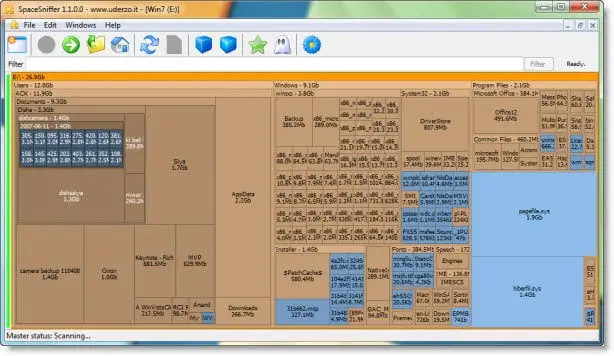
SpaceSniffer is a portable free Disk Space Analyzer software that lets you understand how folders and files are structured on your disks. By using a Treemap visualization layout, you have an immediate perception of where big folders and files are placed on your devices. The Treemap concept was invented by Prof. Ben Shneiderman, who kindly permitted the use of his concept in this tool.
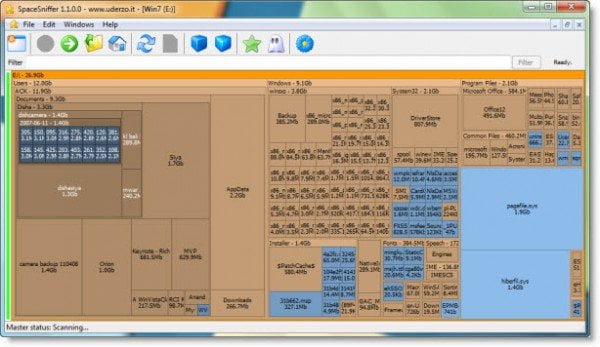
SpaceSniffer for Windows PC
Start a scan process and see the overall situation. Bigger are the elements on the view, bigger are folders and files on your disk. You need more detail on a big folder? Just a single click on it. The selected element will be detailed with its content.
Features:
• Gives you an idea of where big files reside on your disks, even network paths
• Fast and easy to use simple interface
• No useless bells and whistles, only what’s needed to help you find your files
• Lets you easily search with file masks (*.jpg, *.txt … ), by file size (>1mb … ), by file age (<3months … ) and combinations
• File tagging
• Gives access to the Windows files/folders popup menu
• Reacts to external disk modifications, keeps always in sync, warns you about external modifications by elements blinking
• Intuitive navigation with animated zooming effects, even during the scan process
• Multithreaded scanning engine with smart caching system to minimize disk access
• Lets you focus and complete the scanning on a zoomed portion of your disk even if the master scan is in progress
• Can scan NTFS Alternate Data Streams if needed
• Customizable interface: geometry, colors, behaviors
• It doesn’t clutter your registry, only a plain XML configuration file
• It’s portable, no installation required, just put the executable somewhere and let’s go. You can keep it in your flash key ready to be used.
The scan progress will be displayed on the main window. This is a real-time display of the scan operation. As you can see, a lot of rectangles appear on the screen. The live animation is a treat to watch!
If you want to examine an element in deep, just left-click once on it, and you will start digging. You can dig into folders until you reach a file element.
If you wish, you can zoom into a folder element by double-clicking it.
You can download Space Sniffer from its home page.
The Disk Footprint Tool in Windows will let you carry out several tasks about Disk Space usage. You can take snapshots, summaries, analyze disk usage, anonymize, compare growth over time using disk growth study and more.
Disk Savvy, Disk Space Fan, Better Directory Analyzer and Saleen File Pro may also interest you!