
The earlier versions of Windows OS had the Mouse Pointer Shadow enabled by default. While some found this feature visually pleasing, others found it of no use – and yet some others wanted to increase performance by saving that bit of resource – and they, therefore, looked for a way to disable the mouse pointer shadow. In Windows now this feature is disabled by default – and then there are again people wanting to re-enable the Mouse Pointer Shadow.
Disable or enable Mouse Pointer Shadow in Windows 11/10
To begin the process, search for ‘Control Panel’ in Start search and open it.
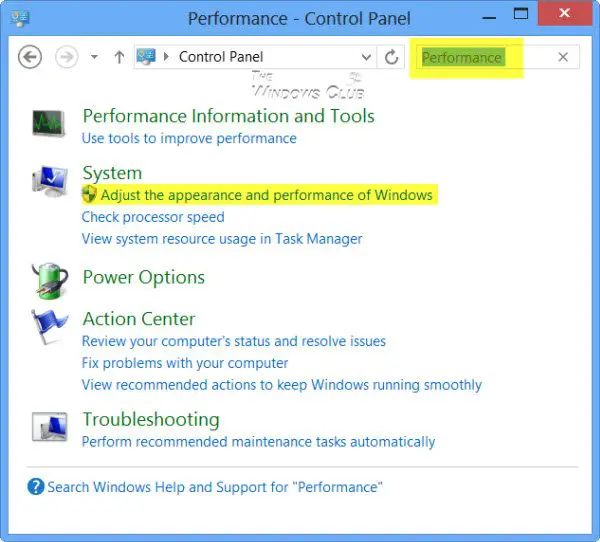
Type Performance in the search bar and from the search results displayed, select Adjust the appearance and performance of Windows.
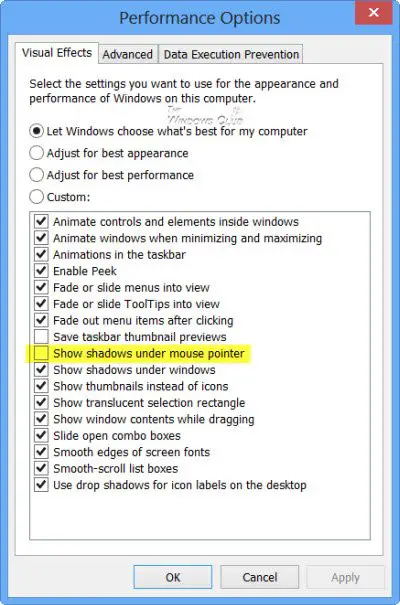
In the ‘Performance Options’ window which opens, you will be able to select the settings you want to use for the appearance and the performance of your Windows computer. To enable the Windows Mouse Pointer Drop Shadow feature, check the Show shadows under mouse pointer feature and click Apply/OK.
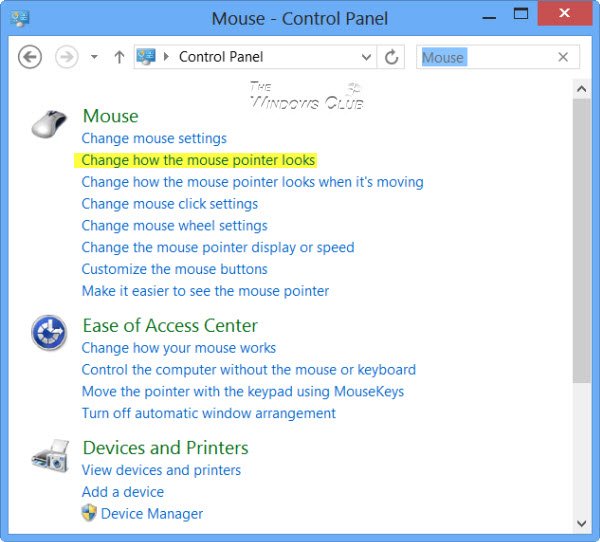
This will open the Mouse Properties box. Select Enable pointer shadow and click on Apply.
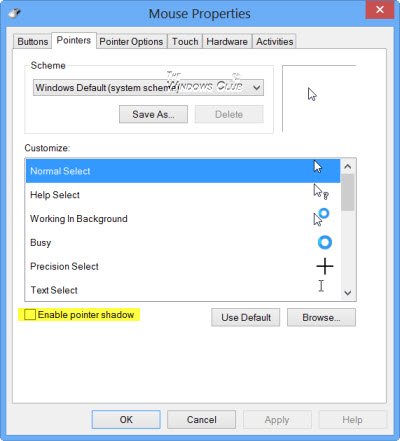
That’s it! You will have now enabled the shadow on Mouse Pointer of your Windows 10/11 desktop or tablet.
TIP: This post will show you how to remove the shadow effect from Explorer windows and Drop shadows for icon labels.
Why did Microsoft remove the mouse pointer shadow?
While there is no official documentation, Microsoft probably did so probably because, in remote sessions, the responsiveness of the mouse pointer to the user is said to be much higher, without the shadow. I cannot think of any other reason why Microsoft decided to disable just this feature in Windows 11/10. Saving that bit of resource, could not be a reason, in my opinion.
If you have any ideas on this, please do share.
Need more Mouse tips? Read this post on Mouse Tricks For Windows.

