
The Outlook (new) app in Windows 11 by default adds the ‘Sent from Outlook for Windows’ signature to every email you send. If you feel it is very simple in nature and would like to modify it or change it to your liking, read this post. It will help you edit the Outlook (new) app Signature in Windows 11/10.
How to change Email Signature in new Outlook app of Windows 11/10
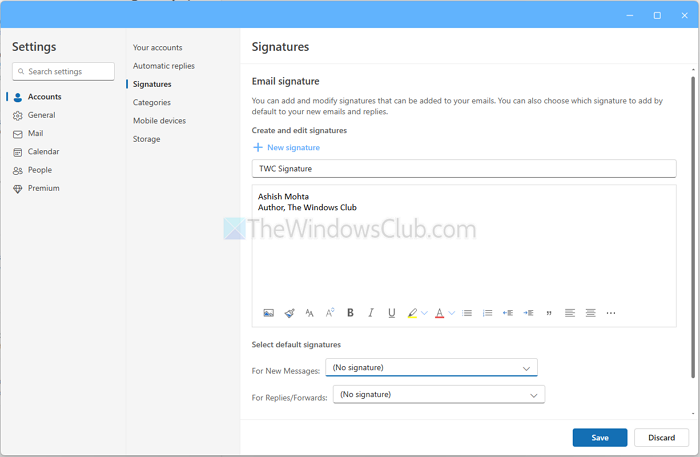
By editing the new Outlook app settings, you can change the default ‘Sent from Outlook for Windows 11/10’ signature and add your own text. Here’s how you should proceed:
- Launch the Outlook app.
- Click on the Cog icon from top-right (Settings).
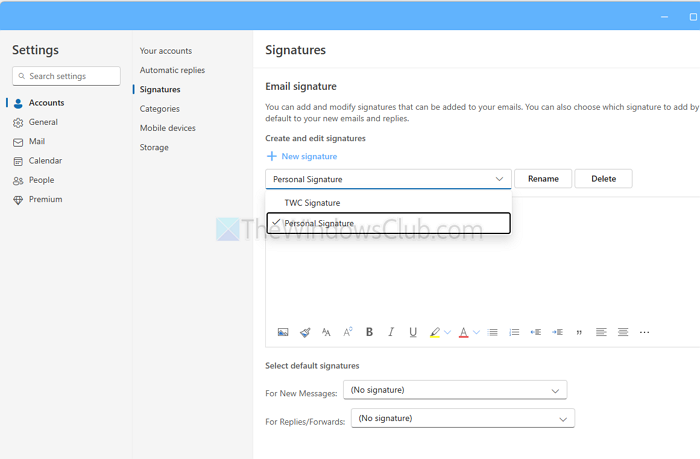
- Go to Accounts > Signature
- Select the signature you want to modify.
- Change the line of text you wish to modify.
- Press the Save button.
Since there is no setting to turn off the signature, you can select nothing under the “Select default signature”, that way, the Outlook (new) app will never add a signature unless you manually add it.
How to add a signature to an email in Outlook Mail?
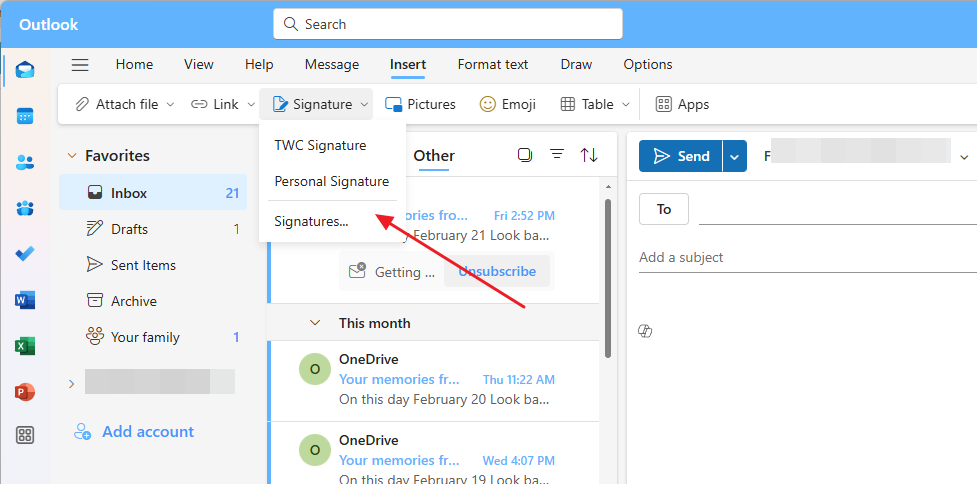
One of the ways is to set the default signature that we discussed above. Let’s learn how to do it when you are done writing an email.
- Place your cursor where you want to add your signature.
- Click on Insert menu > Signature
- Click on the Signature you want to add, and it will appear right away.
How to change Email Signature in Windows Mail app
By editing the Mail app settings, you can change the default ‘Sent from Mail for Windows 11/10’ signature and add your own text. Here’s how you should proceed-
- Launch the Mail app.
- Select Settings.
- Scroll down to Signature entry.
- Change the line of text you wish to modify.
- Hit the Save button.
- To choose when to download an email, select an account.
- Under Change mailbox sync settings, click Options for syncing your content link.
- Configure desired options under Download new content and Download email from the drop-down menu.
Alternatively, if you do not want to add any signature to your Mails, you can simply choose to disable the Use email signature option by selecting the account from Manage Accounts settings.
Launch the Mail app and select Settings icon from the lower-left corner of the app screen.
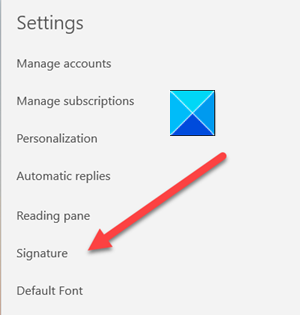
When the Settings window opens, scroll down to Signature entry.
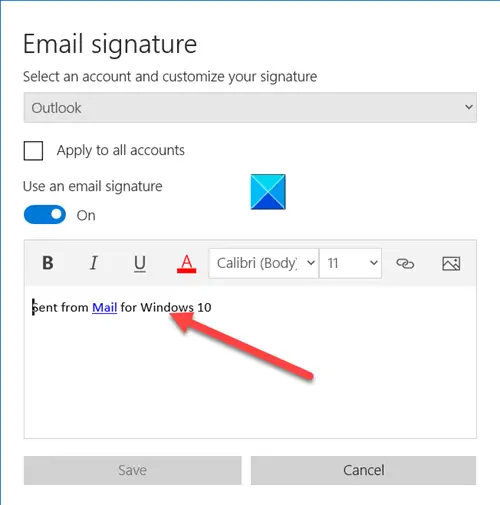
Next, in the Email Signature window that opens, place the mouse cursor near the Signature line.
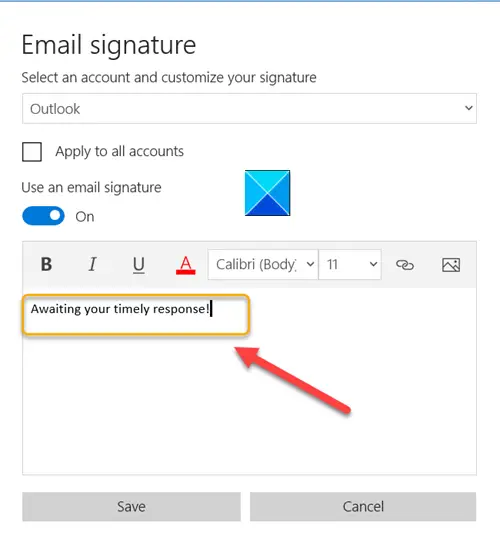
Delete the line of text to add your own description and when done, hit the Save button.
When to download new emails in the Windows Mail app
If you would like to configure other options like When to download new content or emails, select your account.
Then, under the Account Settings window, click the Options for syncing your content link.
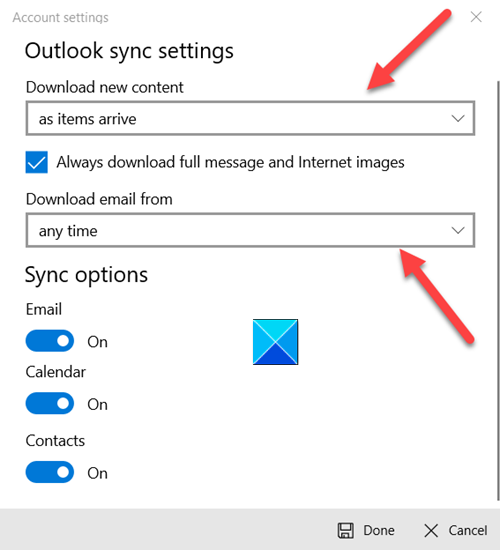
When the Outlook sync settings window appears, configure the desired option under the following drop-down menus.
- Download New Content
- Download Email From
That’s all there is to it! I hope you find this information useful.
