
Unwanted parts of files, folders, and registry keys are many times left behind, even after you uninstall a program using the Control Panel, Settings, or the program-specific uninstaller on your system, thereby leading to clutter. Moreover, they cannot scan the system for leftovers, and over time the clutter may build up, leading to system errors.
Free Uninstallers for Windows 11/10
If you are looking for a better program uninstaller for your Windows computer, you might want to check out these free uninstaller software for Windows 11/10 PC.
1] Revo Uninstaller Freeware
One of the best-known and most popular uninstallers for Windows, this utility provides a faster, alternative interface to the standard Windows Add/Remove Programs dialog. Revo first shows the icons and titles of all the programs installed on your machine. Then it scans your system before uninstalling an application and again after the process completes. Besides, it includes many additional cleaning tools.
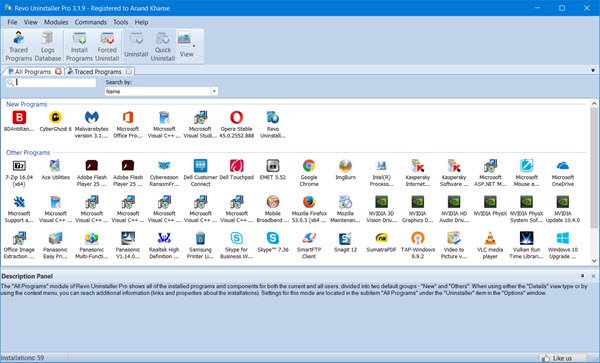
Even if you have an incomplete or broken installation saved, the program scans for an application’s data on hard disk drives and in the Windows registry. Later, it proceeds and displays all detected files, folders, and registry items so you can delete them.
Revo Uninstaller Free completely removes desktop software as well as Microsoft Store apps. It works on Windows 11/10.
2] IObit Uninstaller
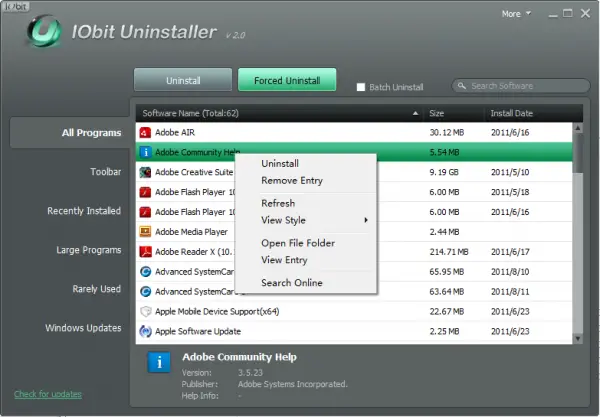
IObit Uninstaller is well-known for its one main characteristic – speed! The program executes quickly and populates the program list immediately.
It not only uninstalls programs from Windows efficiently but even removes the leftover files, folders and registry keys belonging to the uninstalled program. You can even Bulk Uninstall Programs and Apps using this tool.
Before the above action, all programs to be removed are listed with their names, sizes, and installation dates in a sortable column. Then, a simple right-click on any entry in the program listing displays a context menu with the following options:
- Uninstall the program.
- Remove Entry from the listing. This option is useful when the program has already been uninstalled but still hides in the listing as a leftover
- Open File/Folder or search for the program online.
3] Uninstalr
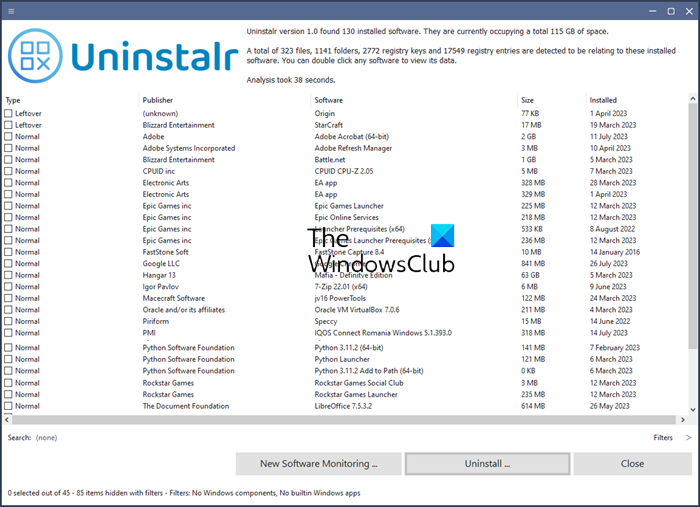
Uninstalr is a good free software uninstaller for Windows computers. It can also uninstall multiple apps at once. Before the uninstallation process begins, you will see all files and registry keys the program has created on your system. After uninstalling the program, the software detects remnants of the previous installation, which you can remove. You can also let Uninstalr monitor your new installations. Download it from uninstalr.com.
4] Comodo Programs Manager
Comodo Programs Manager helps users to remove unwanted programs, drivers, services, and Windows components. The program is smart enough to monitor and record every change it makes to your computer, so it can reverse those changes when it’s time to uninstall.
Comodo Programs Manager provides all guidance and information through a modern-looking interface that is intuitive and helps users easily identify important information through placement, colors, and recognizable icons.
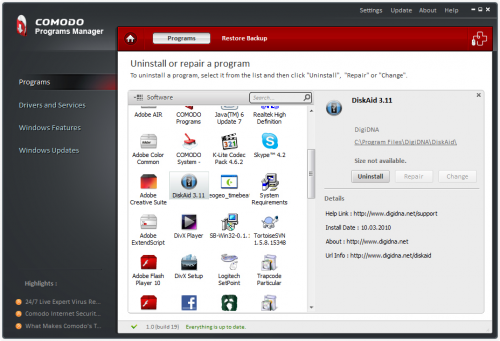
One highlight of the program is that it creates backups of files, folders, data, and registry entries when a program is uninstalled, allowing you to easily restore any program you uninstalled by mistake.
Comodo Programs Manager Features:
- Streamlined user experience
- Remove locked files
- Non-intrusive alerts
- Malware info
- Manage windows updates
- Update applications.
Download it here.
5] ZSoft Uninstaller
The program offers one of the best and easy ways to uninstall stubborn programs. It improves on the standard Windows uninstallation process, helping you remove all traces of the installed program, including registry changes and leftover files. The program can analyze installations. So a user needs to scan his computer before and after the installation to uninstall a particular program.
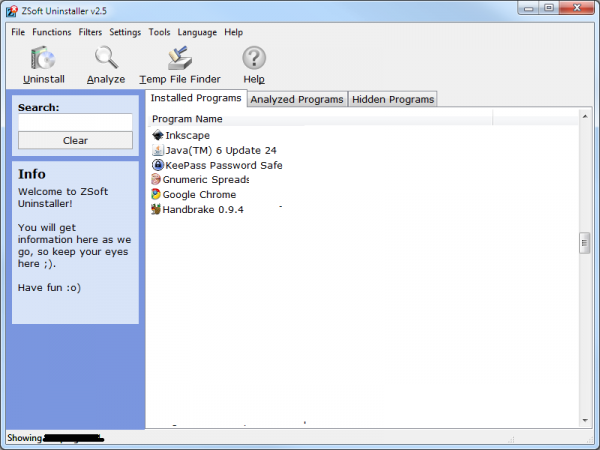
In short, a user must create a before-and-after system snapshot. It then shows exactly where a new file was added or where a file was deleted. ZSoft Uninstaller is even available in a portable version.
Read: Free software to Bulk Uninstall Programs and Microsoft Store Apps
6] Glarysoft Absolute Uninstaller
As the name suggests, Glarysoft Absolute Uninstaller is a program that uninstalls applications completely, which often leaves behind broken registry keys and unnecessary files on the hard disk. It looks very similar to the standard Windows Add/Remove program in action, but is more powerful.
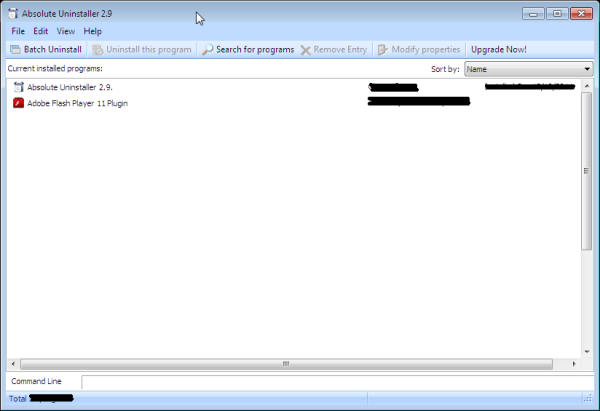
Using Absolute Uninstaller, you get the option to uninstall unwanted applications one by one manually or in batch. You can list the programs by either their names or installation date and easily find out the applications you want to uninstall.
Before deleting applications, Absolute Uninstaller backs up the necessary information, ensuring any uninstallation is restorable. Download it here.
Wait, there are more! Check these out too!
- Geek Uninstaller
- Wise Program Uninstaller
- Any Uninstaller
- UninstallView
- MyInstaller
- HiBit Uninstaller.
Try these free uninstallers for Windows 11/10/8/7, and let us know which one you use. They might help you remove stubborn programs that appear impossible to remove completely.
These links may also interest you:
- How to completely remove unwanted Services in Windows
- AntiVirus Removal Tools for popular AntiVirus programs.
