
Today, when I was browsing my files, I observed that for every folder, in its right-click context menu, there is an option to open it in a new window. I have never used this option. Some of you may find it useful, while some of you may not.
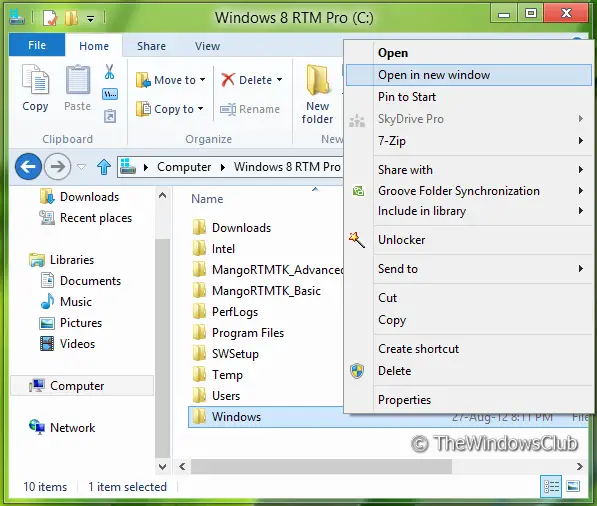
Remove Open Folder in new window context menu option
You can set your folders to open in the same window or in different windows from the Folder Options as follows-
Search for Folder Options in Start Search and open it. Then under the General tab, ensure that this option is selected – Open each folder in the same window.
But if you wish, you can also remove the Open in new folder entry from the context menu in Windows File Explorer.
As I am a big fan of modifying registry entries, I decided to remove this option Open in new window from that Explorer context menu in Windows 10/8. Luckily I found the registry key which manages this option – and finally, I was successful in removing that option. The way which worked for me is being shared below.
Do remember to back up your registry or create a system restore point first so that you can always revert, should you wish to.
Manual Registry Method
1. Press Windows Key + R combination, type Regedt32.exe in Run dialog box and hit Enter to open the Registry Editor.
2. Navigate here:
HKEY_CLASSES_ROOT\Folder\shell\opennewwindow
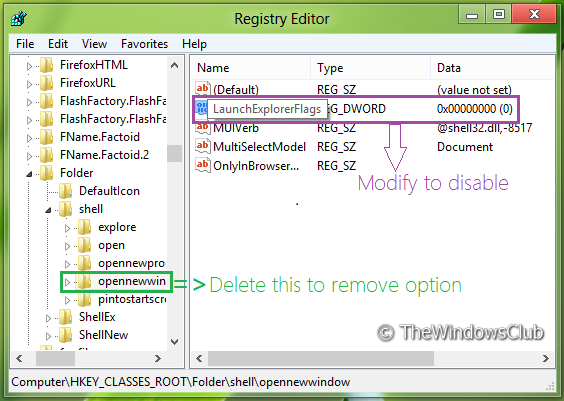
3. Now two cases are possible – either you delete/erase Open in new window option or disable its functionality.
4. If you want to delete that option, simply make a backup of key opennewwindow in the left pane highlighted with green and then delete it. It will remove Open in new window option from the context menu.
5. If you want to simply disable its functionality, look out for the DWORD named LaunchExplorerFlags, in the right pane as shown in the image above.
6. Double click on it or Modify it and use the following data for Value Data section:
- Insert 0 – To disable Open in new window function
- Insert 1 – To Enable Open in new window function (Default)
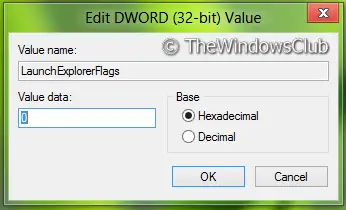
7. Close the Registry Editor, restart explorer.exe and you’ll get to see the results.
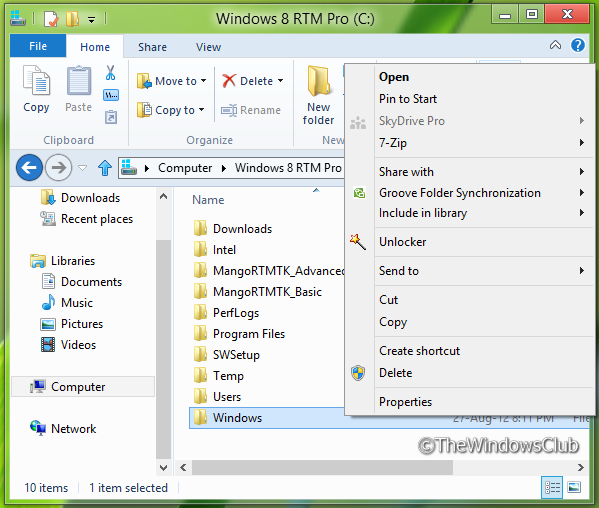
Automatic Registry Fix
If you do not want to follow the manual method, then to help you more we have created a direct registry file fix that can perform the same operations without doing any extra work. You can download it from HERE.
PS: Open in New Process is different from Open in New Window.
How to stop folders from opening in a new window?
- Open File Explorer or Folder Options
- In the General tab click on Open each folder in the same Window
- Click Apply OK.
How to open a folder in a new process?
To open a folder in a new process, in Windows 10, simply press the Shift key and right-click on the folder you wish to open in a new process. From the context menu option, click Open in New Process. In Windows 11, press the Shift key and right-click on the folder you wish to open in a new process. Then select Show more options. Now from the context menu option, click Open in New Process.

