
Over time you may find that your Windows 8 Start Screen may end up displaying a lot of tiles, making it look cluttered and difficult to find program shortcuts. There is no way to display yet smaller size of the tiles. But Windows 8 offers an easy way to group these program shortcuts, so that finding them becomes a lot easier. If you indeed do have many tiles on your start screen, grouping the tiles would be a matter of good-housekeeping to.
Group Tiles on Windows 8.1 Start Screen
If you wish to group the tiles, you will have to first move the desired tiles on the start screen and club them separately.
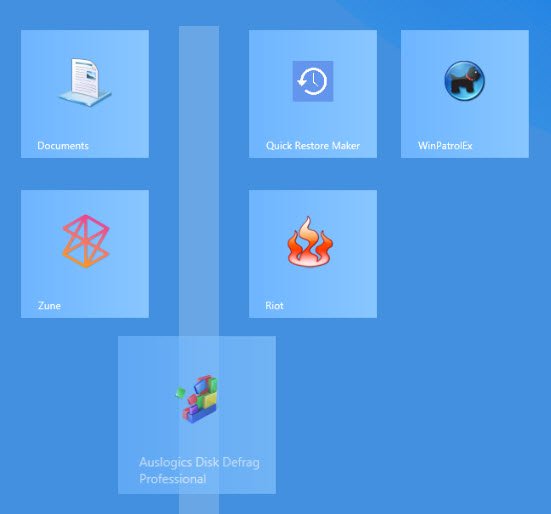
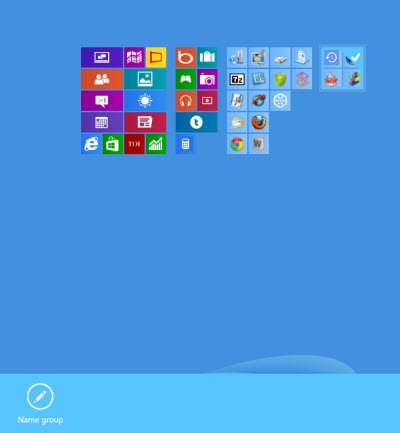
Having done this, move your cursor to the bottom right corner and click on the “-” icon. This will minimize the icons and zoom out the start screen.

Now right-click on the group of icons you wish to club together and name as a group. At the bottom, you will see the option to Name Group.
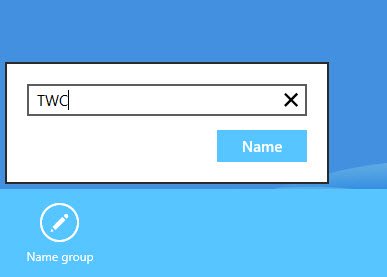
Click on it and in the dialog box which appear, enter the name and click on Name.
You will see th tiles clubbed together in a group. here I have clubbed 4 tiles together and named it as TWC.
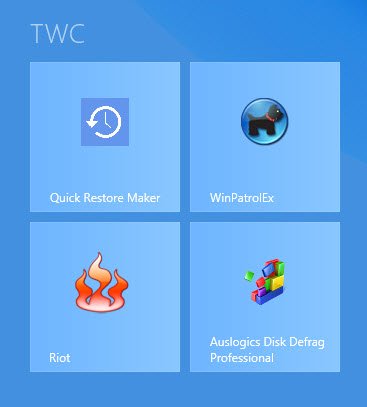
You could similarly create more than one group, as per your requirement.

