
Windows 11/10/8/7 has some native capabilities which make it more effective and useful when you are using it on the touch-enabled devices like Tablet PCs or Touch Smart PCs. Windows has an application called, Windows Journal, which lets you convert the ink that you write with the pen tool to typed text, which can be used in other programs or in a note.
In Windows 11/10, Windows Journal has been removed. But if you wish to use it, you can still download it from Microsoft. The links have been given towards the end of this post.
This can be very useful when you want to use information from your handwritten notes in a program that requires or prefers typed text. It gives you the power to free yourself from keyboards to input any text in your word processors also. The handwriting recognition engine of Windows 7 is much powerful and sufficient enough to correctly recognize your handwriting and also gives suggestions according to them.
Convert Handwritten Notes to Text using Windows Journal
1. Click on Start, search for Windows Journal, and open it.
2. On the Pen toolbar, tap the Selection Tool. (If you are using it for the first time then you have to install the Journal Note Pen driver).
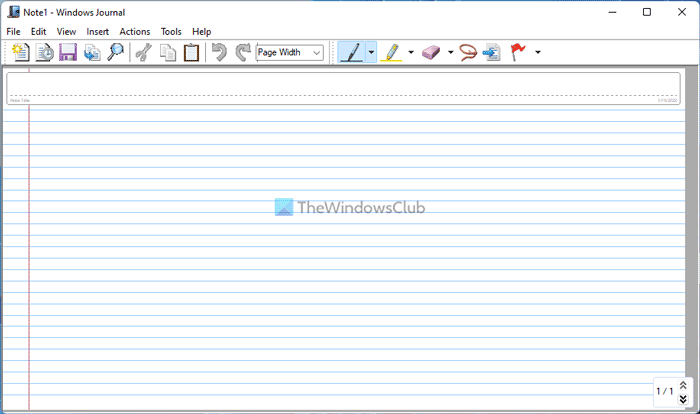
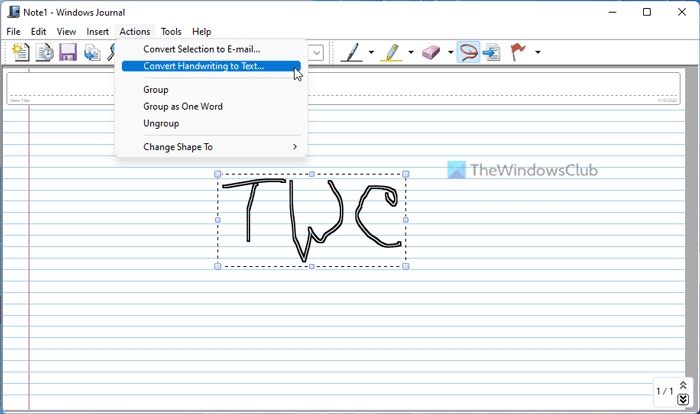
3. Draw a loop around the handwriting that you want to convert.
4. Tap the Actions menu, and then tap Convert Handwriting to Text.
5. In the Text Correction dialog box, tap Options.
6. Tap to select or clear the Preserve line breaks from notes option.
7. If your selection consists of several lines, these lines are preserved in the Converted text box and in the output text. Select this option if line breaks are important, such as in a list or in a poem. Clear this option if line breaks are unimportant.
8. In the Converted text box, tap any word that is recognized incorrectly. If a word is marked with a green background, it’s likely that you need to correct it. The handwriting that corresponds to the word appears in the Ink from the note box. The handwriting is also selected in your note to provide context for the text that you are correcting.
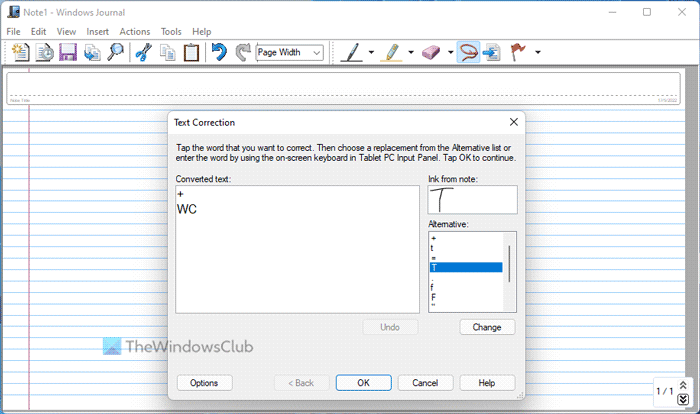
9. To correct the recognition error, look for the correct word in the Alternative box. If you find it, tap the word, and then tap Change. If you don’t find the correct word, you must enter it using the keyboard or Tablet PC Input Panel, and then tap OK.
10. In the next prompt of the Text Correction dialog box, select one of the following options:
- Copy to the Clipboard: This option allows you to paste your text into another program. The handwriting on your note remains unchanged.
- Insert in the same Journal note: This option inserts your converted text into a text box in your note. Your original handwriting is deleted.
- If you selected the Always copy the text to the Clipboard option already while you were correcting handwriting in the past, this dialog box doesn’t appear and your converted text is automatically copied to the Clipboard.
11. Tap Finish.
- If you chose to copy your converted text to the Clipboard, you can paste the text into any program.
- If you chose to insert your converted text into a text box, the original ink is deleted and the new text box is inserted in its place.
TP: Journal from Microsoft Garage gets instant lasso, a new music staff page style, etc, to help you ink your notes.
Download Windows Journal for Windows 11/10
| Windows 10 x86 | Download. |
| Windows 10 x64 | Download |
Important Tips:
- You can change the settings for handwriting recognition by tapping the Tools menu, tapping the Options dialog box, and then tap the Other tab.
- If you want to convert all of the handwriting on a page to text, tap the Edit menu, and then tap Select All to first select all of the handwriting.
- Journal is unable to convert ink that was written with the highlighter tool.
How do I convert handwriting to text in Microsoft notes?
To convert handwritten notes to text in OneNote, you need to copy the text from a picture. OneNote comes with an option called Copy Text from Picture. You need to use this option to get things done. First, you need to import the picture, right-click on it, and select the corresponding option from the context menu.
Does Windows 11/10 have handwriting recognition?
No, Windows 11 and Windows 10 do not have any handwriting recognition option by default. However, they come with OneNote, which does the job pretty well. To use OneNote to recognize the handwriting, you can follow the aforementioned guide.

