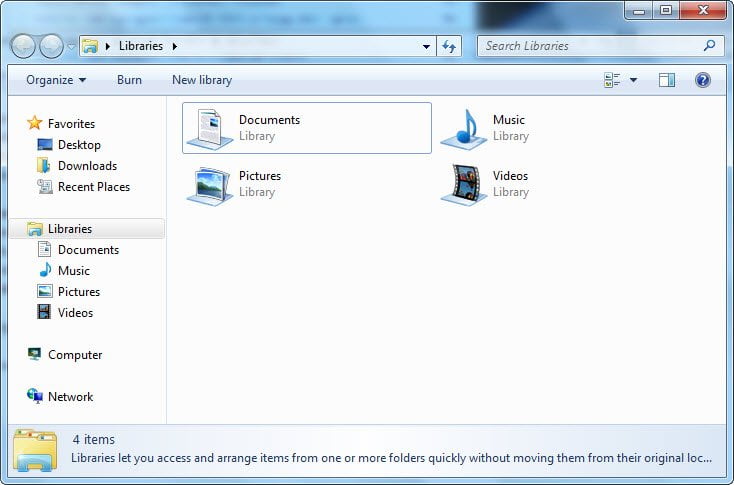
In Windows 7 the default location to which Explorer opens is the Libraries folder which contains your Documents. Type explorer.exe in Start Search and hit enter to see where it opens!
But if you don’t like this and want your Explorer open to the My Computer location, as used to be done in the earlier versions of Windows, you can have it set so.
NOTE: Windows 11/10 user? You can make File Explorer open to This PC instead of Quick Access.
Make Windows 7 Explorer open the Computer folder
Open Start menu > All Programs > Accessories > Windows Explorer. Right click & select Properties.
In the Target box, you will see: %SystemRoot%\explorer.exe
Copy-paste and change it to:
%SystemRoot%\explorer.exe ::{20D04FE0-3AEA-1069-A2D8-08002B30309D}
Using this command makes explorer open in the Computer folder, and even subsequent folders open in the same window.
Using
%SystemRoot%\explorer.exe /root,::{20D04FE0-3AEA-1069-A2D8-08002B30309D}
opens subsequent folder/s in a different window.
To make the taskbar pinned folder open to Computer folder, instead of Libraries, right-click on its icon and again right-click on Windows Explorer and open its Properties box. In the target box use
%SystemRoot%\explorer.exe ::{20D04FE0-3AEA-1069-A2D8-08002B30309D}
Click Apply > OK.
Your Windows Explorer in Windows 7 will now open at the (My) Computer location.