
Windows 11/10 offers native support for burning .iso images. You can now burn images to disc, without using 3rd party software, as it includes a built-in Windows Disc Image Burner or isoburn.exe.
Can Windows burn ISO to DVD?
Yes! Windows 11/10 has a built-in ISO burner called Windows Disc Image Burner. This tool can help burn an ISO file to a DVD, CD, USB, or BD very easily.
How to Burn ISO image using Windows Disc Image Burner
To use the Windows Disc Image Burner to burn an ISO image in Windows:
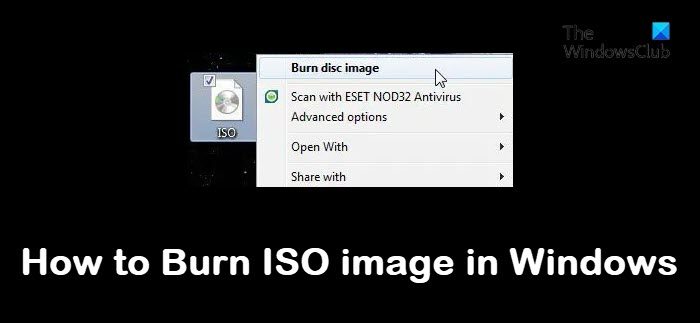
- Right-click on any .iso image
- Select the option to Burn disc image. Make sure that you have inserted your DVD.
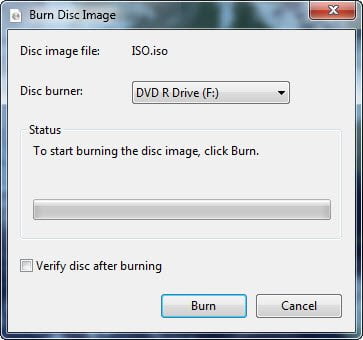
- Clicking on it will open the Windows Disc Image Burner.
- This gives you the option to burn the ISO image to CD or a DVD and to verify the disc after burning it.
- Do check the option to Verify disc after burning.
- Click on Burn.
That’s it!
Fix: A disc burner wasn’t found error.
If you wish, you can also change the burn settings. Right-click on the CD/DVD drive and select Properties and click on Recording tab.
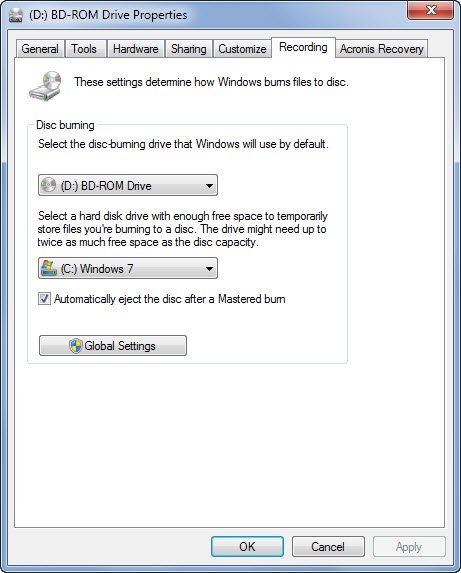
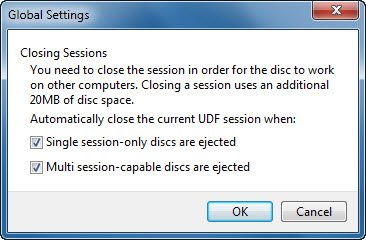
Clicking on Global Settings button will offer you a few more options.
You can also Burn ISO files using Command Prompt.
TIP: These Free ISO Burners for Windows may also interest some of you.

