
If you are already using Windows 11, you might want to make sure your operating system is set to receive the latest Insider Builds on time. If you are not set to receive them, Windows may display a notification in the bottom-right corner of your screen asking whether you want Insider Builds and whether you want to fix the issue. So let us see how to enroll in the Windows Insider Program and get Insider Preview Builds for Windows 11 on your PC.

Register for Windows Insider Program
If you are not enrolled in the Windows Insider Program, go here and sign in with your Microsoft Account. Once you have done so, come back to your Settings.
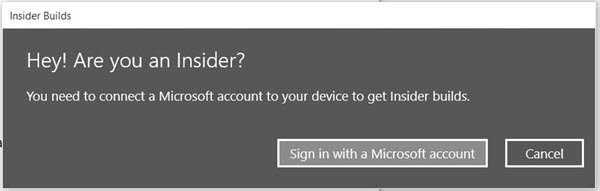
You will next be asked if you want to set up a PIN. While you can always skip this step, it might be a good idea to set up a PIN as it is more secure.
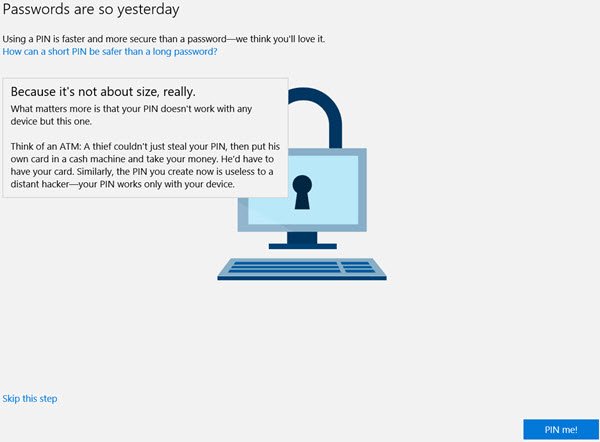
Clicking on the blue PIN me button will open the following screen.
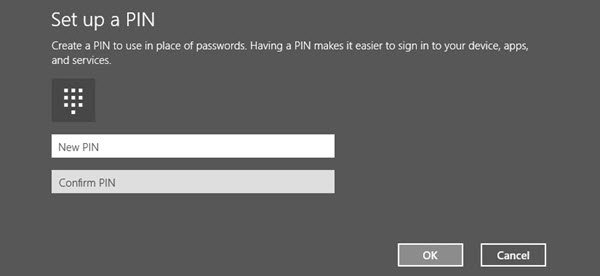
Set up a new PIN, and click OK.
That’s it!
Enable Optional diagnostic data via Windows Settings
Now, before you proceed, ensure that “Optional diagnostic data” is enabled in Settings > Privacy & security> Diagnostics & feedback.
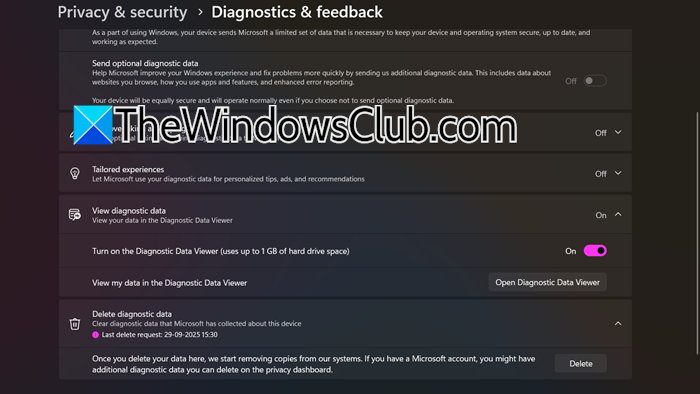
Now you can sign up and enroll for the Windows Insider Program.
How to Join Windows Insider Program
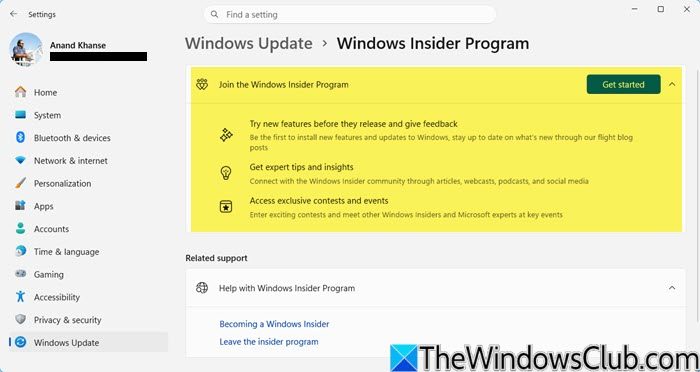
To sign up for and join the Windows Insider Program in Windows 11, take these steps:
- Press Win+I to open Windows Settings
- Open Windows Update settings from the left side
- Under More options on the right side,select Windows Insider Program
- Next, select Get Started and link your Microsoft account.
- Finally, choose your Insider Channel:
- Dev Channel: Earliest builds, most experimental.
- Beta Channel: More stable, closer to public release.
- Release Preview Channel: Safest, almost final builds.
- Restart your PC to apply changes.
On the restart, the bits will start downloading.
To get the latest builds at all times, make sure you are signed in to your Windows 11 with your Microsoft Account.
If at any time you wish to stop receiving the Insider Builds, click on Stop Insider Builds. You can, of course, choose to leave the Windows Insider Program at any time.
This post will help you if you receive Your Microsoft account requires attention to get Insider Preview builds.
TIPS:
- Learn how to switch to Windows Insider Canary Channel.
- You can also join Windows Insider Program without a Microsoft Account.
Related reads:
-
- Windows Insider Programs for Business and Server
- How to join OneDrive Insider Preview Program
- How to enroll for Office Insider Fast Level Program
- How to join Microsoft’s Early App Preview Program
- How to join Xbox Insider Program
- How to join Microsoft Edge Insider Program
- Windows Insider Program for IT Professional and Businesses.
