
Be it a site that provides free email service, online shopping, or an online banking site, all of them demand a username and password. While using the same username and password for all the sites is JUST NOT a good idea; remembering dozens of them isn’t exactly easy either.
So what does one do under such circumstances? Well, there are programs known as password managers, that can save the day for you. These software programs allow you to store your registration-related information in a secure electronic form. To log in to a site you just need to enter a single master password that allows retrieval of the specific password information for that site.
The information is then used by the password manager to automatically log in. This helps in assigning different passwords to individual sites, eliminating any need to remember them and therefore adding more security.
Best Password Managers for Windows 11/10
If you are looking for a free password manager software, check out our list of some of the best free password manager software for Windows 11/10/8/7.
- LastPass
- LockCrypt
- KeePass
- Password Safe
- RoboForm
Let us take a look at them in detail.
1] LastPass
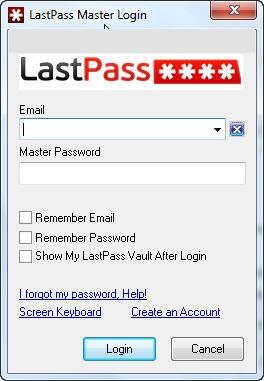
To make your web browsing easier, and more secure the free LastPass password management program offers easy access from anywhere. It uses high-class encryption algorithms to keep your data secure and safe in every manner. The key to decrypt the data is available only to you, which means your information never travels over the Internet or touches servers. You can download it here.
LastPass Features:
- Creates strong passwords
- Stores unlimited passwords
- Automatically fills out forms for you, thereby saving time
- Manages your data from multiple computers seamlessly
- Supports Internet Explorer, Opera, Chrome, Safari, iPhone, Opera Mini, via Bookmarklets
- Ability to import passwords from other password managers such as Roboform, Keepass, PasswordSafe,
- In Windows, helps you recover lost passwords stored on your computer.
2] LockCrypt
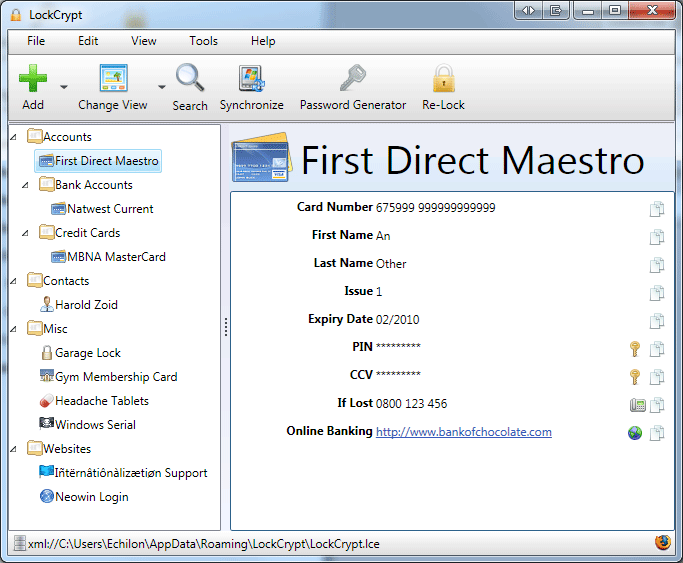
LockCrypt is another fine password manager for Windows. The program provides a secure, central database to store your passwords, telephone numbers, and accounts related information. Different view modes enable quick sorting of accounts based on a name, type, or the creation or modified date.
LockCrypt uses Cipher Block Chaining and AES encryption that scrambles the information you enter, so it is of no use to anyone without the password. Besides, it includes a password generator that generates passwords up to 511 characters in length. Go get it here.
LockCrypt features:
- AES or TwoFish encryption to provide secure storage for data.
- Password generator
- Secure clipboard to protect passwords
- Windows mobile version for PDAs and Smartphones
- J2ME version for Java-capable mobile phones
- Groups to help keep accounts organized
- Support to export to XML, CSV, HTML or Plain text files
- Easy to use drag and drop interface
- Print output
3] KeePass
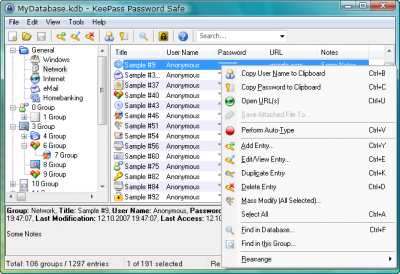
This free, open-source password manager puts all your passwords in one database, which is then locked with one master key or a key file. KeePass Password Safe is quite simple to use.
You are just required to follow the onscreen menu, enter a Website’s information and its corresponding username and password.
The entry then automatically gets stored in an alphabetical directory with all your other entries.
KeyPass features:
- Highly encrypted databases
- Requires no installation
- Strong random password generator
- Consumes less memory
- Compatible with Windows OS
- Supports master passwords and key-disks
- Easy database transfer
- Time fields and entry attachment support
- Auto-type, global auto-type hotkey combination, and drag-n-drop support
- Multi-language support
- Open-Source!
4] Password Safe
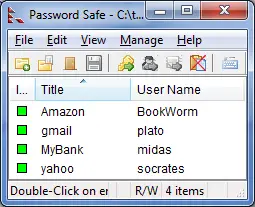
With over 1 million downloads registered, Password Safe has become the ultimate choice for many users. It helps you to safely and easily create a secured and encrypted user name and password list. You can choose to store all your passwords in a single encrypted master password list (an encrypted password database) or use multiple databases to further organize your passwords.
The free Windows utility uses Two fish encryption algorithm, a fast, free alternative to DES, and can be downloaded here.
You can use Password Safe to store:
- Web site passwords
- Credit card and PIN numbers
- Computer login passwords
- Telephone banking codes
- Email passwords
- Software access passwords
- Door entry and alarm codes
5] RoboForm
One of the very popular passwords and online form managers and probably one of the oldest, RoboForm is an easy to use freeware that can remember numerous passwords and usernames.
RoboForm offers two advantages
- It uses strong Encryption algorithms like BlowFish and AES for complete security and protection.
- Creates a Master password to remember a set of passwords.
- Very useful and feature-rich browser toolbar.
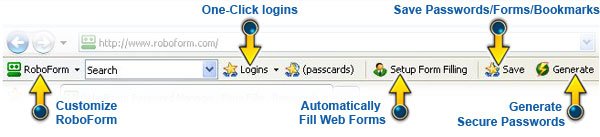
The robust and top-rated password manager is compatible with Internet Explorer, Firefox, AOL, and many other browsers. Installing RoboForm takes only a few minutes, and it does not require installation of any additional software. Available here. It is available in 2 versions, free and Pro. The former version has some limitations.
Thus, if you want to avoid the hassle of remembering dozens of passwords and usernames, you could try out one of these free password managers for Windows 10/8/7. If you have any favorites, please do share them for the benefit of others.
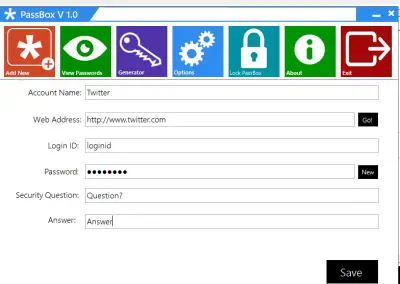
Our PassBox is another fine password manager & generator that you may want to check out.
You might also want to check out some more:
- Sticky Password
- LessPass Password Manager
- Google Password Manager
- F-Secure KEY Password Manager
- SuperEasy Password Manager
- Trend Micro DirectPass Password Manager
- Dashlane Password Manager
- Avira Password Manager
- True Key Password Manager
- SafeInCloud Password Manager
- Bitwarden
- Enpass Password Manager
- Kaspersky Password Manager
- KeeWeb
- NordPass
- Zoho Vault Password Manager.
In a day or two, I will list down some of the better free online password managers and discuss why some prefer to use them instead of these desktop versions.

