
Sometimes when you shut down your Windows 7 PC, it gets stuck halfway and is not able to complete the shutdown process successfully, or sometimes your computer may not be able to restart successfully. And when you restart your computer again manually, it will show a screen with different startup options. One of the options you see will be Last Known Good Configuration or LKGC.
Last Known Good Configuration in Windows 7
Last Known Good Configuration stores important systems and registries every time you turn your computer off and Windows shuts down successfully. If a problem occurs, you can restart your computer using those settings. For example, if a new driver for your video card is causing problems, or an incorrect registry setting is preventing Windows from starting correctly, you can restart your computer using Last Known Good Configuration.
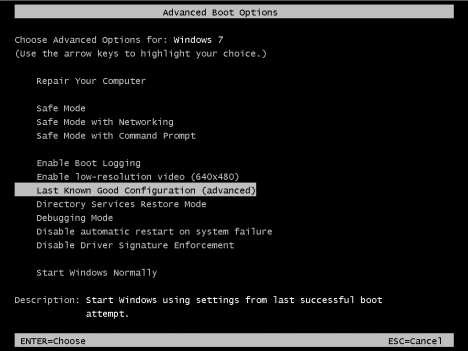
If you happen to be in a situation where you are unable to boot into your Windows operating system normally, your system may have encountered a damaging change to the system’s registry prior to its last shutdown or reboot. In order to troubleshoot the issue, you have the opportunity to boot into the Last Known Good option by hitting F8 during the boot process.
Try using Last Known Good Configuration if you can’t start Windows normally. There is a caveat – your computer must have started normally the last time you turned it on.
It only affects system settings and won’t make any changes to your personal data. In the same regard, it won’t help you recover a deleted file or a corrupted driver.
When you start your computer by using the Last Known Good Configuration feature, Windows restores information in the following registry key:
HKEY_LOCAL_MACHINE\System\CurrentControlSet
To use Last Known Good Configuration, follow these steps:
1. Remove all floppy disks, CDs, and DVDs from your computer, and then restart your computer.
2. Do one of the following:
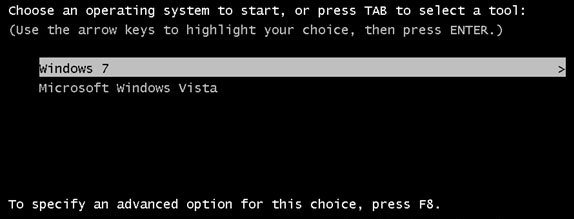
- If your computer has a single operating system installed, press and hold the F8 key as your computer restarts. You need to press F8 before the Windows logo appears. If you miss it, restart your computer again.
- If your computer has more than one operating system, use the arrow keys to highlight the operating system you want to start, and then press F8.
3. On the Advanced Boot Options screen, select the Last Known Good Configuration (advanced) and then press Enter.
Wait for few minutes, now Windows will resume itself to the state when it was working fine before you made any nuisance changes.
If Last Known Good Configuration is not working or reverting using the Last known good configuration does not help you, you can try System Restore, a System File Check or a Repair Install on your Windows.
Windows 10/8 does not have the Last Known Good Configuration feature enabled as it offers a better option like Automatic Startup Repair.

