
Windows Task Manager does not allow you to kill multiple processes in a single click. At times it may fail to terminate a particular process or malware. If you wish to Kill multiple Processes or Tasks you see in the Task Manager of Windows 11/10, then these freeware can help you.
When an application or a window freezes and becomes unresponsive, ending the task using the Task Manager is a go-to method. This works fine in many cases.
Sometimes, a program you are running might have many sub-processes. In the event of unresponsive behavior, we must manually terminate all processes using the Windows Task Manager. What if, there is a solution in the form of an application, that ends all the process and sub-process at once with a single click?
Interesting right? Several tools can do this. They can kill all the processes that you want to kill. Let’s see how we can utilize these applications to complete all tasks simultaneously.
Kill multiple Processes of Task Manager
1] Killer
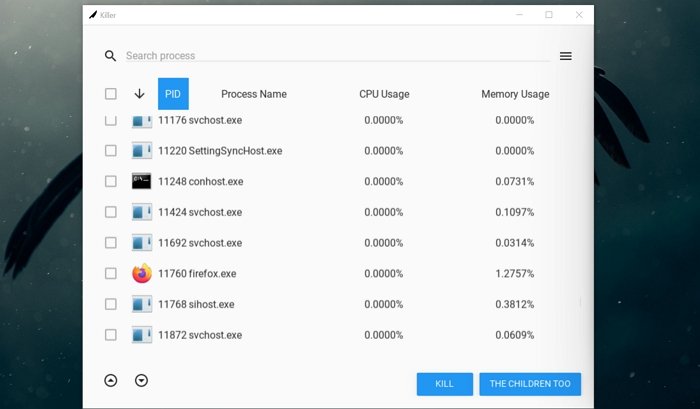
To get started, download the killer app and install it on your computer. Open the application using the Ctrl+Shift+K shortcut or by double-clicking on the Killer app icon on your desktop.
In the program, search the process you need to end or kill and select it by checking the box beside the program. After selecting, click on KILL at the bottom of the window to kill a single task or click on THE CHILDREN TOO to end all the tasks created by the program you want to kill.
The program has great features to kill the tasks that are unresponsive or that take time to manually kill to speed up your computer. You need not worry about the application’s safety, as it is an open-source application with its code publicly available on the internet.
The next time you want to end a task on your Windows 10, use Killer Application instead of Task Manager. The app is not a heavy one and occupies a minimal or negligible space of your hard drive.
You can download the Killer App from Github.com.
2] Ultimate Process Killer
Ultimate Process Killer is another portable freeware tool that scans the current processes in a Windows computer with the parent file path.
You can terminate the process & delete the originating file. This tool will also help to delete the virus process with the Parent virus file which is running the process.
Read: How to force close a Program which Task Manager cannot terminate.
3] KillProcess
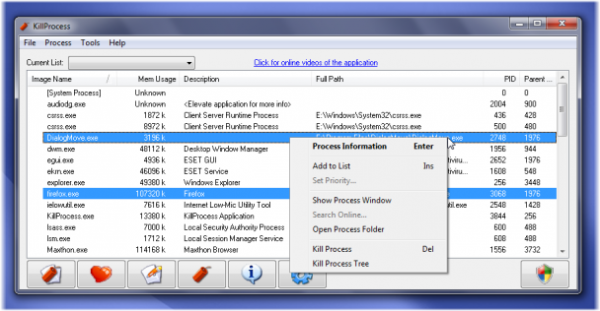
KillProcess is a freeware portable application assassin of the extreme kind. It can terminate almost any process on a Windows machine, including any service and process running in the system. To select multiple processes, press Ctrl key, and select.
This free tool can terminate even protected Microsoft system processes. It does all of this in milliseconds.
Read: Terminate or Kill ALL running processes or open applications instantly.
4] Multi-Process Killer
Multi-Process Killer lets you kill many processes at once by selecting the checkboxes next to the processes you want to kill and press the kill selected processes button You can download it here.
TIP: This post will show you how to Kill Processes using Command Prompt.
How to end multiple tasks at once in Windows?
To end multiple tasks at once in Windows, open Task Manager by pressing Ctrl-Shift-Esc. In the Applications tab, hold Ctrl and click each program you want to end. Then, right-click any selected program and choose “End Task” to close them all simultaneously.
How do I end all instances of a program?
To end all instances of a program, open Task Manager by pressing Ctrl + Shift + Esc, find the program under the “Processes” tab, right-click it, and select “End Task.” This will close all running instances of the application.
