
Windows includes a powerful command-line tool called PowerCFG that is very useful in troubleshooting Power Plans. Moreover, this tool, Power Efficiency Diagnostic Report Tool, will also allow you to enable and disable devices. In this article, we will learn how to use PowerCGF to find out the health of your laptop battery.
The OS includes a “hidden” tool that analyzes your laptop’s power usage, generating a report and offering suggestions to improve battery efficiency. In this post, we will see how you can generate a Battery Health or Energy Report with Power Efficiency Diagnostic Report Tool in Windows 11/10.
How to use Power Efficiency Diagnostic Report Tool in Windows 11
How to generate Energy Report in Windows 11
To run the Power Efficiency Diagnostic Report Tool, run CMD as an Administrator.
At the command line, type in the following:
powercfg /energy
This will save the Power Efficiency Diagnostic Report in the following location C:/Windows/System32/ with name energy-report.html.
You can also give it a specific name by using the following command:
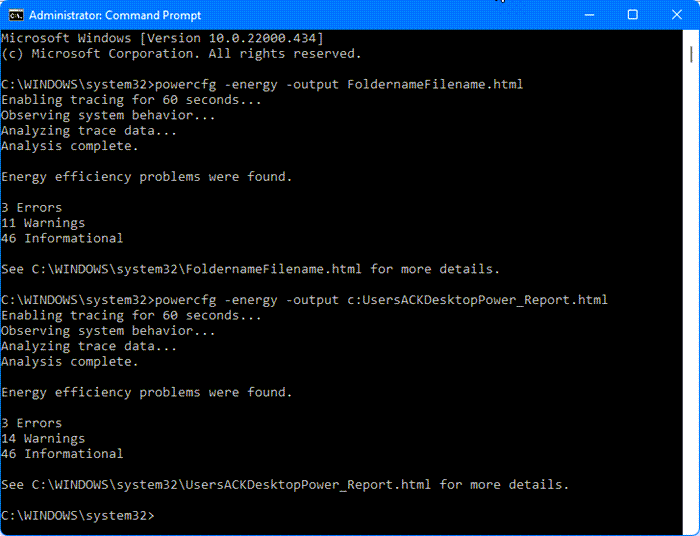
powercfg -energy -output FoldernameFilename.html
To save mine on the Desktop as PowerReport.html I used:
powercfg -energy -output c:UsersACKDesktopPowerReport.html
Once you execute this command, for about 60 seconds, Windows will trace, observe & analyze your laptop and generate an HTML report at the location you specify.
The default duration for the report is 60 seconds, but you can increase it with the /duration command.
To change the duration, add the time in seconds to the command line.
For instance – powercfg /energy /duration 120. This will run the energy report for 2 minutes.
The Energy Report covers system efficiency diagnostics and is generated when you run powercfg /energy and contains the following details:
- Warnings about misconfigured Sleep timers, USB devices blocking sleep and other related settings
- Diagnostics on devices and drivers that prevent power-saving features
- Energy efficiency analysis of your computer system.
How to open and read the Energy Report in Windows 11?
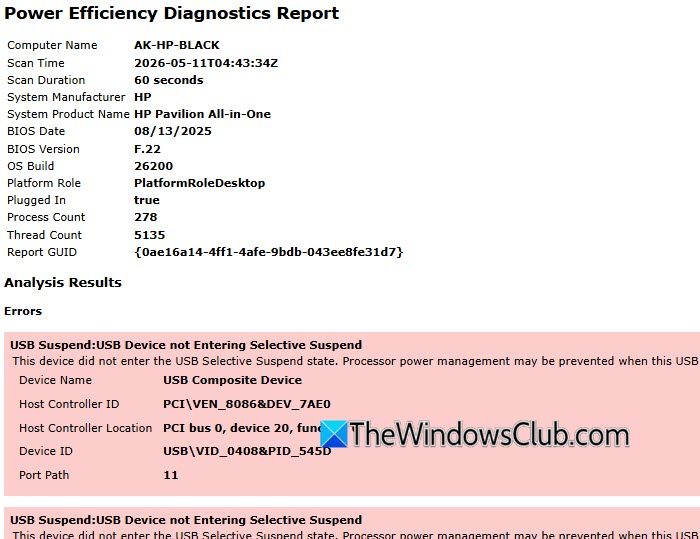
The Energy Report contains information about your computer’s energy efficiency, and you can open it in your browser. You will see it saved here by default:
C:\Windows\System32\energy-report.html
Click on it to read it in your browser. The Errors will be shown in Pink and the Warnings in Yellow.
Read: How to run System Diagnostics using System Information Tool?
How to generate Battery Report in Windows 11
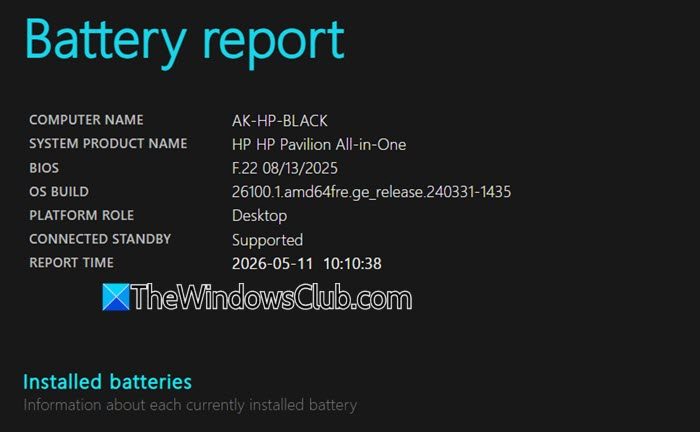
To generate the Battery Report, run CMD as an Administrator.
At the command line, type in the following:
powercfg /batteryreport
This will save the Power Efficiency Diagnostic Report in the following location C:/Windows/System32/ with name battery-report.html.
You can also give it a specific name by using the following command:
powercfg -energy -output FoldernameFilename.html
To save mine on the Desktop as BatteryReport.html I used:
powercfg -energy -output c:UsersACKDesktopBatteryReport.html
Once you execute this command, for about 60 seconds, Windows will trace, observe & analyze your laptop and generate an HTML report at the location you specify.
The default duration for the report is 60 seconds, but you can increase it with the /duration command.
To change the duration, add the time in seconds to the command line.
For instance – powercfg /batteryreport /duration 120. This will run the energy report for 2 minutes.
The Battery Report covers battery health and usage history and is generated when you run powercfg /batteryreport and contains the following details:
- Usage history and charge/discharge cycles
- Battery life estimates based on usage
- Battery design capacity vs. Current full charge capacity
- Logs of recent battery sessions.
In my case, the Design Capacity was 5200 whereas the Last Full Charge showed 4041 – which is almost 22% lower than the originally designed charge. If your battery shows around 50%, you may expect it to last only a few more months.
How to check Battery Health in Windows 11 laptop
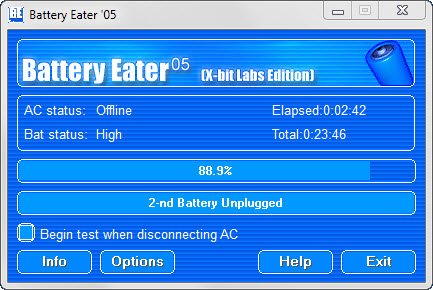
Some freeware tools will help you benchmark or monitor your Windows laptop battery. BatteryEater is a testing tool designed to reveal a notebook battery pack’s potential.
BatteryCare is another freeware that will optimize the usage and performance of the laptop’s battery. It monitors the battery’s discharge cycles and helps increase its autonomy and improve its lifetime. BatteryInfoView will display information about your battery.
Related: BatteryReport not working, fails with unexpected errors 0x422, 0xb7 or 0x10d2.
What is the difference between Energy Report and Battery Report in Windows?
If you want to monitor your battery’s long-term health, see how much capacity has degraded, or estimate how long it will last on a charge, generate the Battery Report.
If you want to troubleshoot why your laptop isn’t entering sleep mode properly or to identify hardware/software draining power unnecessarily, generate the Energy Report.
